
How to create a product in the Member Shop

Tobias Gundry
Updated
A product is a physical item your members can buy and collect from one of your studio locations. Digital products are not permitted, and the form carries a standing notice saying so. This guide walks the form field by field, and flags the choices that are difficult to reverse afterwards.
Before you start
- At least one studio location. Stock is counted separately at each pickup location, so a product cannot exist without one. If you have none yet, the form tells you to create one first. See set up and manage your studio locations.
- Owner or Setup access. The Shop screens are only available to staff on those roles.
Open the product form
Go to Products → Shop. If you already have products, Create Product sits in the top right of the listing; if the shop is empty, the button is in the middle of the page.
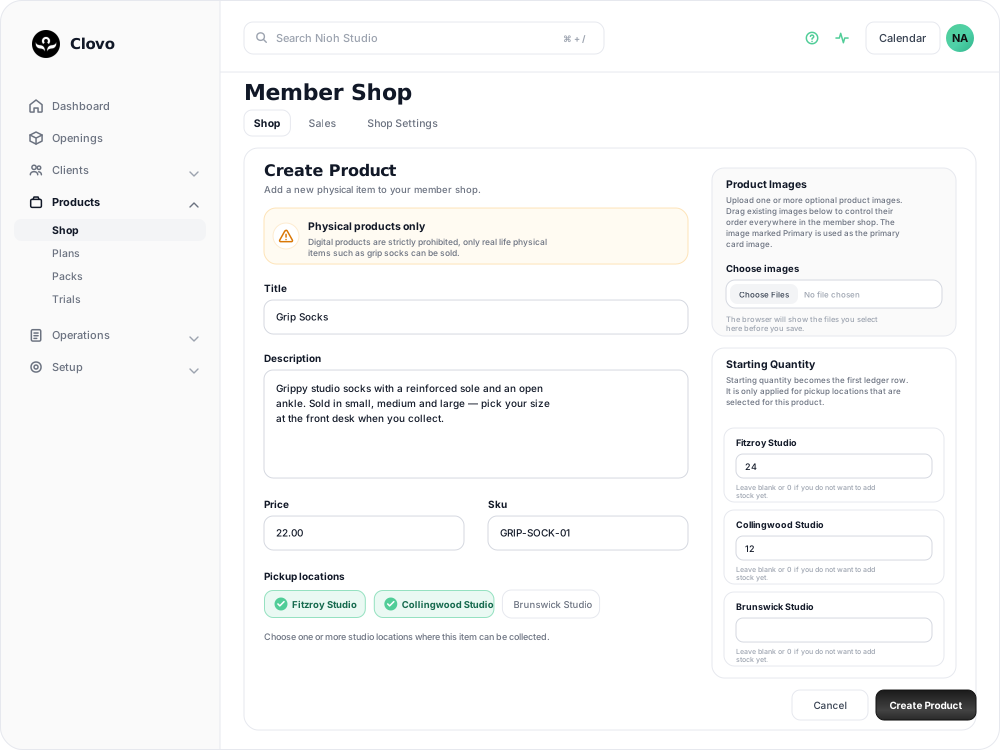
The form is one screen. The left side holds the product's details, the right side holds images and opening stock.
Title and description
Both are required — the form will not save without them. The title can run to 255 characters and the description to 8,000.
The description carries whatever a member needs in order to decide: materials, sizing, colours, what is included.
Price
Enter the amount on its own, without a currency symbol — 22.00 for a $22 item.
The lowest price the shop accepts is $5.00. Anything under that is rejected when you save, and the form comes back with the amount you entered still in place.

Sku
Optional, up to 100 characters, and only ever seen by your staff. Use it if you already track merchandise by code elsewhere — GRIP-SOCK-01, BOTTLE-BLK. Leave it blank if you do not.
Pickup locations
Select every studio location that will stock the item. At least one is required.
Select the pickup locations with future stock changes in mind. They become the collection points a member picks from at checkout, and each one keeps its own stock count. You can attach a further location later, but once stock has been recorded at a location you cannot detach it — an attempt to save without it comes back with a message naming the location and explaining that stock has already been recorded there.
If you are unsure whether a second studio will carry the item, start with the location that definitely will and add the other later.
Starting quantity
Enter a starting quantity for each pickup location you selected.
Each location accepts up to 10,000 units. Leaving a location blank or at 0 creates the product with nothing on hand, which is a reasonable choice if the delivery has not arrived yet — the product is listed straight away but shows as out of stock until you add some.
Starting quantity is a one-time opening balance. As soon as a location has stock, its field is closed and every later change goes through the inventory adjustment form on the product page.

See managing stock and inventory in the Member Shop for adjusting stock after this point.
Product images
Images are optional but worth adding — a product with none shows a plain placeholder on the card.
Use Choose images to pick one or more files. Accepted formats are PNG, JPG, WEBP and GIF, up to 6 MB and 25 megapixels each. A file outside those limits is refused when you save and the form explains why, so nothing else you have typed is lost.
On the create form you can only choose files. The controls for ordering and removing images appear once the product exists and you reopen it under Edit.
Saving puts the product on sale
Create Product saves the item and opens its product page, where you can review the details and the stock ledger.
There is no draft state, no hide switch and no way to delete a product. The moment you save, it is listed on your landing page and in the Clovo app. If you later want to retire it, let the remaining stock sell down or adjust it to zero — it stays in the listing marked out of stock, and nobody can buy it.
Avoid saving placeholder or test products unless you are comfortable leaving them visible as out of stock.
Edit an existing product
Go to Products → Shop, open the product, then select Edit.
- Title, description, price, Sku and images can be changed whenever you like. Orders already placed keep the title, description, Sku and price they were sold at, so nothing you change here alters a past sale.
- Pickup locations can be added freely. Removing one is blocked once stock has been recorded there.
- Existing images appear as a grid on the edit form. Drag them, or use the Earlier and Later buttons, to set the order; the first image is marked Primary and is the one used on product cards. Remove deletes an image after a confirmation.
Related articles
Managing stock and inventory in the Member Shop
The Member Shop includes a complete stock management system that tracks inventory separately for each of your studio locations. Every stock change is recorded in a detailed ledger so you always have a clear history of what happened, when, and why.
Tracking and fulfilling Member Shop sales
Read the Sales tab, mark an order as picked up, and choose whether every paid sale also creates a task for your staff.
Sell a shop product to a client at the front desk
Take a Member Shop product through POS Purchase: choose the pickup location, take the card payment, and know what reaches the member afterwards.
Getting started with the Member Shop
What the Member Shop sells, where members see it, and what has to be in place before your first product goes on sale.