
Managing stock and inventory in the Member Shop

Tobias Gundry
Updated
The Member Shop includes a complete stock management system that tracks inventory separately for each of your studio locations. Every stock change is recorded in a detailed ledger so you always have a clear history of what happened, when, and why.
Viewing your stock levels
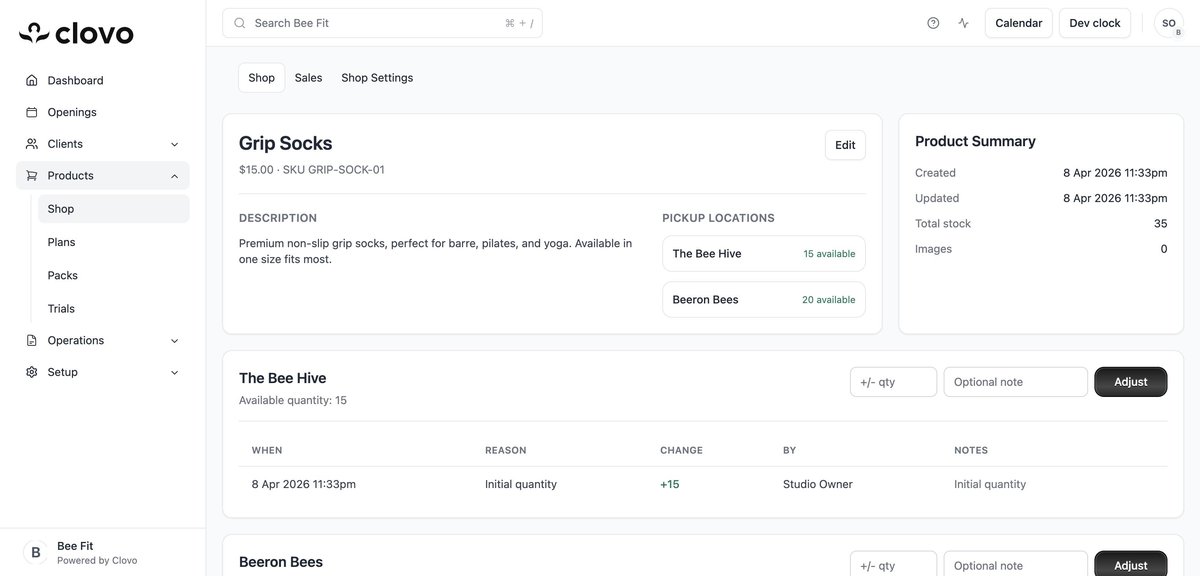
To check stock levels for a product, go to Products > Shop and click on the product. The product detail page shows the Pickup Locations section with the current available quantity at each location. The Product Summary sidebar on the right displays the total stock across all locations.
On the shop listing page, each product card also shows stock levels per location as small badges at the bottom of the card, giving you a quick overview without having to open each product.
Adjusting stock quantities
Below the product details on the product page, you will find a stock adjustment section for each pickup location. To adjust stock:
- Find the location you want to adjust
- Enter the quantity change in the +/- qty field. Use a positive number to add stock (e.g. 10) or a negative number to remove stock (e.g. -5)
- Optionally add a note in the Optional note field to record why you are making the adjustment (e.g. “New shipment received” or “Damaged items removed”)
- Click the Adjust button to apply the change
The available quantity for that location will update immediately, and a new entry will be added to the stock ledger.
Understanding the stock ledger
Each pickup location has its own stock ledger that records every change to the quantity. The ledger displays the following columns:
- When — The date and time the stock change occurred
- Reason — The type of change, such as “Initial quantity” when the product was first created, “Manual adjustment” for stock corrections, or “Sale” when a member purchases the item
- Change — The quantity that was added or removed (shown as +10 or -3 for example)
- By — Who made the change, such as “Studio Owner” or a staff member’s name
- Notes — Any notes that were added when the adjustment was made
Setting initial stock for new locations
When you create a product, set the starting quantity for each selected pickup location. If stock has not arrived yet, leave the quantity at 0 and add it later from the product detail page.
Tips for managing inventory
- Adding a note to each manual stock adjustment gives you a record of the reason later
- Check your stock levels regularly, especially for popular items, to ensure you do not run out
- Use the stock ledger to identify patterns in sales and plan restocking accordingly
- Stock is tracked per location — a product can be in stock at one location and out of stock at another
Related articles
How to create a product in the Member Shop
Work through the product form field by field, including the $5.00 minimum price, the pickup locations you cannot detach later, and the fact that a saved product cannot be deleted.
Tracking and fulfilling Member Shop sales
Read the Sales tab, mark an order as picked up, and choose whether every paid sale also creates a task for your staff.
Sell a shop product to a client at the front desk
Take a Member Shop product through POS Purchase: choose the pickup location, take the card payment, and know what reaches the member afterwards.
Getting started with the Member Shop
What the Member Shop sells, where members see it, and what has to be in place before your first product goes on sale.