
Written by Tobias Gundry
The business of boutique business doesn’t always go to plan. A walk-in comes in off the street and ends up attending a mat session. A regular client stays for a class that isn’t on their usual plan. These are times when you may need to go back in history and add a booking after the fact.
Use this guide when a client attended a class but their booking was not recorded.
There are two different corrections:
- Add a missing booking when no booking record exists. This can happen if a client attends a class without having booked.
- Assign a period when the booking exists but its membership claim is not linked to a period. This has likely occurred because a booking has been added for a client who attended before purchasing their plan.
Add a missing booking
Find the class
- Go to Classes.
- For a class that has already happened, select Past Openings.
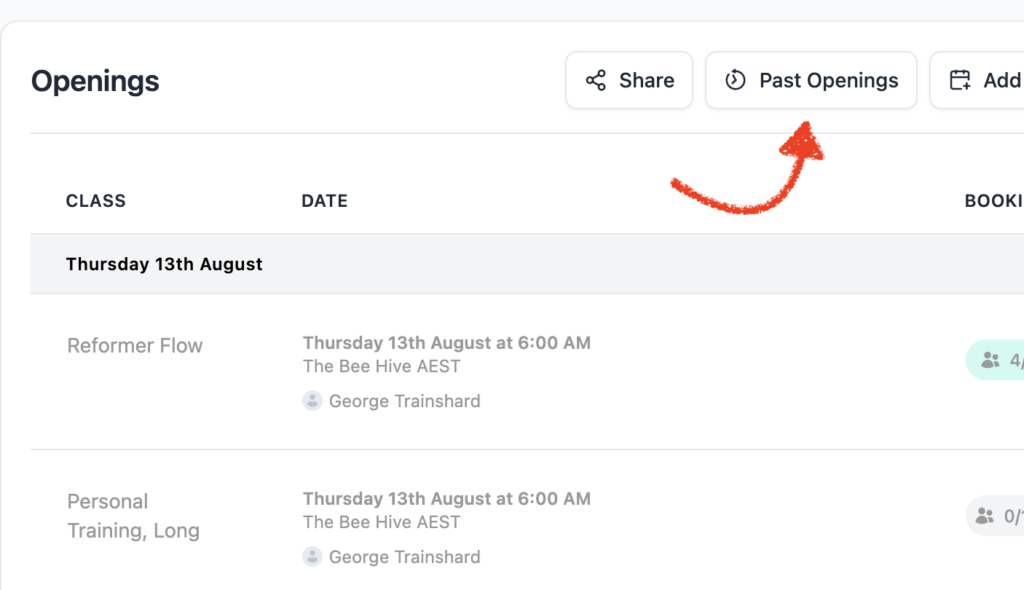
Add the missing booking
- Open the relevant class opening.
- Select Add Missing Booking.
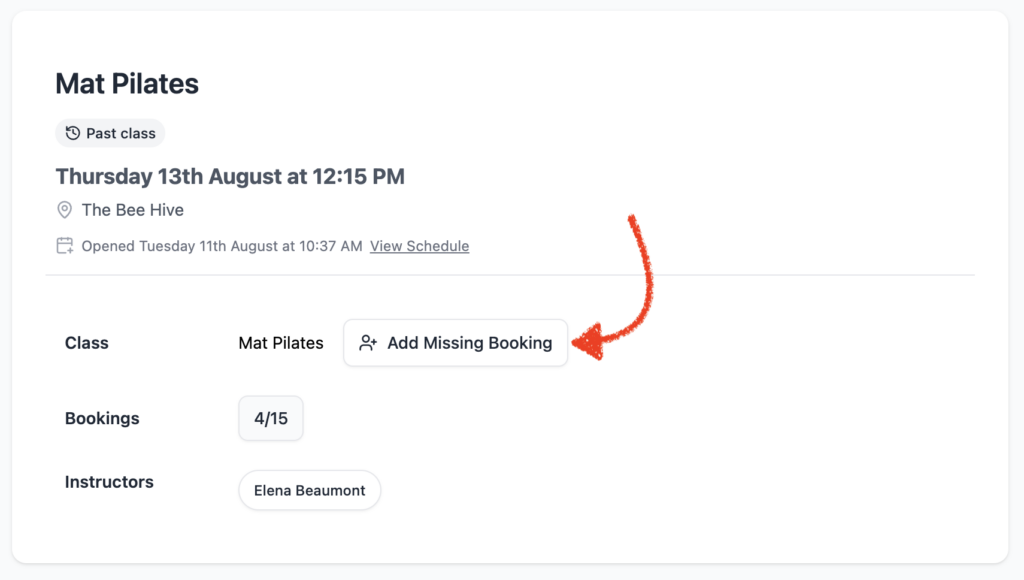
If the class ran at full capacity, Add Missing Booking is disabled. This prevents the recorded attendance from exceeding the class capacity. If the class was full, check the existing bookings and reservations before making any other change.
Select who was booked
- Choose the client’s account owner, or choose the relevant profile if the booking was for a child, friend, family member, or another profile.
- Select Continue.
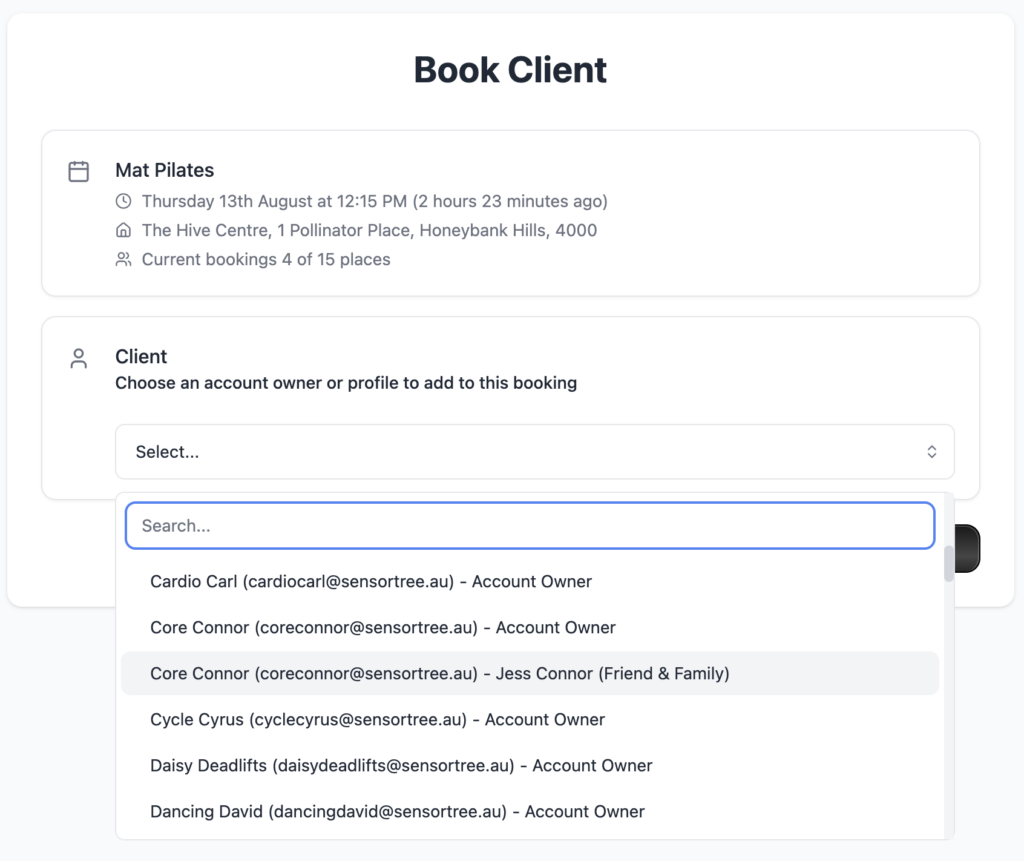
Choose how the booking was paid for
On the payment screen, choose the option that matches what happened:
- Select the membership or pass that should have been used, then select Book. This creates a membership booking and deducts the appropriate credit.
- Turn on Complimentary? when the class should be recorded as free and no membership credit should be used.
- Use Force booking? only when staff have deliberately authorised an override, such as correcting a booking that was blocked by a normal capacity, eligibility, or booking-window rule. A forced booking can bypass normal limits, so use it carefully.
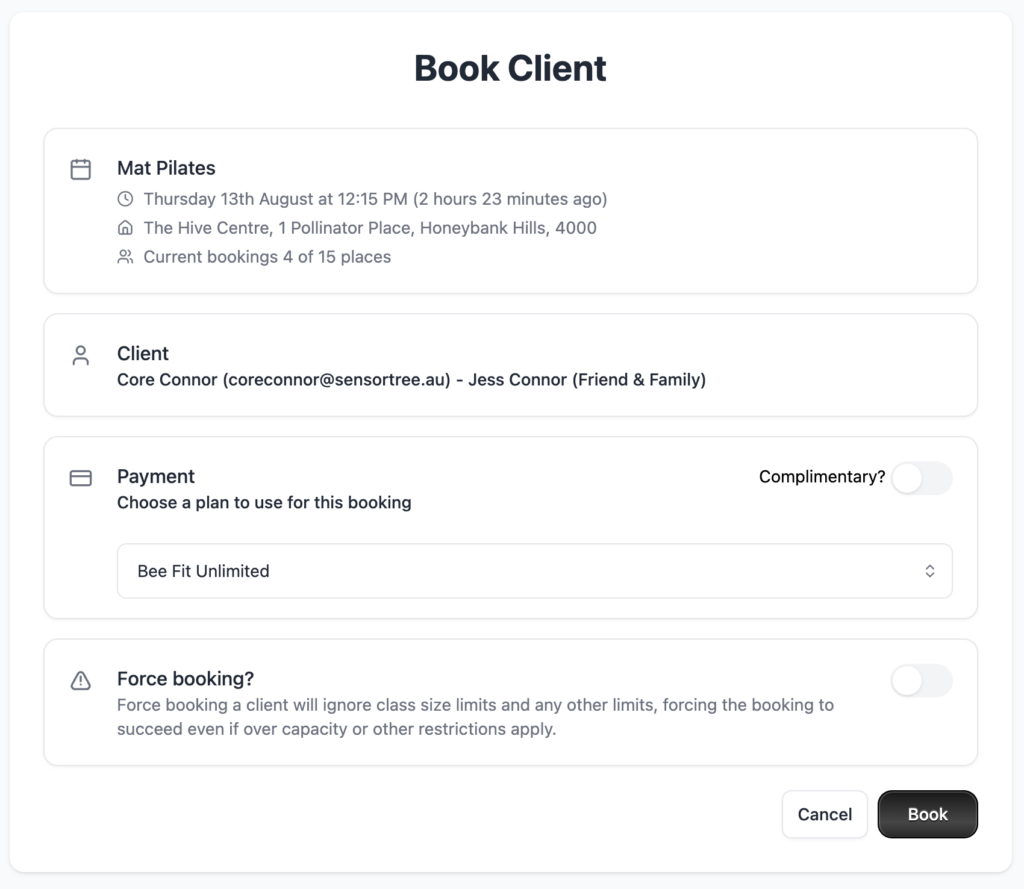
After the booking is created, open it from the class booking list and check the Booking method and Period fields.
Why a membership booking may have no period
A membership booking can exist without a period when the booking was made “on credit”. This happens when the class did not fall inside a membership period that existed at the time of booking. The booking can still be valid, but its claim has not yet been attached to a usage period.
Common causes include:
- The client attended a class first and purchased a membership afterwards.
- Forced bookings can also expose this situation: forcing a booking can bypass other booking limits, but it does not automatically invent a membership period.
Bookings that should not have a period
Do not try to assign a membership period to these booking types:
- Complimentary bookings: no membership credit was used.
- Direct payment bookings: the client paid for that class separately.
- Super credit bookings: a super credit was used instead of a membership claim.
These bookings do not use a membership period, so a missing period is expected.
Assign the missing period to an existing booking
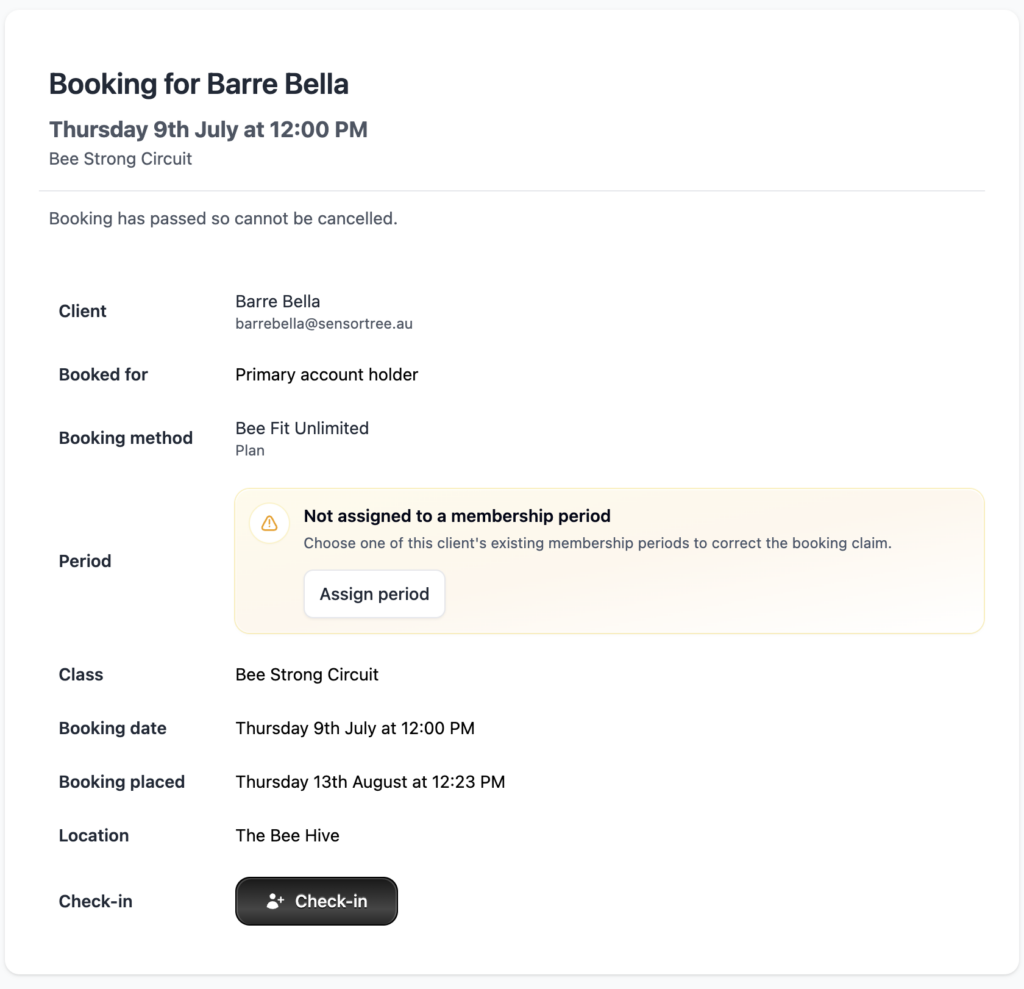
You can only use this process when the booking is membership-backed and the Period field says Not assigned to a membership period. Otherwise the assign period button will not show.
- Open the booking details. You can reach it from the class opening’s booking list, the client’s booking history, or the main Bookings list.
- In the Period row, confirm that the warning says Not assigned to a membership period.
- Select Assign period.
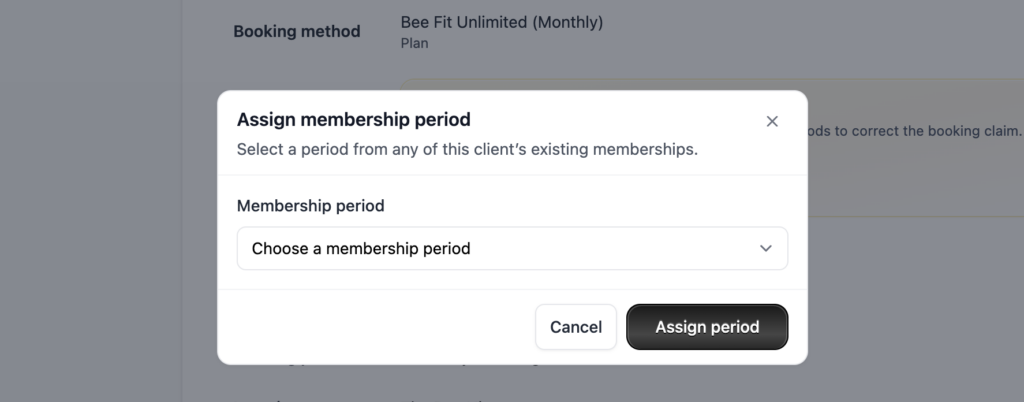
- In the Membership period selector, choose the correct period. The options show the membership plan and the period’s start and end dates.
- Select Assign period to save the correction.
Choose the period that matches the membership the client used and the class date. If more than one membership or period is listed, check the plan name and dates carefully before saving.
When the assignment succeeds, the booking shows the period dates and plan instead of the warning.

What assigning a period changes
Assigning a period:
- links the existing membership claim to the selected membership period;
- marks the claim as belonging to that period rather than remaining on credit;
- updates the membership allowance used for the claim; and
- records the correction in the studio activity/feed history.
It does not create a second booking, take a new payment, or send a new booking confirmation to the client.
If no period is available
If the warning appears but there is no Assign period button, the client has no existing membership period available to choose. Check the client’s membership and payment history first. The booking screen can only assign an existing period; it cannot create a new membership period.
-
Location in Clovo
-
Estimated Time To Complete
15 -
Information For
Studio Owner -
Platform Components
Clova Studio, Clova iOS, Clova Android -
Last Updated
August 13, 2026 -
Need more help?
Get in touch hello@clovo.au
