
Recover a failed membership renewal payment

Tobias Gundry
Updated
Use the failed renewal queue when a recurring membership payment did not clear. This queue is for membership renewals; a first-time Direct Purchase payment that captured but did not create a booking follows the separate paid-booking refund workflow.
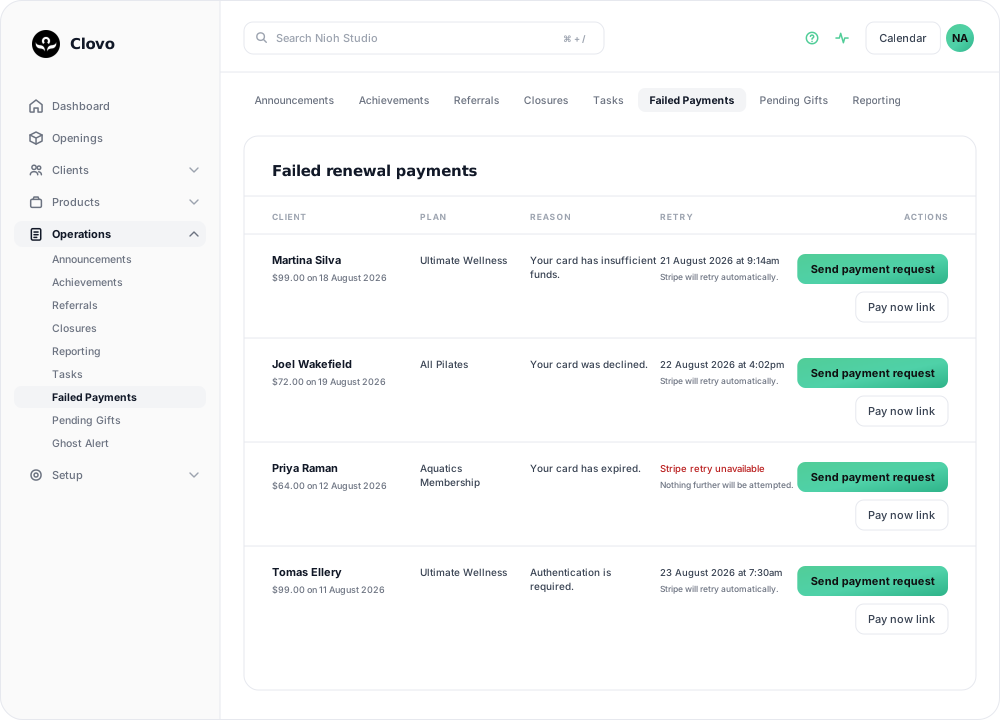
Open the failed renewal queue
You need Finance or Owner access to open this queue and send payment requests. Staff or Setup alone does not provide access. The same requirement applies to failed-payment recovery controls on client and membership screens. See Staff roles and permissions.
- Open Operations → Failed Payments.
- Find the client and membership plan. Check the amount, failure date, reason, and next retry date.
- Read whether Stripe will retry automatically.
If Failed Payments is missing from Operations, ask an owner to check your Finance role.
Read the reason, then decide
The Reason column shows Stripe’s response and helps you decide whether to wait for an automatic retry or contact the client:
- Your card has insufficient funds — may resolve on Stripe’s next automatic retry. Check the retry date before contacting the client.
- Your card was declined or Your card has expired — the card will not work on retry either. Ask the client to update their payment method.
- Authentication is required — the client needs to approve the charge with their bank.
The Retry column shows whether Stripe has scheduled another attempt. If it has, you will see the date and Stripe will retry automatically. If it says Stripe retry unavailable, your team will need to contact the client or decide how to handle the membership.
Ask the client to update payment details
- Select Send payment request on the failed renewal row.
- Tell the client to use the request to update or replace their payment method.
- Check the queue again after Stripe retries the payment.
Pay now link opens the same Stripe-hosted invoice in your browser, which is useful when you want to share the payment page with a client directly.
The row leaves the queue automatically once the payment goes through.
For a client replacing a card in the iPhone app, see Help a client update their payment method. Saving a new method does not confirm that the overdue renewal has been paid.
When the payment is still unresolved
Contact the client to agree whether the membership should continue, be paused, or be cancelled. If you keep it active, consider how you want to handle the outstanding balance and the next retry.
To prevent further bookings while the payment is outstanding, turn on Block membership on a failed payment. The hold is removed automatically when the payment clears.
For a paid class booking, use the client’s payment record instead. If a Direct Purchase card payment was captured but the booking failed, open the client’s payments in Clovo and refund it there.
Related articles
Change the address shown on invoices
Choose your business address or a studio location as the From address on new client invoices and receipts.
Wait for BECS Direct Debit payments to clear before issuing plans
BECS Direct Debit payments do not clear immediately. They usually take a few business days to reach your studio and can still fail after the client has checked out.
Record an external payment for a client
Use Offline Purchase to record a membership or credit pack paid for outside Clovo, and set when that access expires.
Let clients book a class without a membership or pack
Turn on Direct Purchase when you want a client to book one class without first buying a membership or credit pack.