
Written by Tobias Gundry
When you add classes to your schedule, Clovo automatically generates openings for your clients to book into. By default, those openings appear the moment our scheduler runs — which might be the middle of the night or some other time that doesn’t suit your studio.
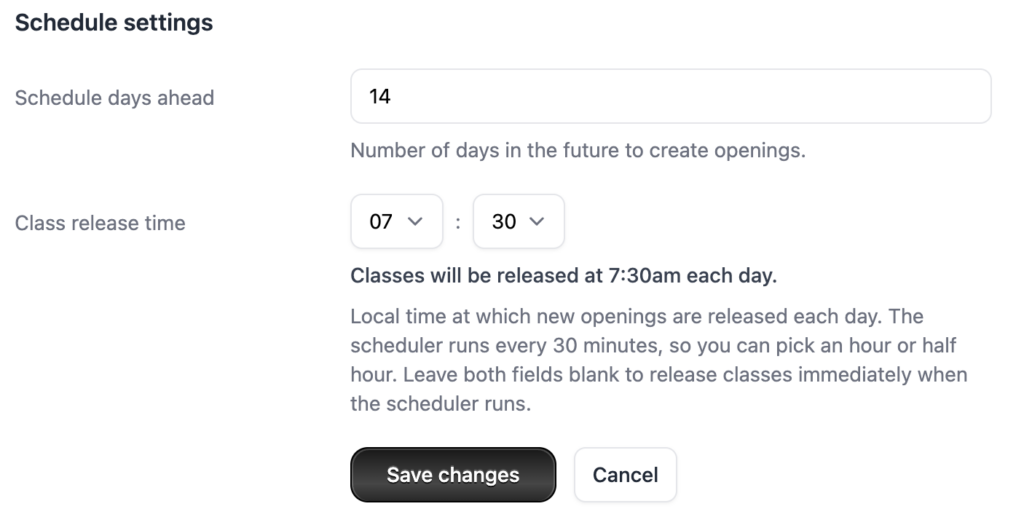
Class Release Time lets you choose a specific time of day when new openings are released to your clients. This means everyone gets a fair shot at booking, and you get to decide when that window opens.
This works hand-in-hand with the Schedule Days Ahead setting, which controls how far into the future your openings are generated.
How it works
Our scheduler runs every 30 minutes in the background, generating openings based on your schedule. Without a release time set, new openings appear whenever the scheduler happens to run.
When you set a release time, the scheduler holds off on releasing the next day’s batch of openings until your chosen time. So if you’ve set your release time to 7:00am, your clients won’t see new openings appear until after 7:00am each day in your studio’s local timezone.
This is particularly useful if you offer priority booking — it means the priority window starts at a time when your members are actually awake and ready to book, rather than burning through overnight.
Setting up Class Release Time
1. In Clovo Studio, go to Setup > Account.
2. Scroll down to the Schedule settings section.
3. Under Class release time, select an hour and minute from the dropdown menus.
4. Click Save schedule settings.
You can only choose times on the hour or half hour (e.g. 7:00am, 7:30am, 8:00am). This matches the frequency our scheduler runs, so there’s no misleading lag between the time you pick and when classes actually appear.
A live preview will show you exactly when classes will be released based on your selection.
Changing Schedule Days Ahead
While you’re in the schedule settings, you can also adjust how many days into the future your openings are generated.
1. In the Schedule settings section, find Schedule days ahead.
2. Enter a number between 1 and 30.
3. Click Save schedule settings.
The default is 14 days. If you set this to 7, your clients will only ever see the next week of classes. Set it to 30 and they’ll be able to book up to a month out.
Clearing the release time
If you’d like to go back to the default behaviour where classes are released as soon as the scheduler runs, simply clear both the hour and minute dropdowns so they’re blank, then save.
FAQs
Does changing the release time affect classes that are already open?
No. Any openings that have already been generated and are visible to your clients stay as they are. The release time only affects when new openings appear going forward.
What happens if I don’t set a release time?
Classes are released as soon as the scheduler runs, which happens every 30 minutes. This is how Clovo works out of the box — you only need to set a release time if you want more control over when new openings appear.
Does the release time use my studio’s timezone?
Yes. The time you set is based on the timezone configured for your studio in your business address settings.
I changed my schedule days ahead — why don’t I see more classes yet?
The scheduler runs every 30 minutes, so it may take up to 30 minutes for new openings to appear after you change this setting. If you’ve also set a release time, the new openings won’t appear until after that time.
-
Location in Clovo
-
Estimated Time To Complete
15 -
Information For
Studio Owner -
Platform Components
Clova Studio, Clova iOS, Clova Android -
Last Updated
April 22, 2026 -
Need more help?
Get in touch hello@clovo.au
