
Dial in your retention strategy by customising your retention signals

Tobias Gundry
Updated
Retention watches for clients who look like they are drifting away, so your team can reach them before they go quiet. It ships with sensible defaults, but "drifting away" looks different in a studio where most people come three times a week than it does in one built around casual packs.
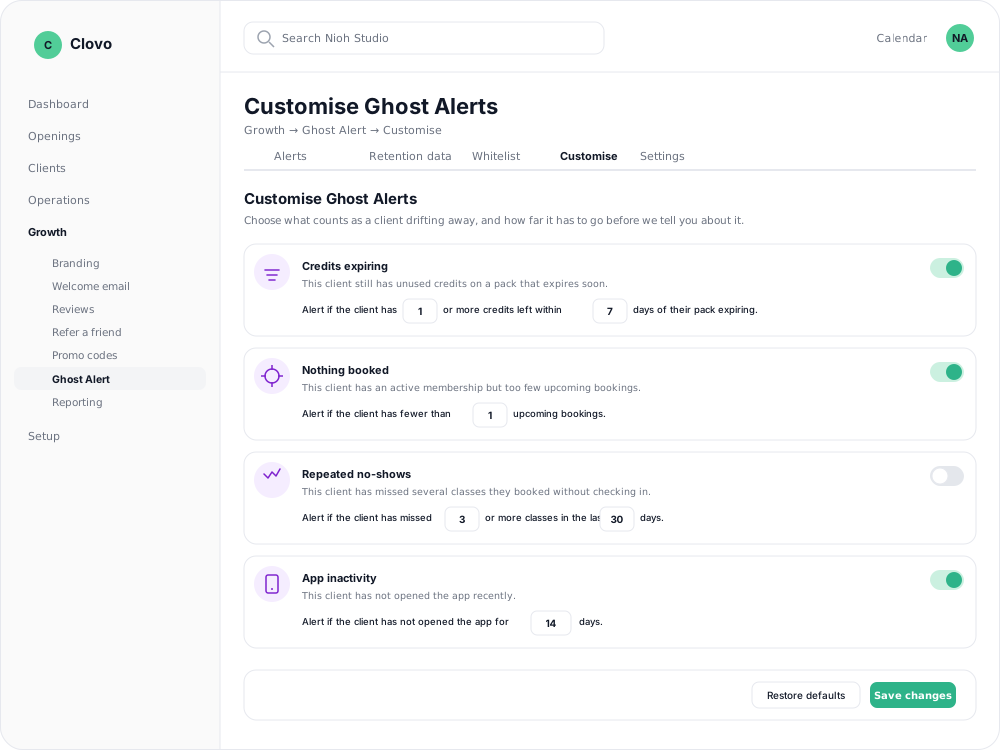
The Customise tab is where you choose which signals Retention watches and edit the rule for each one. The settings are written as sentences, with the numbers you can change shown inside the sentence.
What a signal is
A signal is a pattern that may warrant a client follow-up, such as a pack nearing expiry with credits remaining or several recent no-shows. Signals appear as alerts and contribute to the client’s retention risk rating. Turning a signal off removes it from both.
Open the Customise tab
- In Clovo Dashboard, go to Growth → Retention.
- Select the Customise tab.
- Use the switch on a signal card to turn that signal on or off. Edit the inline number fields to set when it triggers.
- Select Save changes at the bottom of the page.
Restore defaults puts every switch back on and every threshold back to the value Clovo ships with. It applies to the whole page, not to one signal.
Signals you can customise
| Signal | What it watches | Settings you control | Default |
|---|---|---|---|
| Credits expiring | A pack that is about to expire with credits still unused | Days before expiry (1–14), unused credits required (1–100) | 7 days, 1 credit |
| Nothing booked | An active membership with too few upcoming bookings and no recent booking | Upcoming bookings required (1–50) | 1 |
| Repeated no-shows | Classes booked and then missed without checking in | Missed classes required (1–20), look-back period in days (7–30) | 3 in 30 days |
| Repeated cancellations | Visits lost to client cancellations, after allowing for replacement bookings and attendance | Cancellations required (1–50), look-back period in days (7–30) | 3 in 30 days |
| App inactivity | The client has not opened the app | Inactive days required (1–30) | 14 days |
| Retention signal | In-app behaviour suggesting the client may be considering leaving | Retention signals required (1–10) | 1 |
For Retention signal, raise the required number if you want more evidence before an alert is raised.
What Retention takes into account
Retention leaves out clients in their first 7 days, and does not include archived or deleted clients.
- Nothing booked only considers clients with an active membership. A recent booking still counts as engagement, even if the client has nothing else in the diary.
- Repeated no-shows allows 48 hours after a class ends for check-ins to be completed before a missed class counts.
- Repeated cancellations takes replacement bookings and attendance into account, so changing sessions does not necessarily trigger an alert.
- Nothing booked and App inactivity leave out memberships while they are paused.
- App inactivity uses a 14-day default and requires a live membership or unexpired pack. Recent checked-in attendance counts as engagement even if the client has not opened the app.
How the thresholds behave
The fields show the available ranges. The direction of each setting varies:
- Raise a "required" number — missed classes, cancellations, unused credits, inactive days, retention signals — and the signal becomes harder to trigger. Fewer alerts, later.
- Raise "upcoming bookings required" and the Nothing booked signal becomes easier to trigger, because it fires when a client has fewer bookings than that number. Set it to 3 and a member with two upcoming classes may qualify, provided they have no recent booking and meet the other conditions above.
- Raise "days before expiry" and Credits expiring fires earlier, giving you more runway to get the client back in.
Tuning it for your studio
Too many alerts to work through? Start with the softest signals. Credits expiring and App inactivity are routine for plenty of perfectly happy clients — narrow the expiry window, or increase inactive days from 14 to 21, before you start turning things off.
Alerts arriving too late to act on? Widen Credits expiring to 10 or 14 days so you hear about a pack while there is still time to book the classes, and drop App inactivity closer to 3 days.
Mostly casual, pack-based studio? Nothing booked only ever looks at active memberships, so it will be quiet for you. Lean on Credits expiring instead, and consider raising the unused credits required so a client with one credit left does not read the same as one with eight.
Membership studio with a strong weekly rhythm? Nothing booked is your best early warning. Raising upcoming bookings required to 2 catches people the week their routine slips, rather than after it has already stopped.