
Use Ghost Alert to follow up with clients

Tobias Gundry
Updated
Ghost Alert highlights clients whose recent activity may mean they are drifting away, so your team can decide who to contact and when.
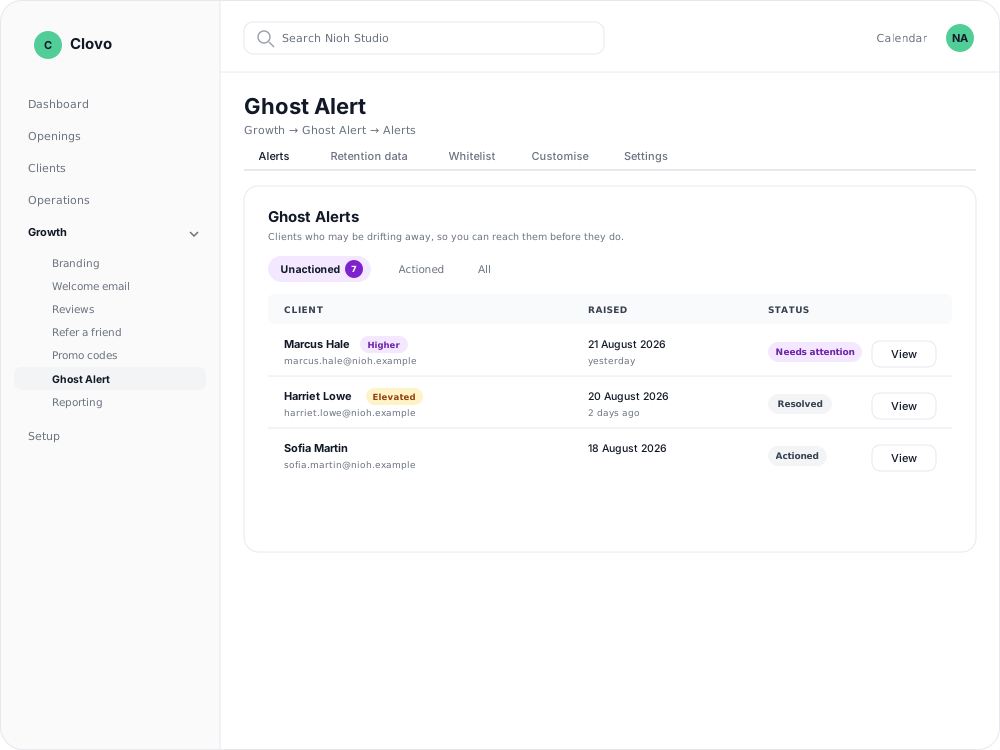
Open Ghost Alert
- In Clovo Dashboard, go to Growth → Ghost Alert.
- If Ghost Alert is off, turn it on from the Settings tab — see turn Ghost Alert on or off below.
- On the Alerts tab, use Unactioned, Actioned, or All to choose which alerts to view.
Review an alert
Open an alert to see the client's Ghost Score, contact details, current status, and the signals behind it. The alert may show Needs attention, Actioned, Resolved, or Muted.
Choose the follow-up that fits the situation:
- Reach out opens a prefilled email you can review and send to the client.
- Create staff task opens a task with the client and Ghost Alert already linked, so someone can own the follow-up.
- Mute this alert closes this alert permanently when no follow-up is needed. This does not stop future alerts for the client.
An alert can also resolve automatically when its signals are no longer current. If the behaviour returns, Ghost Alert can raise a new alert.
Add a client to the whitelist
If you know a client does not need Ghost Alerts, open their alert or their client profile and select Add to whitelist. This is the action previously called Mute Forever.

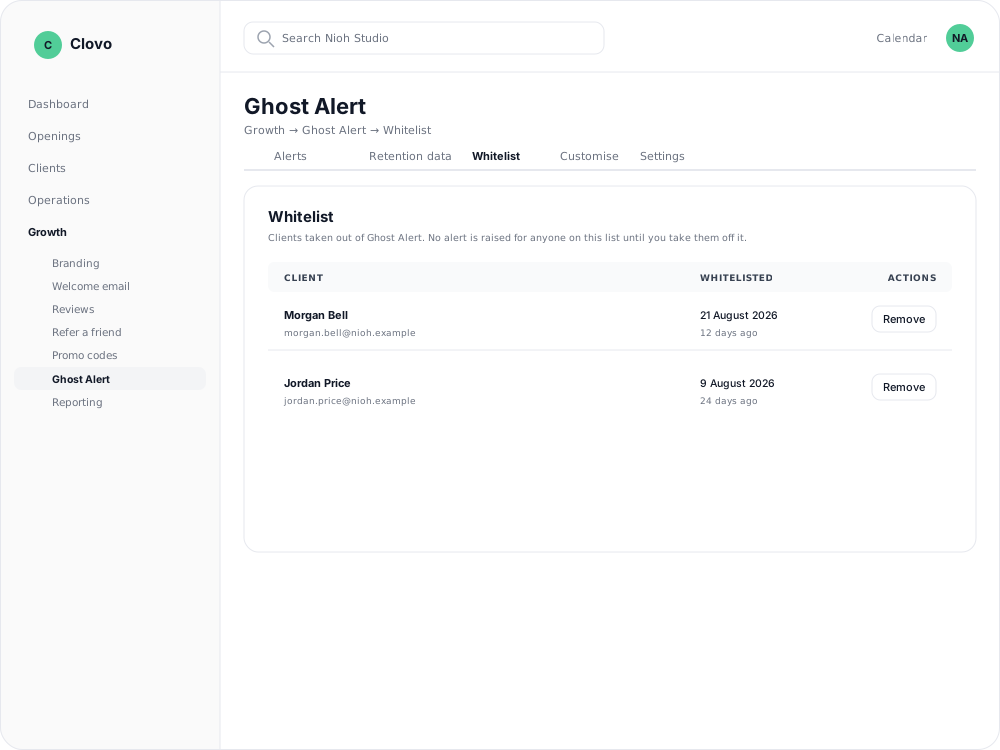
Adding a client to the whitelist closes any current alert and stops new alerts for them. It is reversible:
- Open Growth → Ghost Alert → Whitelist.
- Find the client. The list shows when they were added.
- Select Remove. Ghost Alert can raise alerts for the client again if their activity meets your settings.
View retention data
The Retention data tab includes Members with nothing booked, a live list of clients with an active membership and no upcoming booking. Open the report to see their membership and last booking, or select Export to download the list.
Whitelisted clients are excluded by default. Turn on Include whitelisted clients to include them in both the list and the export.
Turn Ghost Alert on or off
The switch is on the Settings tab, which only owners and setup staff can open.
- Go to Growth → Ghost Alert → Settings.
- Switch Enable Ghost Alert on or off.
- Select Save changes.
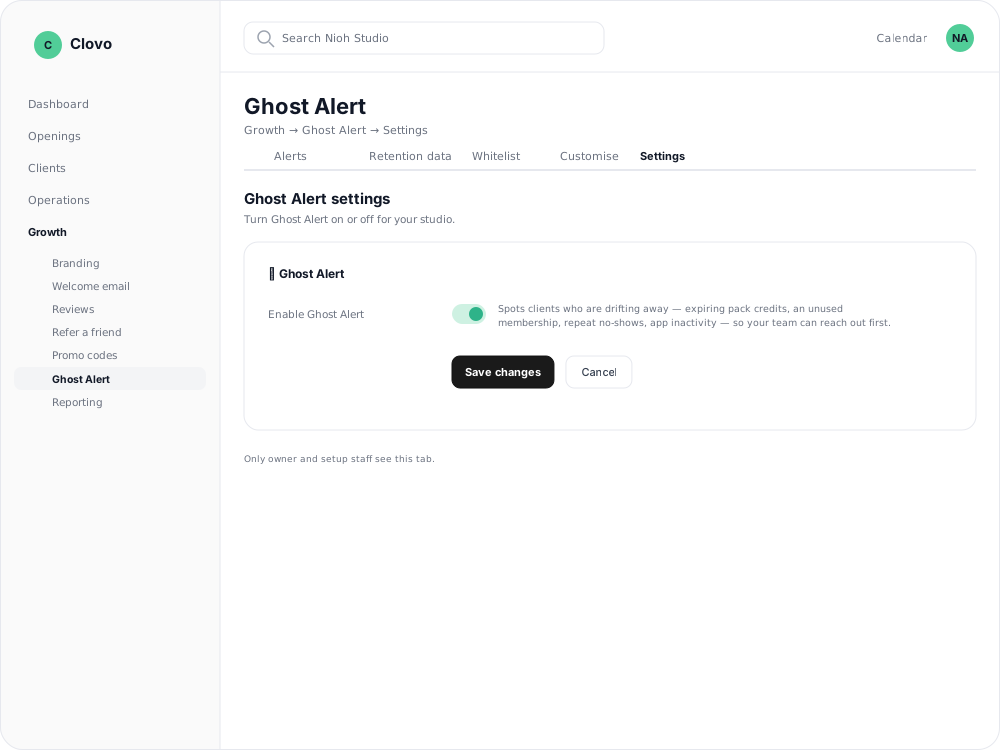
If you cannot see the tab, ask an owner or a staff member with the Setup role to make the change.