Let your clients check themselves in as they enter with the Clovo self-serve kiosk

Tobias Gundry
Updated
Self-serve Kiosk turns an iPad or iPhone into a front-desk check-in station. Members scan their self check-in QR code from the Clovo app when they arrive, and the kiosk processes the check-in.
How Clovo Self-serve Kiosk works
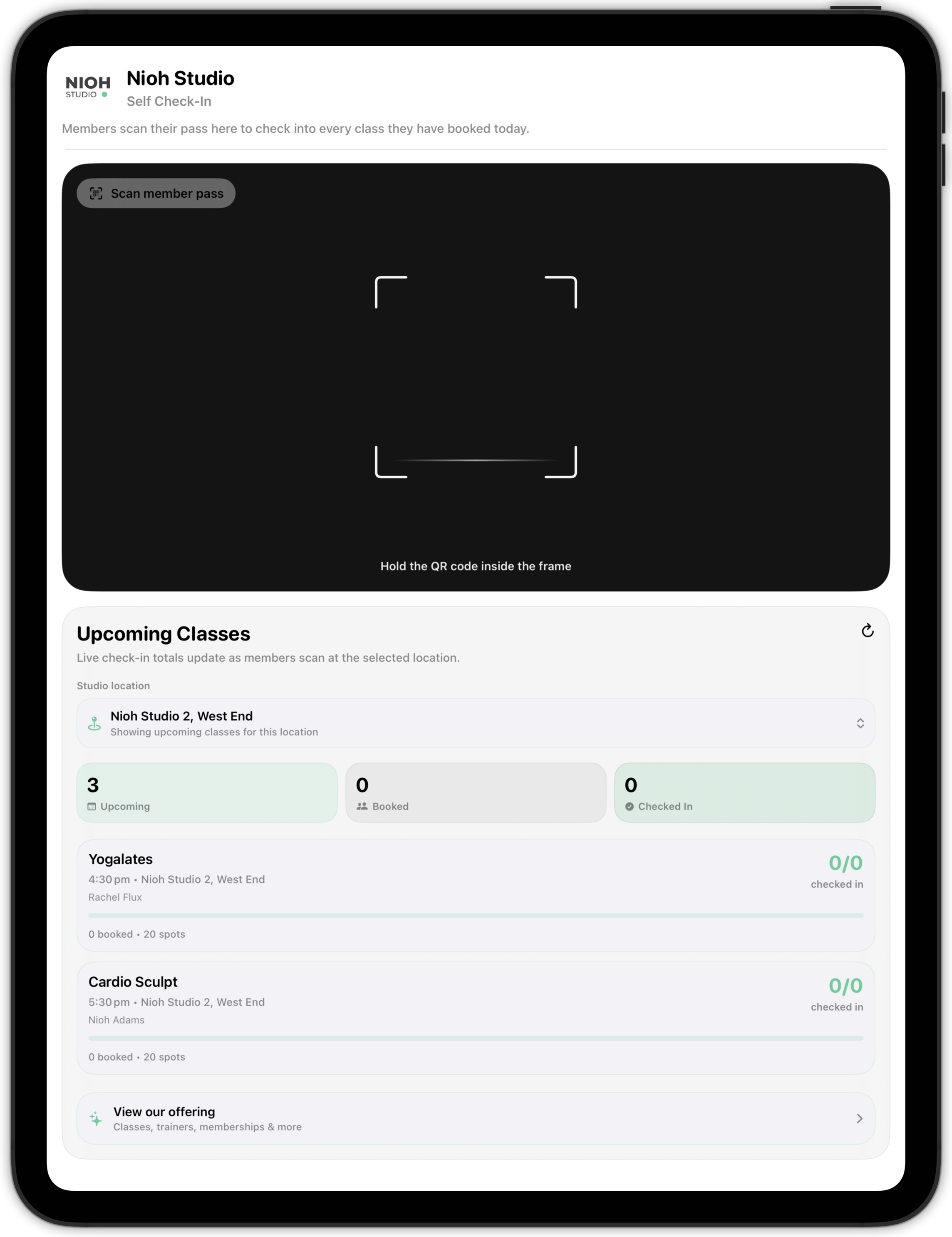
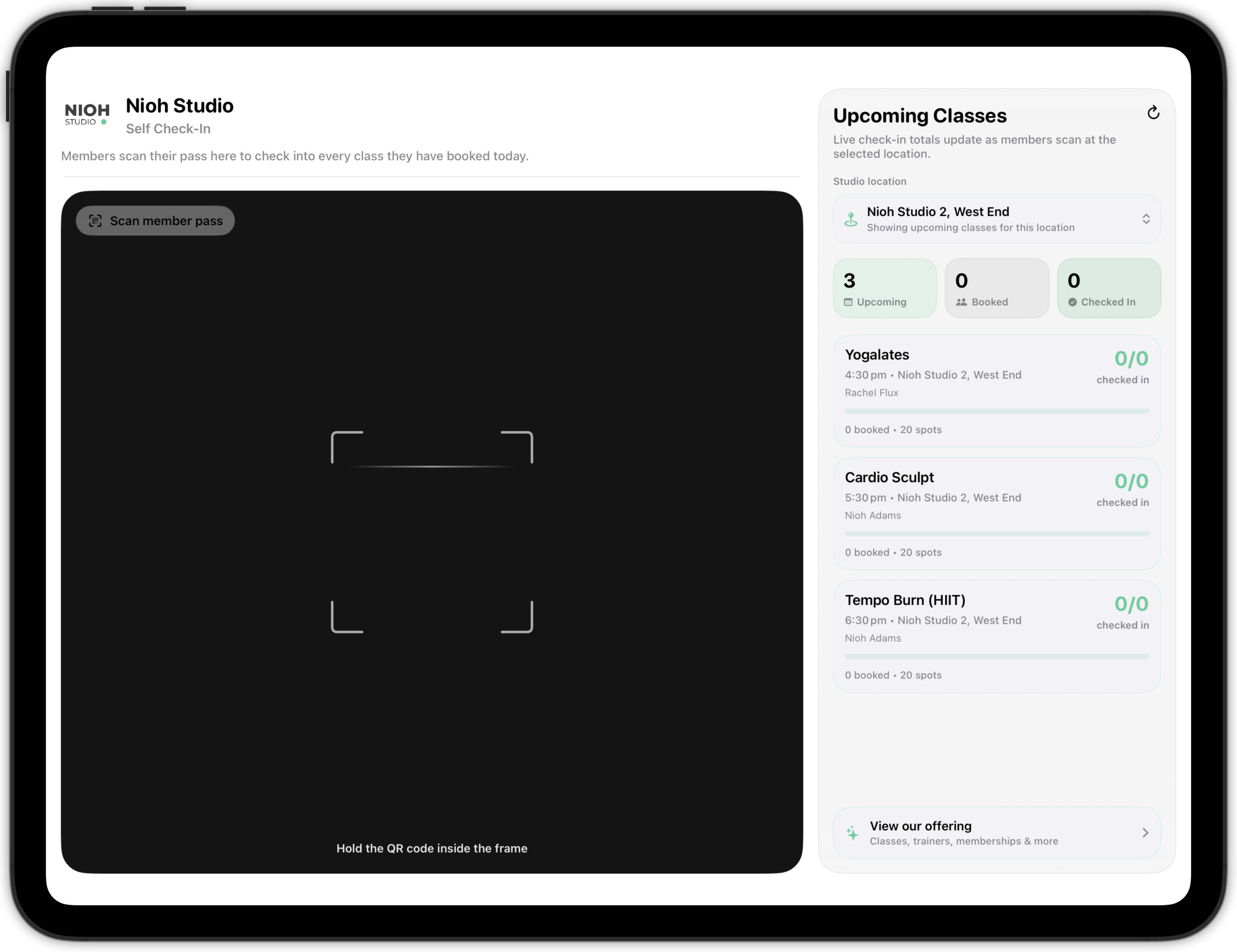
When a member presents their self check-in pass, the kiosk scans the QR code and automatically checks them into all of their eligible bookings for that day.
The screen also displays all upcoming classes at the location as well as some fun stats. Clients can change the studio location if needed, but once the iPad has been entered into Self-serve Kiosk mode, it cannot be exited, so that clients cannot access your app logged in as an admin.
Before you start
Before launching the kiosk, check that:
- You are signed in with an owner or staff account
- Camera access is enabled
- The device has an active internet connection
How to open Self-serve Kiosk
Open the admin panel in the Clovo app, then tap “Self-serve Kiosk”.
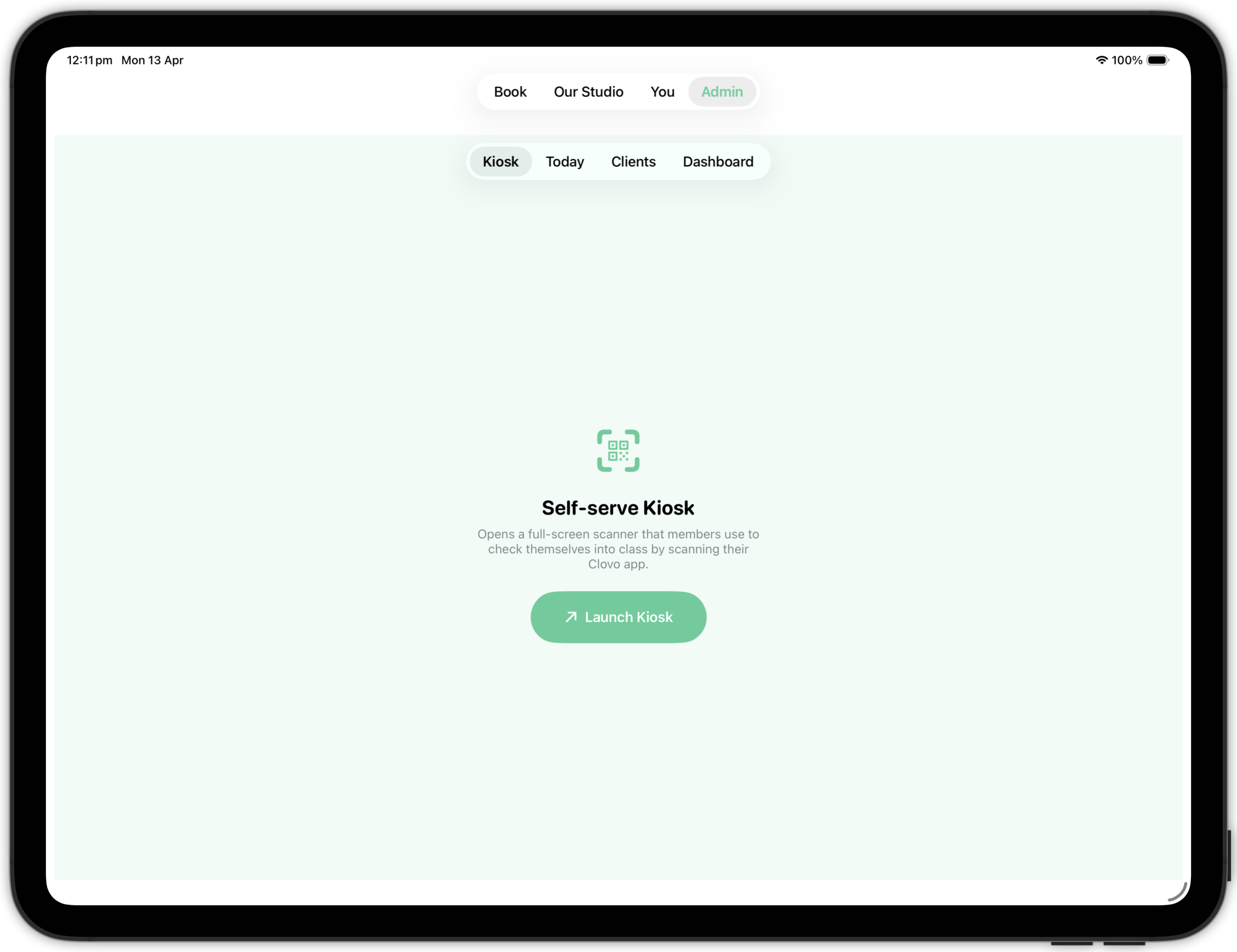
The device will switch into a full-screen kiosk mode. If prompted, allow camera access. Once open, the kiosk is ready to scan member passes.
How members use it
Members open their Self Check-In pass in the Clovo app and present the QR code to the device. Members will automatically be prompted to open their self check-in pass when accessing their account screen on a day they have bookings.
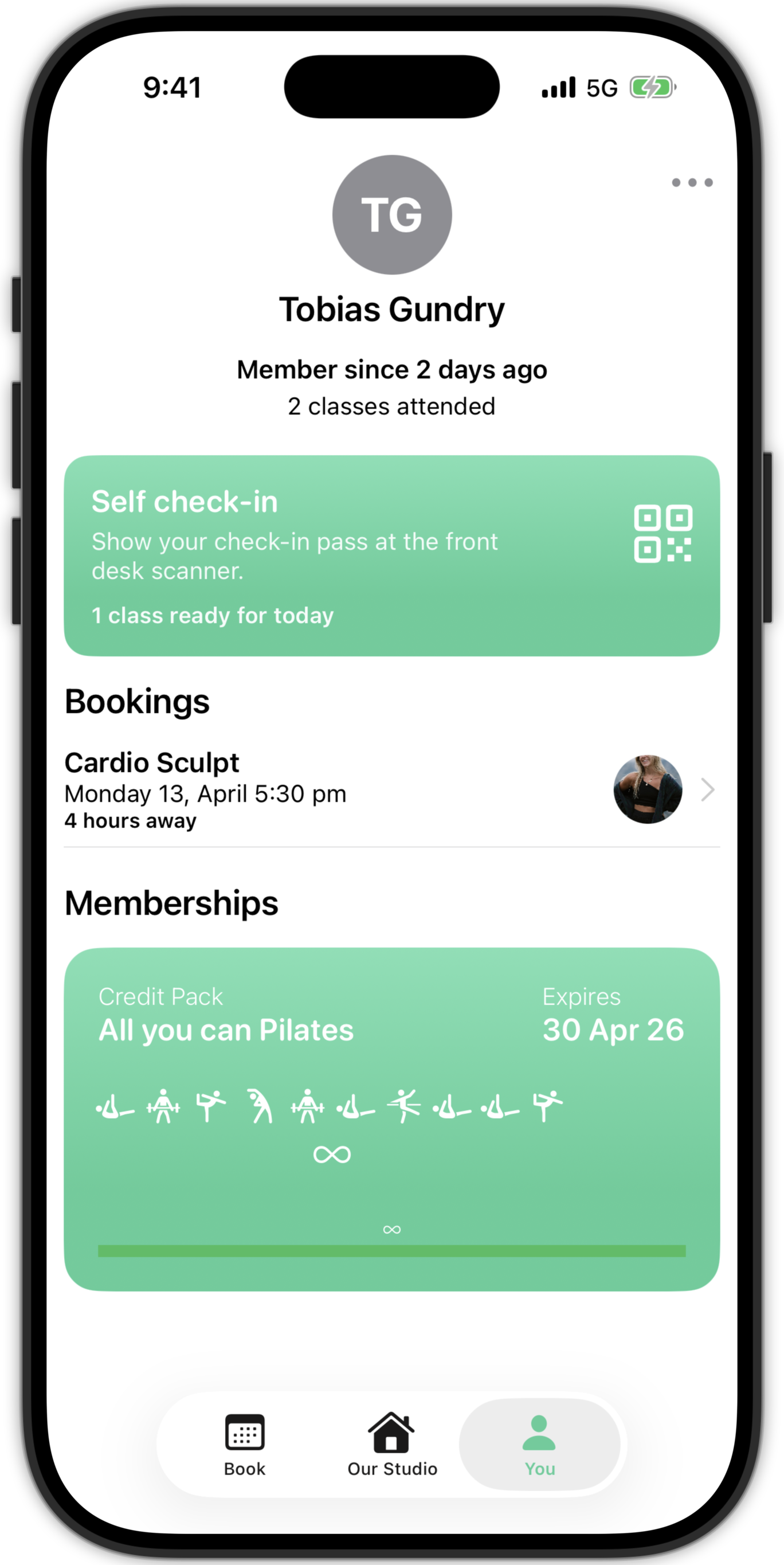
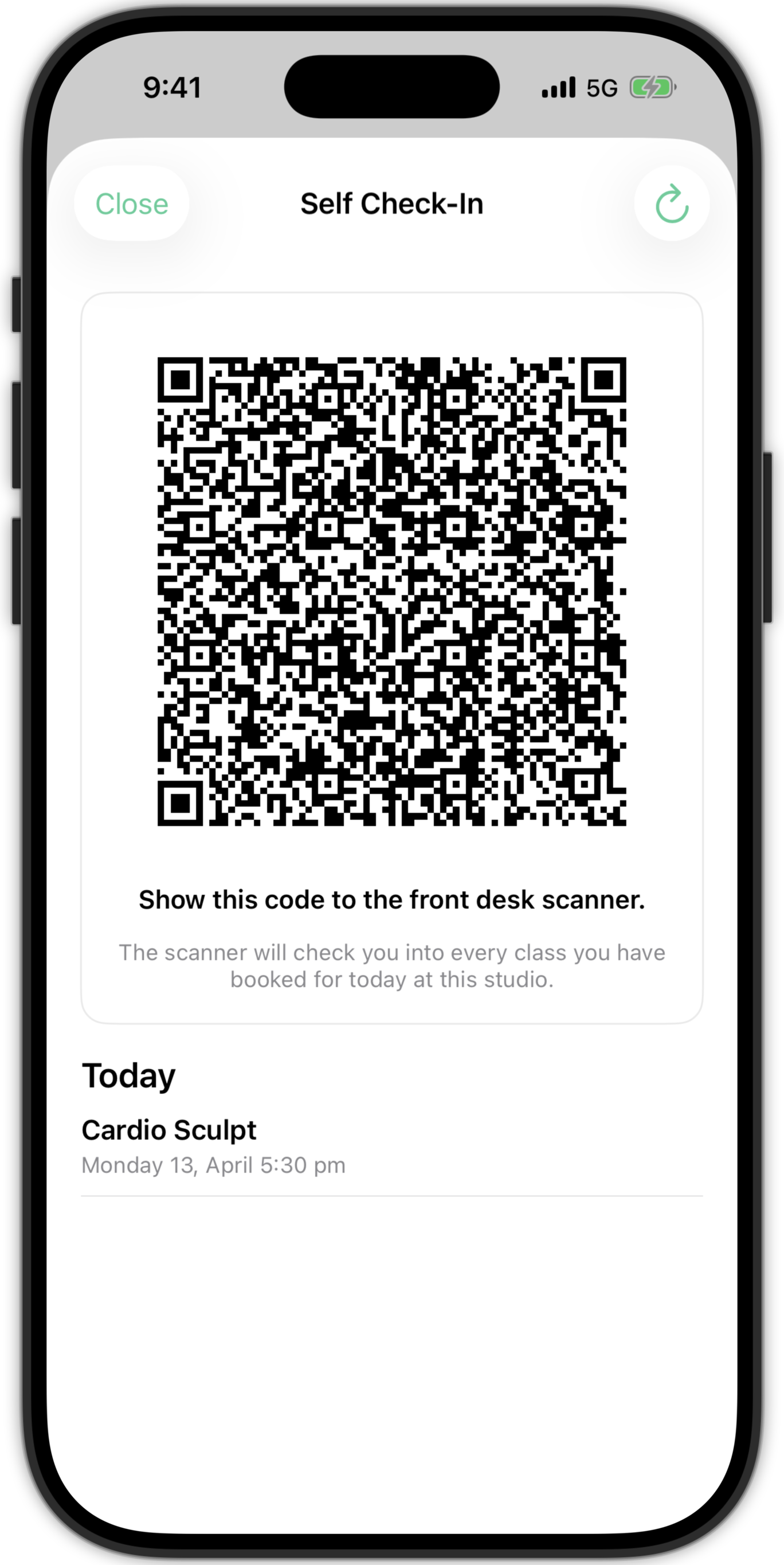
When scanned, the kiosk checks them into all eligible bookings for that day at the current studio.
What staff will see
After each scan, a result card appears showing what happened:
- Checked in: all eligible classes were successfully checked in
- Already checked in: all bookings were already marked as attended
- Check-in partly complete: some bookings were checked in, but others were already completed or couldn’t be processed
- Check-in failed: no eligible bookings could be checked in
The result card may also list the specific classes affected.
Studio location filter
The Studio location menu controls which classes and check-in totals are displayed on the screen.
This only affects the live class list. A member’s check-in pass will still apply to all eligible bookings for today at the current studio.
Troubleshooting
Camera access is off
If camera access is disabled, tap “Open Settings”, enable camera access for Clovo, then return to the app and reopen the kiosk if needed.
Couldn’t load today’s roster
Check the device’s internet connection, tap refresh, and confirm you are signed into the correct location.
Pass not recognised
This usually means the QR code couldn’t be read or isn’t a valid Clovo pass.
Try:
- Increasing the member’s screen brightness
- Positioning the QR code fully within the scan frame
- Asking the member to refresh their bookings and reopen their pass
Unsupported pass
The pass format is outdated. Ask the member to update or refresh the app and reopen their self check-in pass.
Wrong studio
The pass belongs to a different studio. Ask the member to switch studios in the app and try again.
Pass isn’t for today
Self-serve Kiosk only works for same-day bookings. Confirm the member is booked into a class today.
Duplicate scans
If the same pass is scanned twice in quick succession, the second scan may be ignored. Wait a few seconds before scanning again.
Portrait or Landscape
Clovo Kiosk supports both orientations. Choose the one that works best for your space!