
Create social timetable images for Instagram and other social channels

Tobias Gundry
Updated
The Social Timetable tool lets staff and owners create polished timetable graphics sized for social media. Images are generated in portrait format at 1080 x 1350 and can be created for a single day or for a full week. Class times use the selected location’s timezone.
The below graphic was generated entirely in Clovo with no external edits.
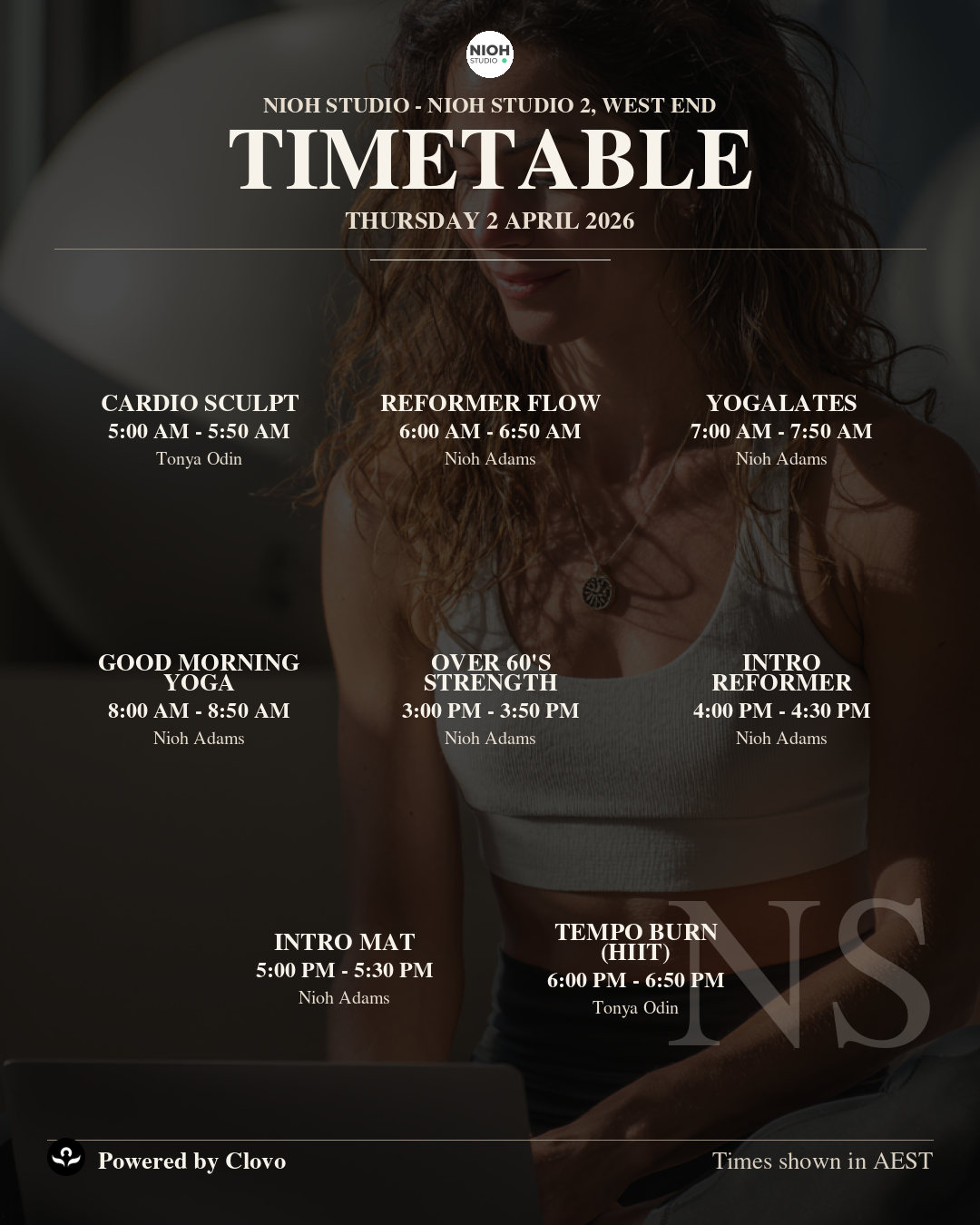
Generate your timetable
The generator creates a shareable timetable image using your current or future openings for a selected location. You can create an image for a single day or a week, preview it instantly, and download the final PNG when you are happy with the design.
The graphic can include your studio logo, branding colours, optional background image, trainer details, and different layout styles depending on the look you want.
How to create a timetable image
In the dashboard, open Openings → Share. In the iOS or Android app, open Admin → Share; on Android, Share is under More. Choose the location you want to use, then select whether you want a day or week view. Pick the day or week starting date from the available options.
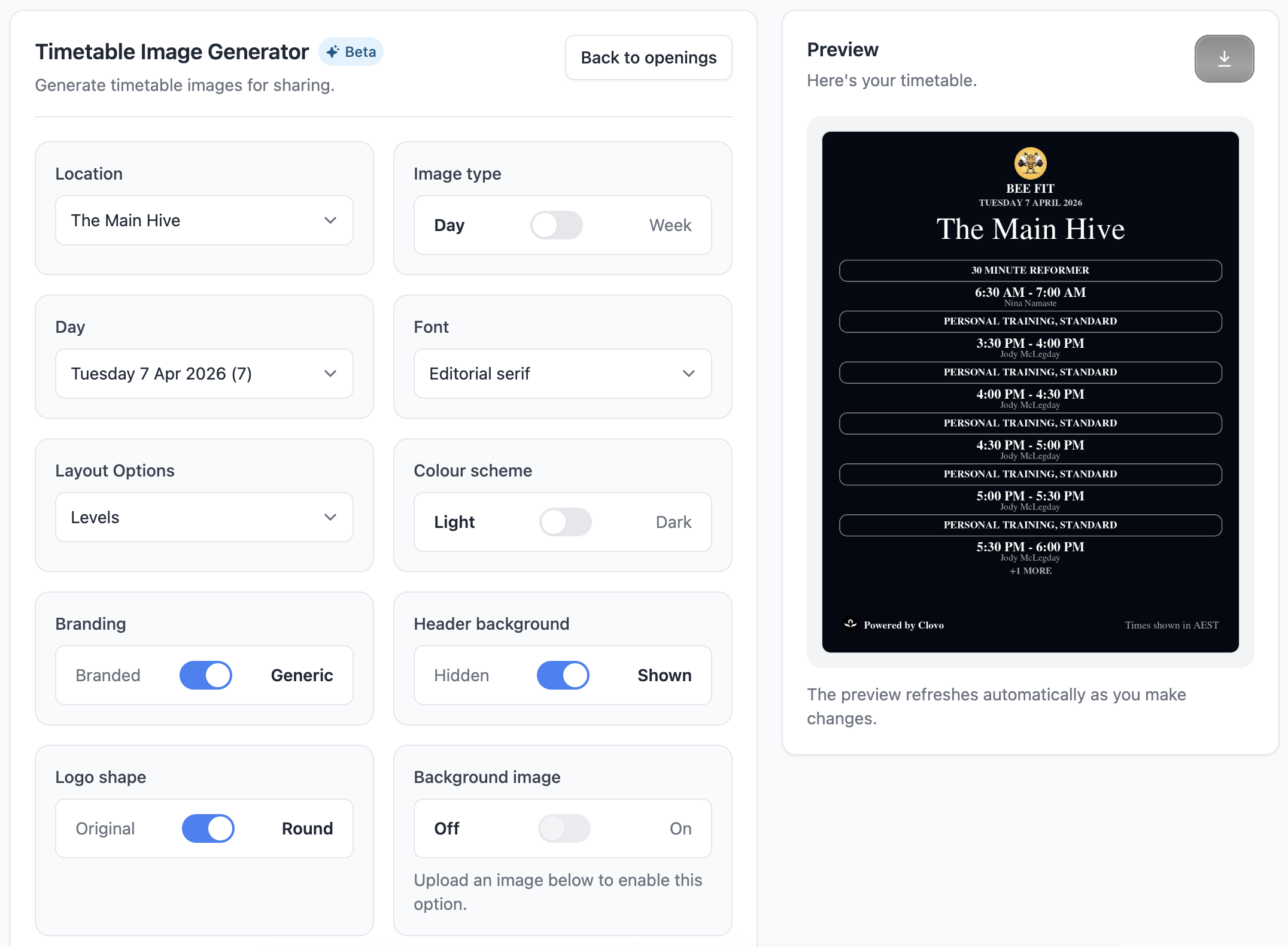
You can then customise the image using the available design controls. These include font choice, light or dark colour scheme, branded or generic styling, layout style, header background, background image, and logo shape. If you turn on the round logo option, your studio logo will be masked into a circular shape in the final image.
As you make changes, the preview updates automatically. When the image looks right, use the download icon to save the PNG.
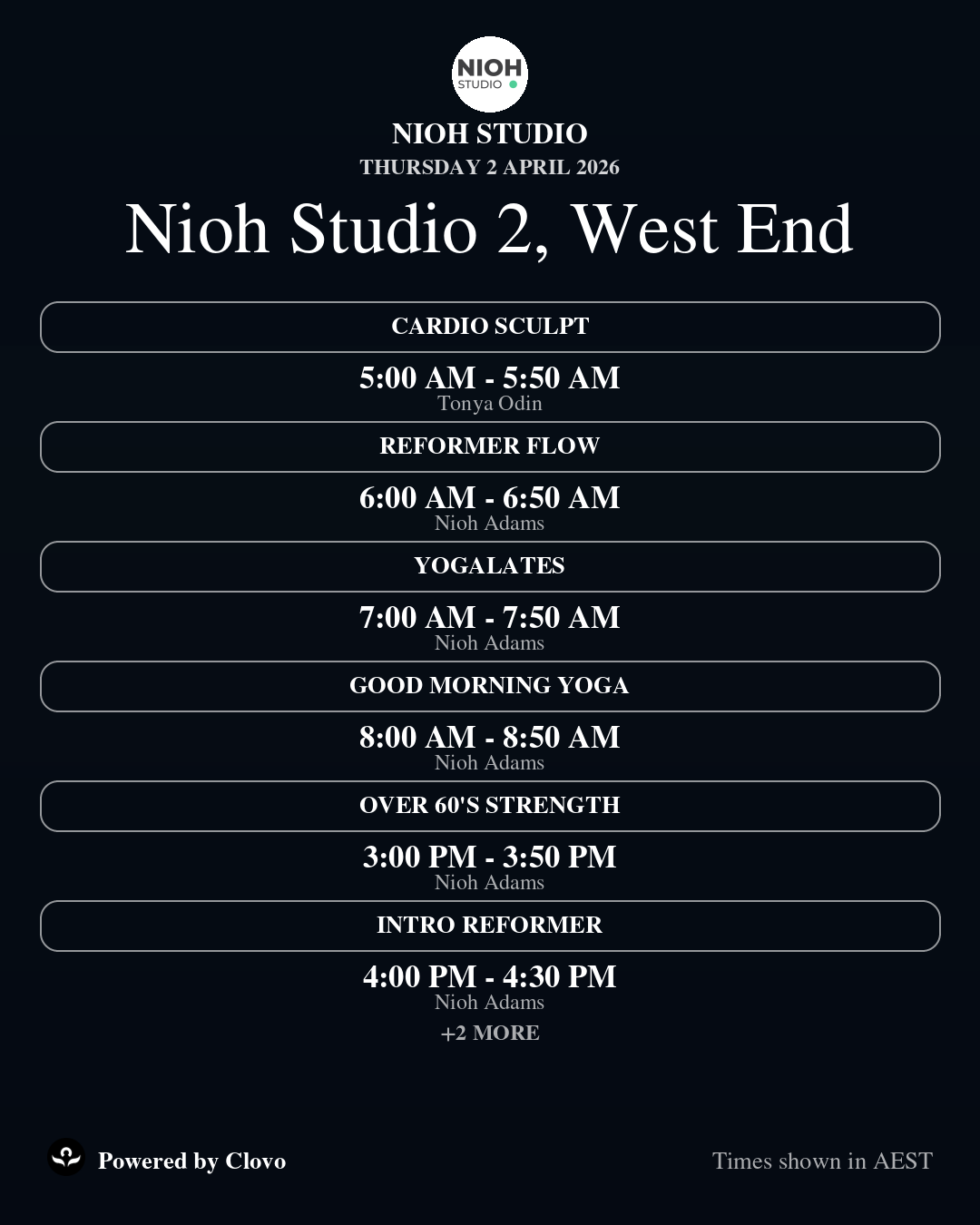
Quick date shortcuts
To speed things up, the generator includes shortcut options for Today, Tomorrow, and Current week. These use the selected location’s timezone when working out the correct day or week.
How times are shown
Class dates and times in the image use the selected location’s timezone. For example, a Perth class stays at its Perth local time even if your studio’s main address is in Sydney. The footer also shows the timezone abbreviation, such as AEST or AEDT.
Branding and logo options
Branded mode uses your studio’s primary and secondary colours. Generic mode uses a neutral black, white, and grey palette. If your studio has a logo, it will be included in the image. You can also choose whether the logo keeps its original shape or is displayed as a circle using the Logo shape toggle.
Background images
Upload a background image to use behind your timetable, or remove it for a plain design.
Design tips
For a more polished promotional result, choose a layout that suits the amount of content you are sharing. Day images work best when highlighting a specific day’s classes, while week images are useful for giving a full overview.
Light mode often works well for a clean, premium look. Dark mode can be more striking when paired with a strong logo or a photographic background. Generic styling is useful when you want something minimal, while branded styling is better when you want the image to feel clearly connected to your studio.
Troubleshooting
If you cannot see a day or week you expect, it usually means there are no eligible current or future openings available for that location and date range. Cancelled openings are not included.
If the preview is not showing the logo correctly, try switching the Logo shape setting or checking that your studio logo has been uploaded properly in branding settings.
If a background image does not appear, check that it has been uploaded and that the background image option is turned on.
If you see fewer classes than expected, try a different layout or a week view, as some layouts are more compact than others.