
Share your timetable with clients, wherever they are

Tobias Gundry
Updated
When someone asks about a class time, you can send them a public link that opens without requiring the app or an account.
Clovo gives you four ways to put your timetable in front of people, and the right one depends on where they are when they ask.
1. Your landing page — the link to share
Every Clovo studio gets a public landing page at yoursubdomain.clovo.app. It lists your open classes with the instructor, location and places remaining, and anyone can book straight from it. No app, no account until they actually book.
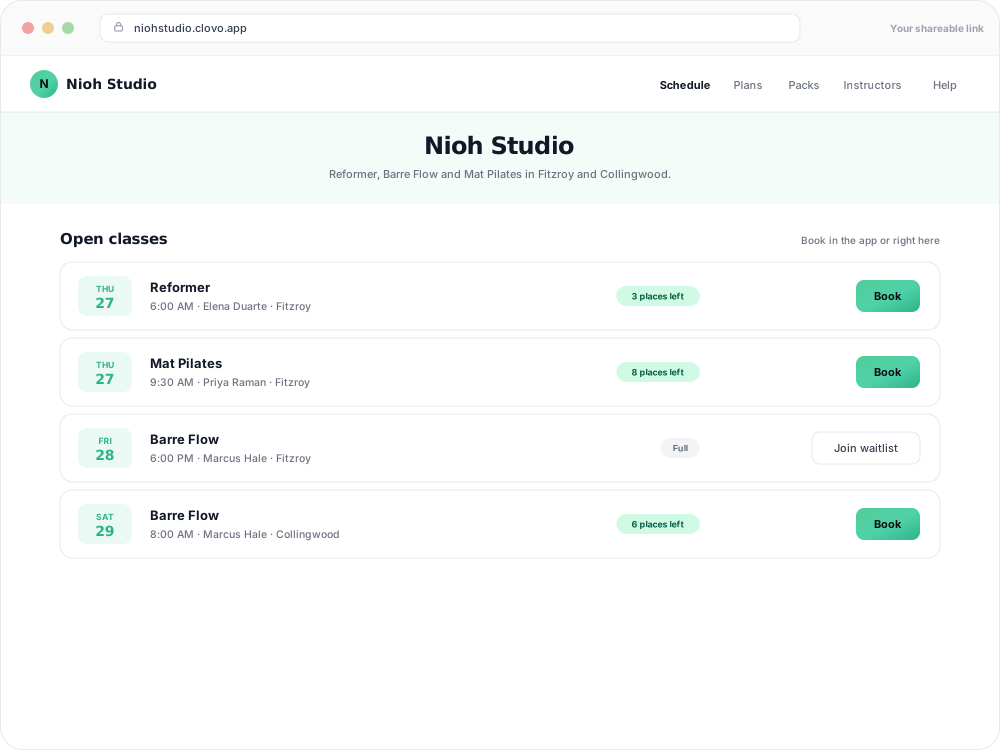
Share this link wherever you promote your timetable. It stays up to date when you change your schedule.
Before you can share it, check two things under Setup → Landing page:
- Subdomain — the first part of the address. Nioh Studio's is
niohstudio, giving themniohstudio.clovo.app. - Enabled — the landing page is off until you switch it on.
Where to put the link
- Social media bios — Instagram, Facebook or TikTok link-in-bio
- Your website — behind a "View timetable" button (or embed it directly)
- Email signatures — so every message you send promotes your schedule
- Google Business Profile — as the appointment or menu link, so people searching for you see class times immediately
- Direct messages — the answer to "what time is Saturday?"
2. A single class — for promoting one session
For a workshop, guest instructor, or one-off pop-up, a direct class link helps clients reach the relevant details without navigating the full timetable.
Open the class from Openings and use the copy button in the header. That puts a direct link to that one class on your clipboard, ready to paste into a post or a message. Anyone opening it lands on that class, with its description, instructor and Book button.
3. A timetable image — for social posts
Links are not clickable in every social post or story. The Share button on the Openings page opens the social timetable image builder, which turns your schedule into a shareable PNG in your studio's branding.
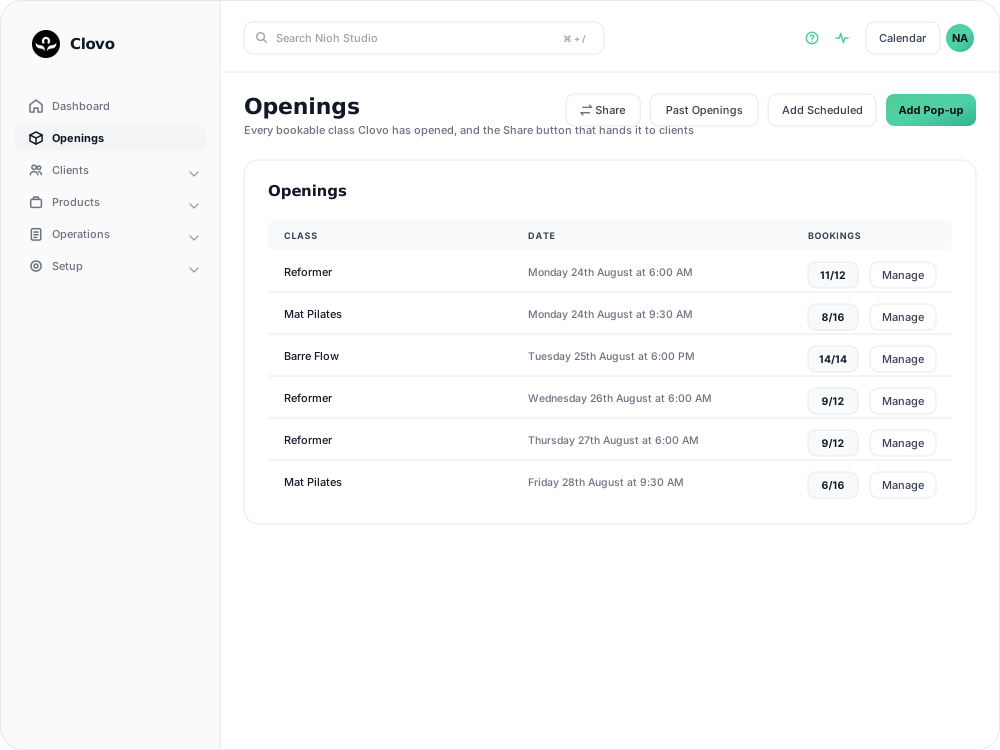
You can build today, tomorrow or a whole week, save templates you reuse, and add your own background. See create social timetable images.
Pair it with the landing page link: image in the post, link in the bio.
4. Embedded in your own website
You can also display your timetable within your own website. It stays up to date when you change your schedule in Clovo, and visitors can switch between weekly and monthly views.
Copy the embed code from Setup → Integrations → Browse add-ons in Clovo Dashboard. See show your timetable on your studio's website for the steps, or add Clovo to your WordPress website if your site runs on WordPress.
Which one to use
| Where you are | Use |
|---|---|
| Link-in-bio, email signature, Google listing | Landing page link |
| Answering "what time is…?" in a DM | Landing page link |
| Promoting one workshop or pop-up | The single class link |
| An Instagram feed post or story | A timetable image |
| Your own website | The timetable website add-on |
Good to know
- The landing page and the embed show the same data. Neither needs updating when your schedule changes.
- Turning the landing page off disables its links, including gift purchases and your member help centre, which both use the same page.
- Changing your subdomain changes every link you have already shared. Choose a stable subdomain before adding it to printed material.
Related articles
Show your timetable on your studio’s website
Copy an embed code from Clovo Dashboard to place your live class timetable on your own website, with weekly and monthly views your visitors can switch between.
Hide class numbers from clients
Show clients whether a class has space, without showing how many people have booked or how many places it has.
Close the studio for a date range
Record a closure so Clovo stops opening classes at that location, then cancel the openings already on the timetable and extend or pause the memberships the closed days run through.
Create social timetable images for Instagram and other social channels
The Social Timetable tool lets staff and owners create polished timetable graphics sized for social media. Images are generated in portrait format at 1080 x 1350 and can be created for a single day or for a full week. Class times use the selected location’s timezone.