Written by Tobias Gundry

Last updated March 24, 2026

Tasks give your studio team a simple way to keep track of operational jobs in one place. Think of them as a lightweight work board for the bits and pieces that do not quite belong in bookings, memberships, or messages, but still need someone to own them.

You can use Tasks for day-to-day admin, class follow-up, client support, venue issues, and all the other small jobs that can otherwise get lost in chat threads or someone’s memory.

What Tasks Are Good For

Tasks work well when you need to:

  • note something that needs doing
  • assign it to a staff member
  • track whether it has started or been finished
  • link it to a client, class occurrence, or location
  • keep the right people in the loop with notifications

Common examples include:

  • “Call Sarah about her failed payment”
  • “Follow up the waitlist issue for Thursday 6:00pm Pilates”
  • “Restock towels at Bondi studio”
  • “Check why the 7:15am class was marked full”
  • “Contact James about his membership pause request”

Where To Find It

Open Tasks from the operations area at Operations > Tasks.

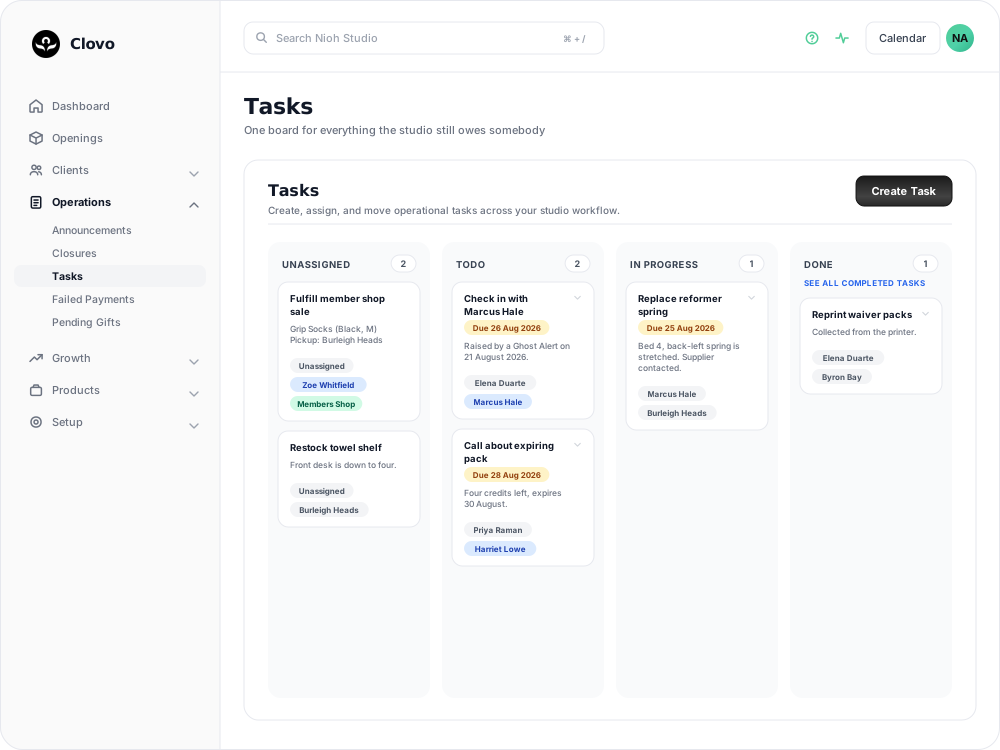
The main Tasks screen is a board with four columns:

  • Unassigned
  • Todo
  • In Progress
  • Done

The board is designed to make it easy to see what still needs an owner, what is ready to be worked on, what is already underway, and what has been wrapped up.

How The Board Works

Unassigned

This is where new tasks sit when no assignee has been selected yet. It is handy for capturing work quickly, even if you do not yet know who should pick it up.

Example:

“Find out why the heater was off in Studio 2.”

If you are not ready to allocate it, leave it in Unassigned so the team can spot it and sort out ownership later.

Todo

As soon as a task is assigned to someone, it moves into Todo automatically. This is the “owned, but not started yet” column.

Example:

“Jess to call Mia about her overdue invoice tomorrow morning.”

In Progress

Move a task here once the assigned staff member has started working on it.

Example:

“Investigating why the class capacity is incorrect for Friday.”

Done

Move a task to Done once it is complete.

Example:

“Client contacted, payment fixed, and receipt re-sent.”

The main board only shows the latest five completed tasks so it stays tidy. If you need the full history, open See all completed tasks.

Creating A Task

Select Create Task on the board to open the task drawer.

Each task includes:

  • Title: required
  • Description: required
  • Assignee: optional
  • Due Date: optional
  • Related User: optional
  • Related Occurrence: optional
  • Location: optional
  • Watch: optional

Required fields

The title should be short and clear. The description is where you add the detail someone needs to finish the job without guessing.

Good example:

  • Title: Follow up failed direct debit
  • Description: Call Taylor, confirm card details, and ask whether they want us to retry today or on Friday.

Not-so-good example:

  • Title: Payment
  • Description: Sort this out

Short version: if someone else picked up the task cold, would they know what to do next? If yes, you are in good shape.

Assigning A Task

The assignee is optional when creating a task, but it changes the way the task behaves:

  • If no assignee is selected, the task stays Unassigned.
  • If an assignee is selected, the task moves to Todo automatically.

Tasks can be assigned to active staff members in your studio who have dashboard access.

That makes Tasks flexible:

  • use Unassigned when the job needs triage
  • assign it straight away when you already know the owner

Example:

You notice a recurring issue with a member’s booking.

  • If you are not sure whether front desk or membership support should handle it, create it as Unassigned.
  • If you already know Priya owns membership follow-up, assign it to Priya when you create it and it will go straight into Todo.

Moving Tasks Through The Workflow

Assigned tasks can be dragged between columns on the board.

That means you can move a task:

  • from Todo to In Progress
  • from In Progress to Done
  • from Todo straight to Done if the work is finished in one step

A handy thing to know

Assigned tasks cannot be dragged back to Unassigned from the board.

If you need to remove the owner from a task:

1. open the task

2. clear the assignee

3. save the task

Once the assignee is removed, the task returns to Unassigned.

This keeps the board tidy and makes it clear that unassigned work should be handled deliberately rather than by accident during drag and drop.

Due Dates

Due dates are optional, but useful when timing matters.

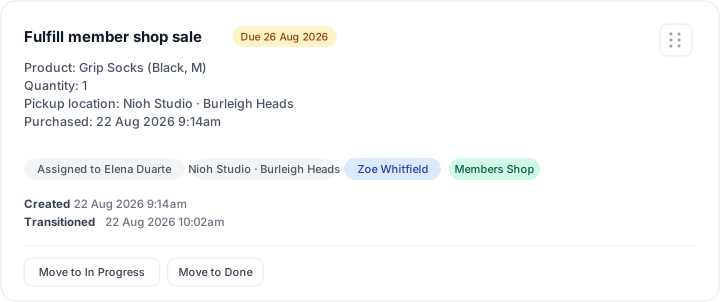
Task cards show the due date directly on the board, which makes deadlines easier to spot.

One important detail: the due date must be in the future. If you try to save today’s date or a past date, the task will not save.

In practice, that means:

  • tomorrow is fine
  • next week is fine
  • today is not accepted as a due date

If you need something actioned today, it is usually best to leave the due date blank and assign it immediately, or set the due date for the next meaningful deadline.

Linking A Task To Other Records

Tasks can carry a bit more context than just text. You can link them to:

  • a Related User
  • a Related Occurrence
  • a Location

This is especially useful when the task is tied to a specific client, class, or site.

Related User

Use this when the task is about a person in your studio, whether that is a client or a staff member.

Examples:

  • “Call Ava about her membership pause”
  • “Check whether Ben received the waiver email”

Related Occurrence

Use this when the task is tied to a particular class occurrence.

Examples:

  • “Review attendance issue for Tuesday 6:00pm Reformer”
  • “Follow up late cancellation dispute for Thursday 7:15am Yoga”

Location

Use this when the work is tied to a studio site or room.

Examples:

  • “Replace front desk EFTPOS roll at Newtown”
  • “Investigate speaker issue in Room B”

You can use more than one link

A task can be linked to both a person and a class occurrence at the same time.

Example:

“Contact Ella about her booking issue for the Wednesday 5:30pm class.”

In that case you might set:

  • Related User: Ella
  • Related Occurrence: Wednesday 5:30pm class

That gives the task enough context for anyone on the team to understand what is going on quickly.

Creating Tasks From Elsewhere In The Dashboard

In some workflows, a task can be started from another screen with context already filled in.

For example, when a task is created from an opening or occurrence flow, the related class occurrence can already be pre-selected in the task form. That saves a bit of admin and reduces the chance of linking the task to the wrong class.

This is particularly handy for situations like:

  • a class opening that needs staff follow-up
  • a booking issue connected to a specific session
  • a one-off operational problem tied to a scheduled class

Watching A Task

The Watch toggle lets you subscribe yourself to task activity.

It is a personal setting, so turning it on means you will be notified about updates to that task.

When you switch Watch on, you will receive push and email notifications whenever that task changes.

This is useful when:

  • you created the task but someone else is doing the work
  • you need visibility without being the assignee
  • several staff members need to stay informed about a sensitive client issue

Examples:

  • A manager creates a task for reception to call a client, then watches it so they know when it is updated.
  • An owner watches a venue issue task so they are notified when it moves to Done.

Assignment notifications

Assignment is a little special:

  • the person assigned to the task gets their own assignment notification
  • watchers receive activity updates about task changes

So even if you are not the assignee, watching a task is the right option when you want to stay across progress.

Editing A Task

Open any task card to edit it.

From there you can update:

  • the title or description
  • the assignee
  • the due date
  • the related user
  • the related occurrence
  • the location
  • whether you are watching it

This makes Tasks useful not just for capturing work, but for refining it as more information comes in.

Example:

You create a quick unassigned task:

“Check booking issue”

Later, once the team has more detail, you can update it to:

  • Title: Check booking issue for Friday 9:30am Barre
  • Description: Member says they were charged twice. Please review booking history and confirm whether a refund is needed.
  • Related User: Chloe
  • Related Occurrence: Friday 9:30am Barre
  • Assignee: Sam

That turns a vague note into something genuinely actionable.

Deleting A Task

Tasks can also be deleted, but not everyone will see the delete option.

In general:

  • studio owners can delete tasks in their studio
  • other staff can delete tasks they created themselves

If you cannot see a Delete Task button, that usually means you do not have permission to delete that task.

As a rule of thumb, it is better to delete only when the task was created in error or is no longer relevant at all. If the work has simply been completed, move it to Done instead so the team still has a record of it.

Completed Tasks

The Done column on the main board is intentionally brief. It only shows the latest five completed tasks so the board does not become a giant archive.

If you want the full list, select See all completed tasks.

The completed view shows:

  • the task title and description
  • status
  • assignee
  • related records
  • due date
  • the latest relevant timestamp

Completed tasks are also paginated, so larger studios can work through older completed items without cluttering the board.

A Few Real-World Ways To Use Tasks

Example 1: Client follow-up

You need reception to call a client about a payment issue.

  • Create a task titled Call Jordan about failed payment
  • Add a description with what happened and what to say
  • Set Related User to Jordan
  • Assign it to the right staff member
  • Turn Watch on if you want updates

Result:

The task lands in Todo, the assignee gets notified, and anyone watching can follow progress.

Example 2: Class issue investigation

There is a problem with a specific class occurrence.

  • Create a task titled Review attendance mismatch
  • Link the Related Occurrence
  • Add the studio Location if useful
  • Assign it to the staff member handling operations

Result:

The team can see exactly which class the task refers to, and the task can move through Todo, In Progress, and Done as the issue is worked through.

Example 3: Internal operations job

You need to sort out something at the studio, but it is not client-facing.

  • Create a task titled Replace microphone batteries in Studio 1
  • Add Location
  • Leave Related User blank
  • Leave it Unassigned if the team will sort out ownership later

Result:

It stays visible on the board without forcing an assignment too early.

Tips For Keeping Tasks Useful

  • Keep titles clear and specific.
  • Use the description to explain the next action, not just the background.
  • Assign tasks when there is a clear owner.
  • Leave tasks unassigned when the team still needs to triage them.
  • Link related records whenever context matters.
  • Use Watch if you want visibility without taking ownership.
  • Move tasks to Done instead of deleting them when the work genuinely happened.

Troubleshooting

Why can’t I drag this task?

Only assigned tasks can be moved across the board. If the task is still Unassigned, open it, choose an assignee, and save it first.

Why won’t the due date save?

The due date must be a future date. Today and past dates are not accepted.

Why can’t I move a task back to Unassigned?

That move is not available through drag and drop. Open the task, clear the assignee, and save it instead.

Why don’t I see Delete Task?

You may not have permission. Owners can delete tasks in their studio, and other staff can usually delete tasks they created themselves.

Why am I getting task notifications?

You are likely either:

  • the assigned staff member, or
  • watching the task

If you no longer want update notifications, open the task and switch Watch off.

In Short

Tasks are best thought of as your studio’s shared to-do board for operational work. They help your team capture jobs quickly, assign ownership clearly, keep context attached, and follow work through to completion without things slipping through the cracks.

If your team tends to juggle requests in chat, sticky notes, or memory, Tasks are a much calmer way to keep everyone on the same page.


  • Location in Clovo

    Take me there
  • Estimated Time To Complete

    15
  • Information For

    Studio Owner
  • Platform Components

    Clova Studio, Clova iOS, Clova Android
  • Last Updated

    March 24, 2026
  • Need more help?

    Get in touch hello@clovo.au

Boutique Fitness Studio Platform

Clovo is branded mobile apps for Australian pilates, yoga and group fitness studios that handle all your booking and payment needs in the palm of your client’s hand.

There are no monthly or setup fees, just a small percentage of each transaction each time you sell a membership or credit pack.

Need more help?

If these support articles aren’t cutting it, get in touch. Our Australian support staff are happy to help.

hello@clovo.au