
Class Plans in Clovo

Tobias Gundry
Updated
Class Plans give your instructors a reusable running order to teach from. Build a plan in the dashboard, attach it to a schedule or an individual class, and open it in the Clovo iPhone app. Plans are visible to staff only.
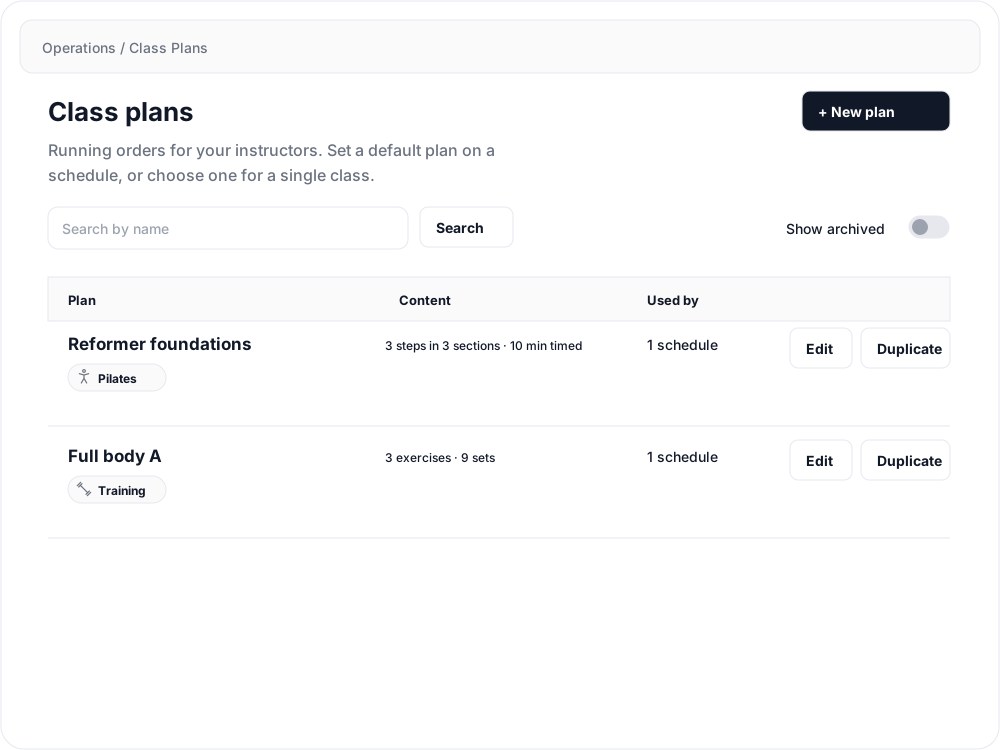
Choose a plan for the way you teach
Go to Operations > Class Plans and select New plan.
- Pilates plan — organise a flow into sections, with reps, time, sides, springs or props, cues and modifications. Follow create a Pilates flow with Class Plans.
- Training plan — build an exercise list with sets, reps, weight, rest and coaching notes. Follow create a training program with Class Plans.
Either kind can be attached to any class. Choose the kind before building: it cannot be changed later.
Use a plan across a schedule
- Open Setup > Schedule and select the schedule entry.
- Find Default class plan and choose a saved plan in Plan.
- Select Save default.

Classes on that schedule use this plan unless you choose a different plan, or no plan, for a particular opening. To remove the default, choose No default plan and save.
Choose a plan for one class
Open Openings, select the class, and find Class plan. Choose one of these options, then select Save class plan:
- Use the schedule default to follow the schedule’s choice.
- Use a different plan for this class to choose another saved plan for this opening.
- No plan for this class to leave this opening without a plan, even when the schedule has a default.
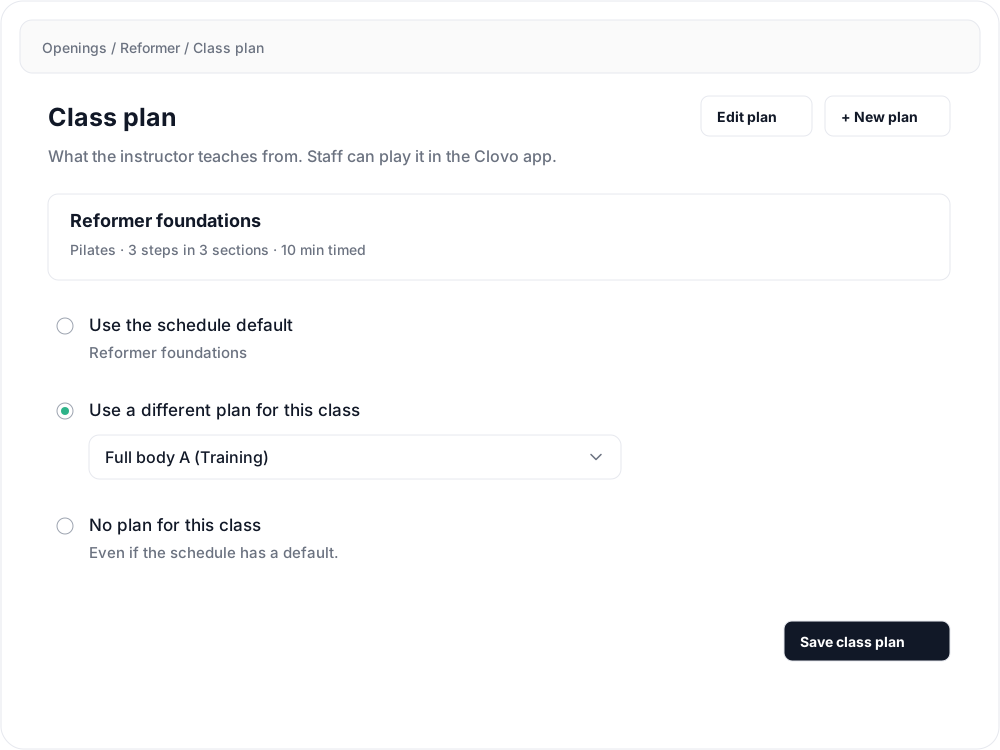
Creating a plan and assigning it are separate steps. After using New plan from a schedule or opening, return to that page to select and save the assignment.
Open and choose plans on iPhone
In the staff area of the Clovo app, open Class Plans to search the library and tap a plan to review it. To teach from a class’s assigned plan, open that class and tap the plan’s name.
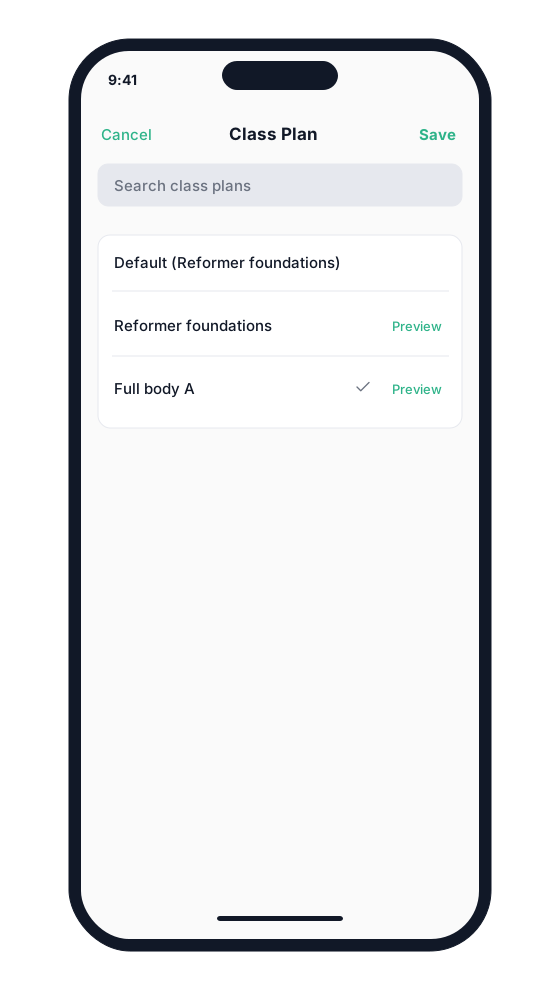
On the class, Set Class Plan or Change Class Plan opens the plan picker. Tap Preview to review a plan, select its name, then tap Save. Choose the default option to follow the schedule again. To explicitly leave a class without a plan, use the dashboard’s No plan for this class option.
While teaching, use Next and Back, or swipe across the current step. The list button opens All steps, where you can jump to another part of the plan. Times are teaching references; you control when to move on.
Reuse a plan without changing other classes
Editing a saved plan updates it everywhere it is used, including classes instructors have already opened in the app. If only some classes need a different flow, select Duplicate, rename and edit the copy, then assign that copy to those classes.
Use Archive when you no longer want a plan offered in the pickers. To find it again, turn on Show archived in Class Plans; open it and select Restore before editing or using it again.
Related articles
Create a Pilates flow with Class Plans
Build a Pilates flow with sections, timings, props and teaching cues, then follow it from the Clovo iPhone app.
Create a training program with Class Plans
Prepare exercises, sets, reps, weight and rest in a reusable training plan, ready for instructors to follow on iPhone.