
Create a Pilates flow with Class Plans

Tobias Gundry
Updated
A Pilates plan puts your class flow, equipment setup and teaching cues in one place. Prepare it in the dashboard so instructors can follow each step on their iPhone while teaching.
Start a Pilates plan
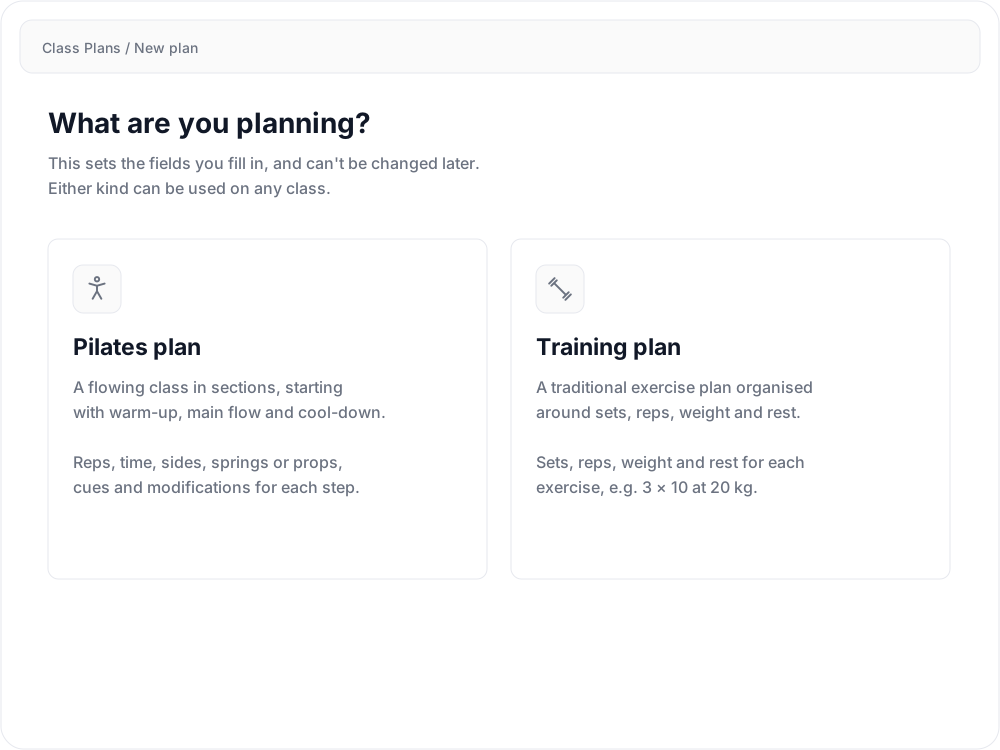
Go to Operations > Class Plans > New plan and choose Pilates plan. The plan kind cannot be changed later.
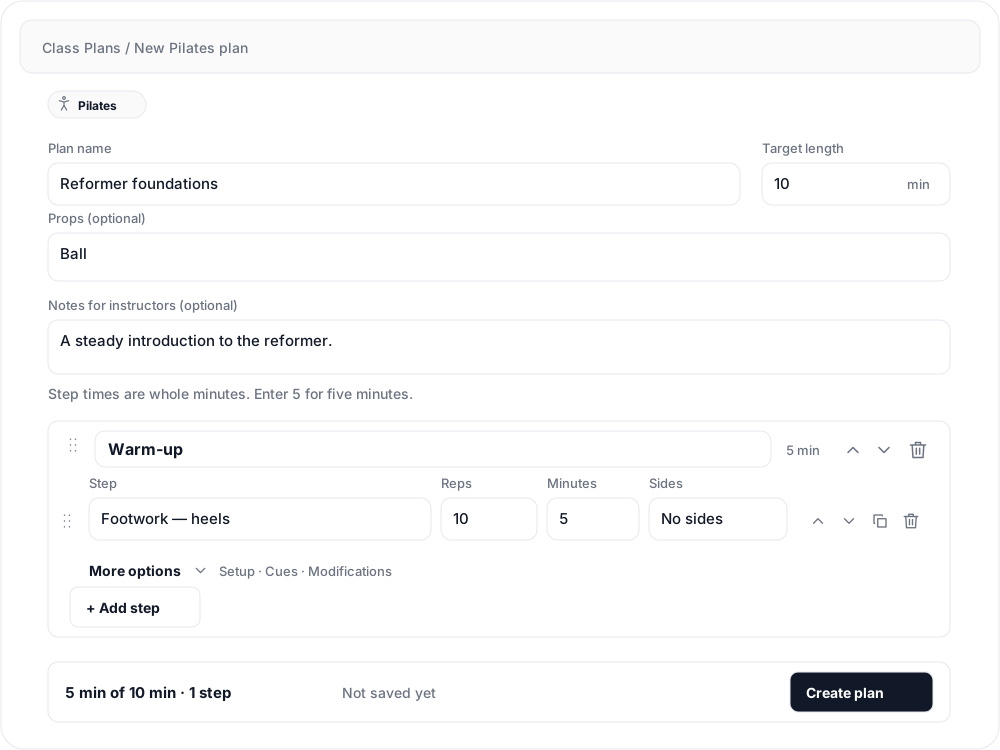
Enter a Plan name your instructors will recognise, such as Reformer foundations. Add an optional Target length in minutes, list any Props, and use Notes for instructors for the class focus or other preparation notes.
Build the flow
New Pilates plans start with Warm-up, Main flow and Cool-down sections. Rename these to suit your class, or use Add section for another part of the flow.
Select Add step in the relevant section. Give the step a name and fill in the details the instructor needs:
- Reps for a count or range, such as
10or8–10. - Minutes for the planned time. Enter whole minutes:
5means five minutes. - Sides for Each side, Left only or Right only; leave No sides for a movement that does not need a side instruction.
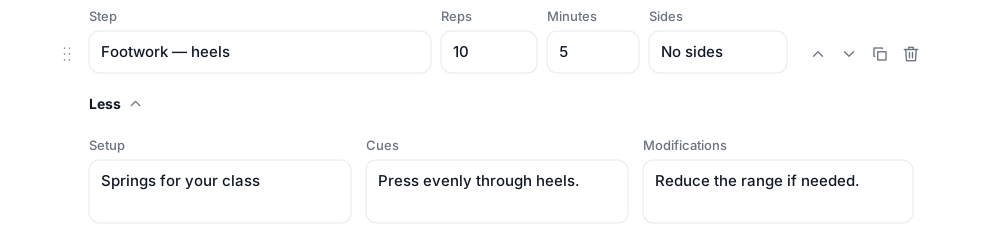
Open More options below the step for Setup, Cues and Modifications. Put springs or props in Setup, short teaching prompts in Cues, and easier or harder options in Modifications.
Use the drag handles or up and down arrows to put sections and steps in teaching order. The copy icon duplicates a step when you want to build a variation from it.
Review the timing and save
The bar at the bottom shows the planned time against your target, plus any steps without a time. Review those untimed steps before relying on the total to fit your class slot.
Select Create plan. When editing an existing plan, select Save changes and look for All changes saved.
To use the flow in a class, set it as a schedule default or assign it to one opening. If you are adapting a plan already used by other classes, Duplicate it first so your changes stay with the copy.
Teach from the flow on iPhone
In the app’s staff area, open Class Plans and tap the flow to review it, or open a class and tap its assigned plan’s name.
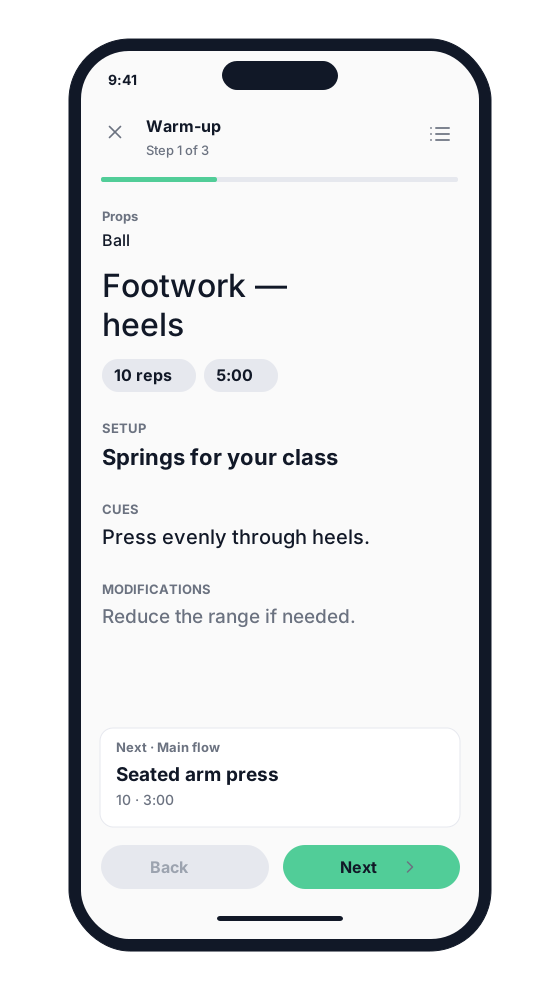
The teaching view shows the current section and step, with your props and step details. The preview below shows what is next, including a setup change when one is needed.
Tap Next when ready to move on and Back to revisit a step. Use the list button to open All steps and jump to a different part of the flow. On the last step, tap Finish to close the player.
Related articles
Class Plans in Clovo
Prepare reusable Pilates flows and training plans, assign them to classes, and give instructors a running order in the Clovo iPhone app.
Create a training program with Class Plans
Prepare exercises, sets, reps, weight and rest in a reusable training plan, ready for instructors to follow on iPhone.