
Create a training program with Class Plans

Tobias Gundry
Updated
Use a training plan to give instructors an exercise order with sets, reps, weight, rest and coaching notes. Create a reusable session in the dashboard, then open it on iPhone while teaching.
Start a training plan
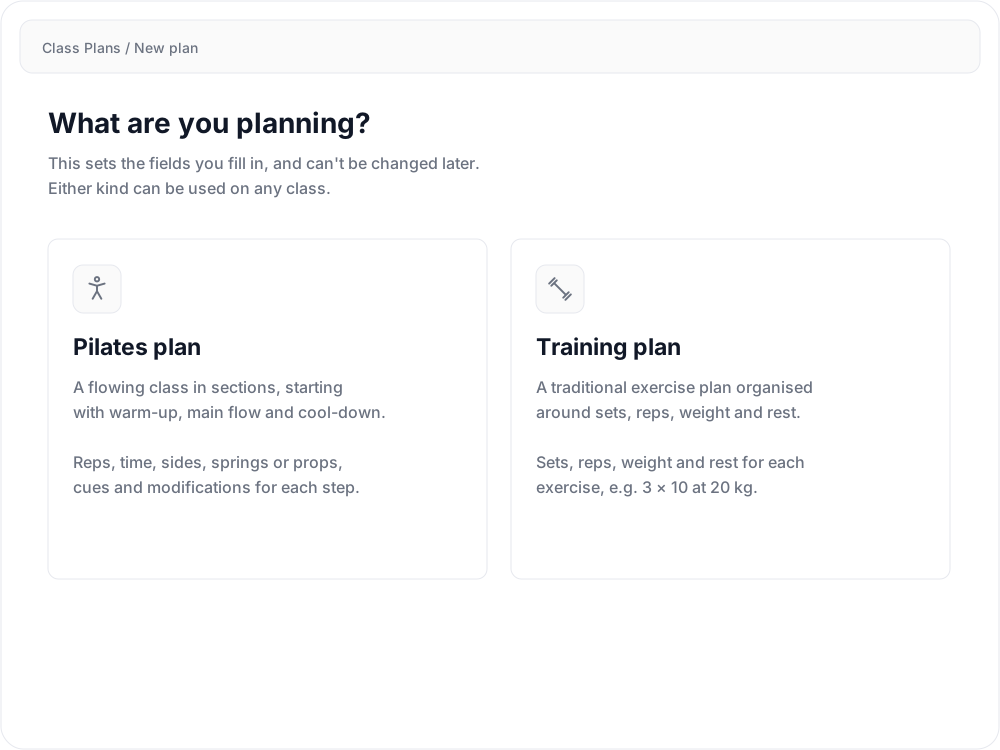
Go to Operations > Class Plans > New plan and choose Training plan. The plan kind cannot be changed later.
Enter a Plan name, such as Full body A. Use Notes for the session goals, warm-up, equipment or progression guidance.
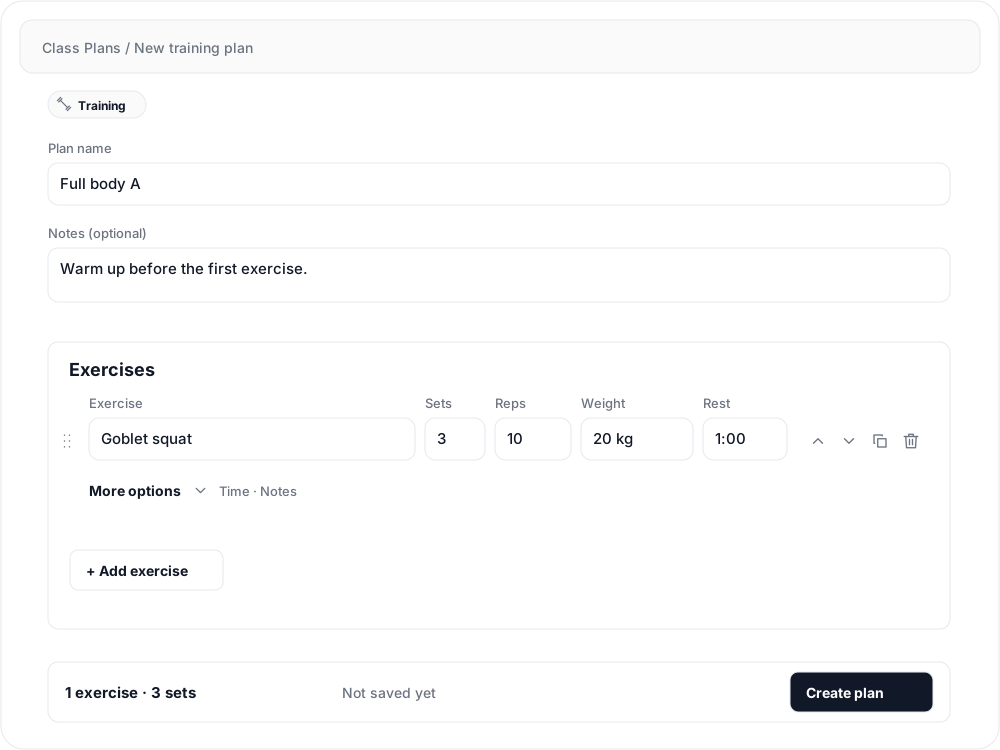
Add exercises and coaching details
Under Exercises, select Add exercise. Name the movement and enter the prescription. For example, a Goblet squat row could use Sets 3, Reps 10, Weight 20 kg and Rest 1:00.
Enter rest as minutes and seconds: 1:00 means one minute between sets. Include the unit in Weight so the instructor knows what you mean.
Open More options for a timed exercise’s Time and its Notes. For a 30-second hold, enter 0:30 in Time; use Notes for form cues, tempo or progression guidance.
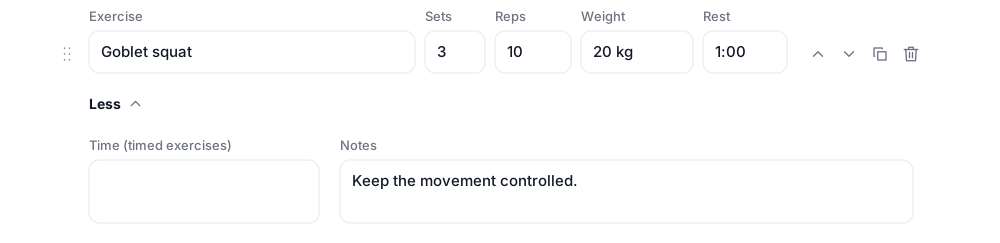
Keep adding exercises in teaching order. Use the drag handle or up and down arrows to move an exercise, or the copy icon to duplicate a row before adjusting it.
Save and assign the program
Select Create plan. For later edits, select Save changes and look for All changes saved.
Assign the saved plan to a schedule or an individual class so the instructor can open it from that class.
For another session, such as Full body B, use Duplicate and edit the copy. Changes to the original plan apply everywhere that original is used.
Follow the program on iPhone
Open Class Plans in the app’s staff area and tap the program to review it. For a class with an assigned program, open the class and tap the plan’s name.
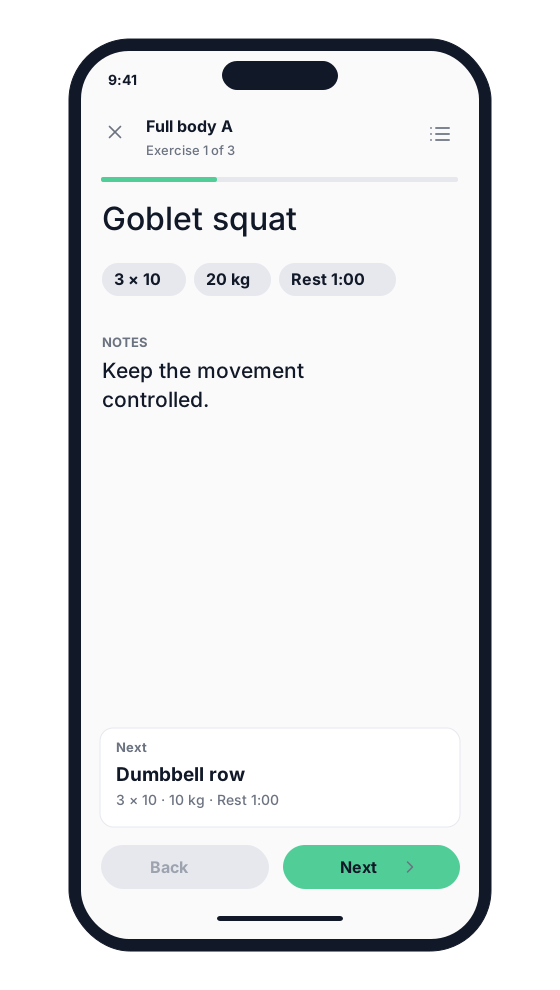
Each exercise shows its prescription and notes, with the next exercise preview below. Work through the prescribed sets, then tap Next to advance. Rest and exercise times are displayed as guidance; the player does not count down or advance for you.
Use Back to revisit an exercise or the list button to jump elsewhere in the program. Tap Finish after the last exercise to close the player.
Related articles
Class Plans in Clovo
Prepare reusable Pilates flows and training plans, assign them to classes, and give instructors a running order in the Clovo iPhone app.
Create a Pilates flow with Class Plans
Build a Pilates flow with sections, timings, props and teaching cues, then follow it from the Clovo iPhone app.