
Understand Clovo app download size and storage

Tobias Gundry
Updated
When a potential client is ready to buy a trial or book a class through the app, downloading it is one of the steps between their interest and a completed purchase. A small download helps them get through that step sooner. A small storage footprint makes it easier to keep the app on their phone for their next booking.
There are two different sizes to look at: the data needed to download Clovo and the storage it uses after installation. Both matter to your business, for different reasons.
Why a small app matters for your studio
Help clients book while they're ready
Imagine someone discovers your studio on their lunch break and decides to buy an introductory offer. A large download could lead them to wait until they're home on Wi-Fi. By then, other things may have taken priority. They might return weeks later, or never finish the purchase.
For your studio, that delay matters: every extra task between choosing your studio and paying gives a prospective client another opportunity to postpone. A smaller download helps them continue while they have the time and interest, whether they've followed an advert, a friend's recommendation or a link from your studio.
Make mobile sign-ups easier
Clients may be downloading at reception, on public transport or somewhere with a weak connection. Fewer megabytes means less data to transfer and, on the same connection, less time waiting. It also asks less of clients with limited mobile data allowances. Google's app size guidance connects smaller downloads with download success, particularly on slower or poor connections.
A large download may trigger a mobile-data warning or permission prompt, and a client's settings may leave it waiting for Wi-Fi. A small app reduces size-related obstacles, although it can't override Wi-Fi-only preferences. The cellular settings below explain the difference.
Avoid asking clients to make room first
Even a willing client may stop if their phone asks them to free storage before installing. Finding photos, videos or other apps to remove turns a booking into a separate task. A small installed app needs less room and is easier to accommodate on a phone that's already close to full.
For your team, fewer installation obstacles can also mean less time helping someone manage their phone at reception and more time welcoming them to their first class.
Give clients fewer reasons to uninstall
After installation, the storage footprint continues to matter. When a phone runs low on space, a large app can become a candidate for removal. Google notes that keeping disk use low can reduce storage-driven uninstalls.
If a client removes the app, using it for their next booking requires another download. Keeping the footprint small removes one reason to delete it and helps keep that booking route available, including between visits or after a break from classes. It doesn't guarantee that someone will return, but it avoids adding a reinstall to their return visit.
Keep future updates manageable
The download experience repeats when clients update. Smaller update downloads use less of their allowance and can finish sooner on the same connection, making it easier to receive fixes and improvements. Update sizes vary and may be smaller than a full installation.
For your studio, the business case is fewer interruptions before a first purchase, fewer storage-related reasons to remove the app, and less effort to use it again. That's why we pay attention to both the download and the space Clovo uses after installation.
Download size vs space on your phone
| Size | What it means | When to check it |
|---|---|---|
| Download size | The data transferred over Wi-Fi or mobile data to install the app. | Before installing or updating, especially with a limited data allowance. |
| Installed app size | The space the app itself occupies once installed. It can be larger than the download. | When checking whether your phone has room for the app. |
| Total storage used | The installed app plus its saved data and cache. This can change as you use it. | When deciding how to free space on your phone. |
An update may download less than a fresh installation because the store can send the changes needed for your existing version. The download figure also doesn't include mobile data used while you use Clovo afterwards.
How big is Clovo?
These examples were recorded on 17 September 2026. They describe particular versions and devices, rather than a fixed size for every phone.
| Platform and version | Download size | Installed app size, before additional data |
|---|---|---|
| Android 1.12.2, Pixel 7a example | 4.03 MB displayed in Google Play | 10.22 MB shown in Android Settings |
| iOS build 1.12.3 (1), Apple's estimates for the listed iPhones, including iPhone 15 Pro and iPhone 16 | 10.8 MB | 24.3 MB |
The iOS figures are build estimates, not a guarantee that this version is already available in your App Store. Your device, operating system, available release and whether you're installing or updating can affect the size you see.
Clovo's size may increase or decrease with updates. We're committed to keeping the app itself as small as technically feasible while maintaining its features and reliability.
Find the size for your device
Android
Open Clovo on Google Play, open About this app, then look under App info for Download size. Check the version alongside it when comparing figures.
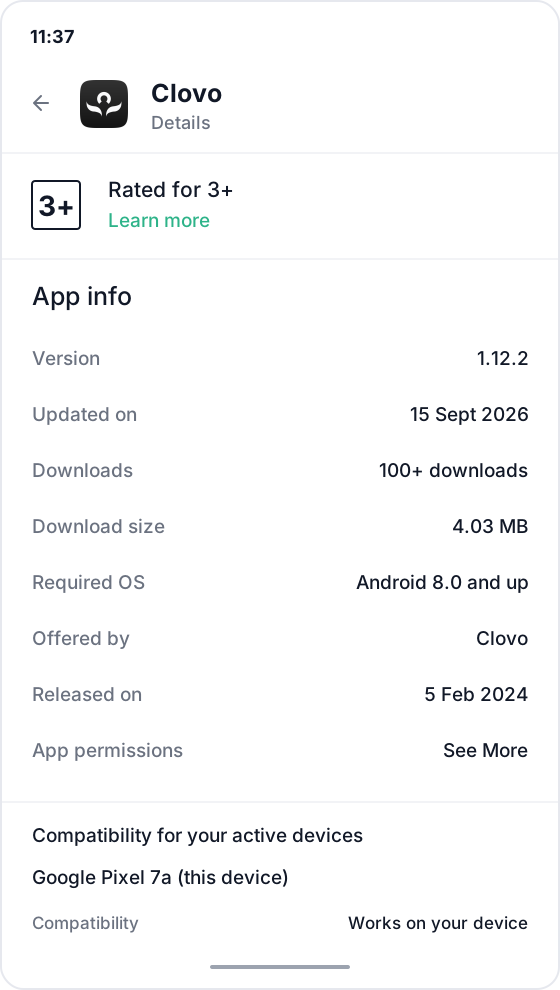
To check the space already used on your phone, open Settings → Apps → Clovo → Storage & cache. You may need to select See all apps first. Review the app size, user data, cache and total separately. Names vary between Android phones.
iPhone or iPad
The Size shown in Clovo's App Store listing describes the installed app, which can be larger than the download.
For your device's actual usage, open Settings → General → iPhone Storage (or iPad Storage) and select Clovo. Review App Size and Documents & Data. Saved data can make the space used greater than the app's listed size.
Can I download Clovo using mobile data?
Yes, if your phone and store settings allow it. The example downloads above are well below 200 MB, but your data allowance and download preferences still apply. Use Wi-Fi if you want to avoid using mobile data.
Android cellular downloads
Google Play warns about downloads over 200 MB on mobile data. This is a warning you can proceed past, rather than an absolute cellular download ban. See Google's download-size guidance.
If a download is waiting for Wi-Fi, check Google Play's Settings → Network preferences → App download preference. Choose the network option that suits your data plan, or connect to Wi-Fi. Automatic updates have their own preferences.
iPhone cellular downloads
On iOS versions that offer Ask If Over 200 MB, that setting asks you to approve larger mobile-data downloads; 200 MB isn't a universal hard limit. Always Ask can prompt even for small apps, while Always Allow permits downloads without that size prompt. See Apple’s iOS 17 download settings for the 200 MB permission setting.
Open Settings → Apps → App Store and check the mobile or cellular data settings, including App Downloads where available. On older iOS versions, App Store is directly under Settings. Labels and options depend on your iOS version. Apple's App Store settings guide explains the current controls.
Free space with Offload App on iPhone or iPad
If you don't need Clovo for a while, Apple's Offload App option removes the installed app while keeping its documents and data on your device. It frees the app's space, but doesn't remove all the storage associated with it.
- Open Settings → General → iPhone Storage or iPad Storage.
- Select Clovo, then tap Offload App and confirm.
- When you need Clovo again, reinstall it. You'll need an internet connection, and the app must still be available in the App Store.

You can also enable Offload Unused Apps in App Store settings to let your device remove unused apps automatically. Offloading differs from Delete App, which also removes the app's related local data. See Apple's storage and offloading guide.
If there isn't enough room to install
Check your device's storage recommendations and free space before trying again. Leave some room beyond the download figure: your phone needs space to install the app as well as store it. If the download is paused for a network reason, connect to Wi-Fi or review the store's download preferences.
Related articles
Keep upcoming classes visible with Live Activities
Clovo’s Live Activity feature puts a client’s next class on their iPhone Lock Screen and Dynamic Island in the hour before it starts, with no dashboard configuration required.
Leave a review for Clovo
Share your experience with Clovo on Capterra, Google, the Apple App Store or Google Play, or contact us if you need help.
What does the customer journey look like?
See the customer journey in the Clovo app: finding your studio, exploring, signing up, purchasing a pack, booking a class, and receiving confirmation and reminders.
How to manage your studio from an iPad
Use the Clovo iPad app to manage classes, clients and staff tasks, or run a self-serve check-in kiosk.