
Keep upcoming classes visible with Live Activities

Tobias Gundry
Updated
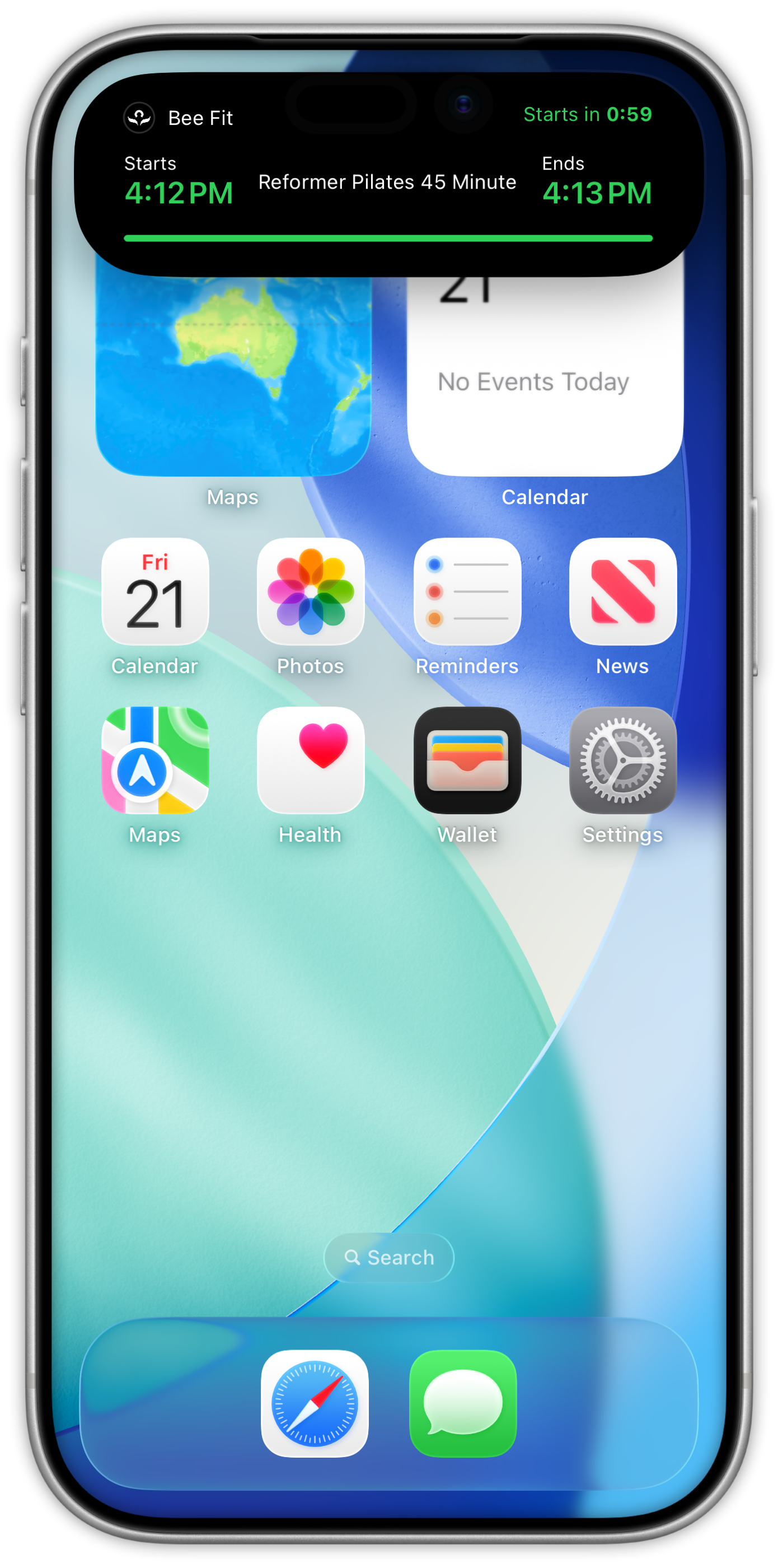
Clovo’s Live Activity feature puts a client’s next class on their iPhone Lock Screen and Dynamic Island in the hour before it starts, with no dashboard configuration required.
What are Live Activities?
Live Activities display class information on the iPhone Lock Screen and, on models equipped with it, in the Dynamic Island. The current Clovo app requires iOS 16.4 or later. Once a Live Activity has started, clients can follow the class countdown and progress without reopening Clovo.
What your clients see
For an upcoming booking, a Clovo Live Activity can appear from one hour before the class starts. It shows the following:
On the Lock Screen banner:
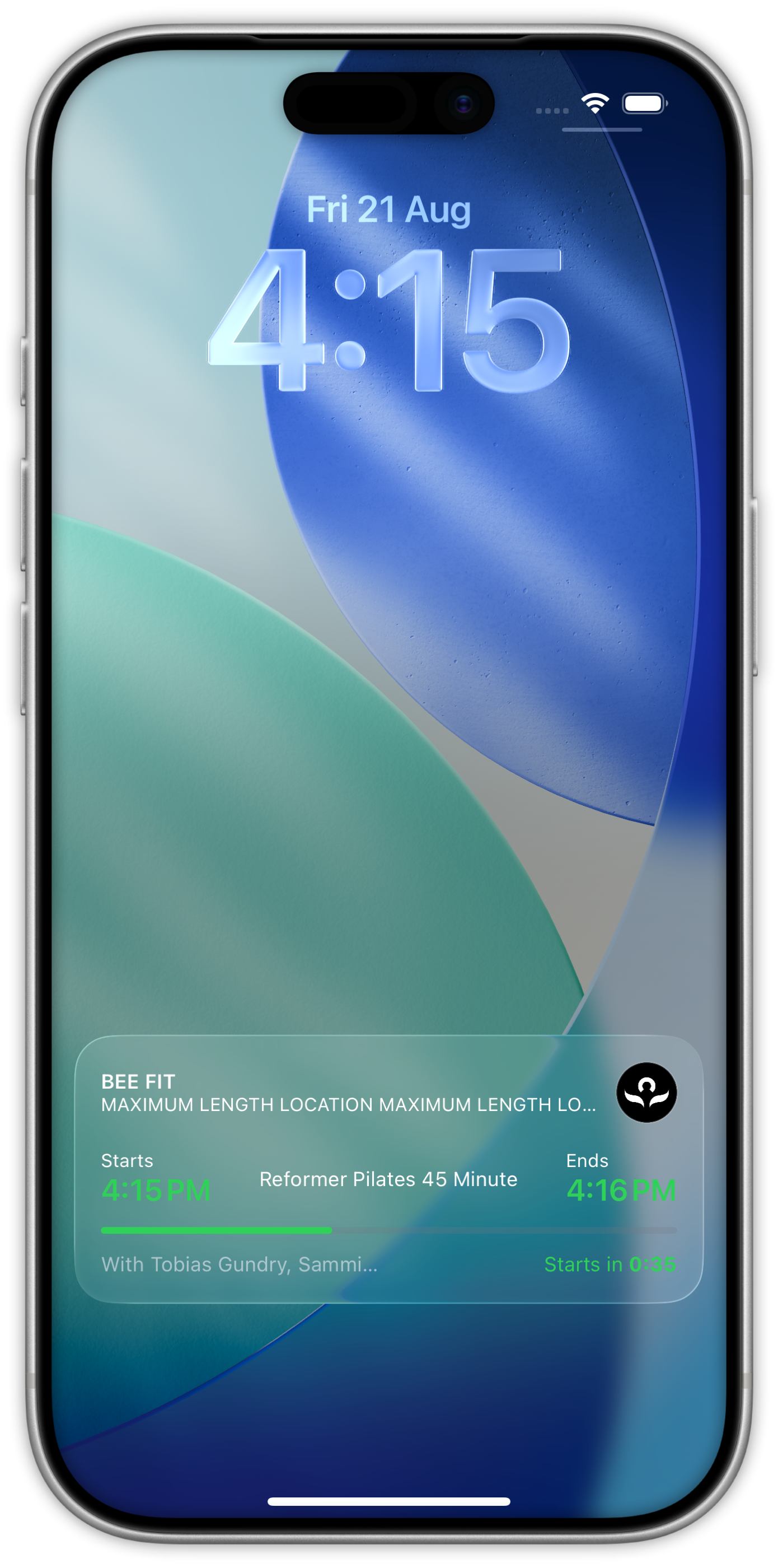
- Your studio name and location, including the room when one is assigned
- The class name (e.g. Reformer Pilates 45 Minute)
- The instructor name(s)
- Start and end times for the class
- A countdown showing the time remaining until the class starts, or the time remaining in a class that is in progress
- A progress bar showing how far through the class they are
- Your studio logo
In the Dynamic Island (on supported iPhones):
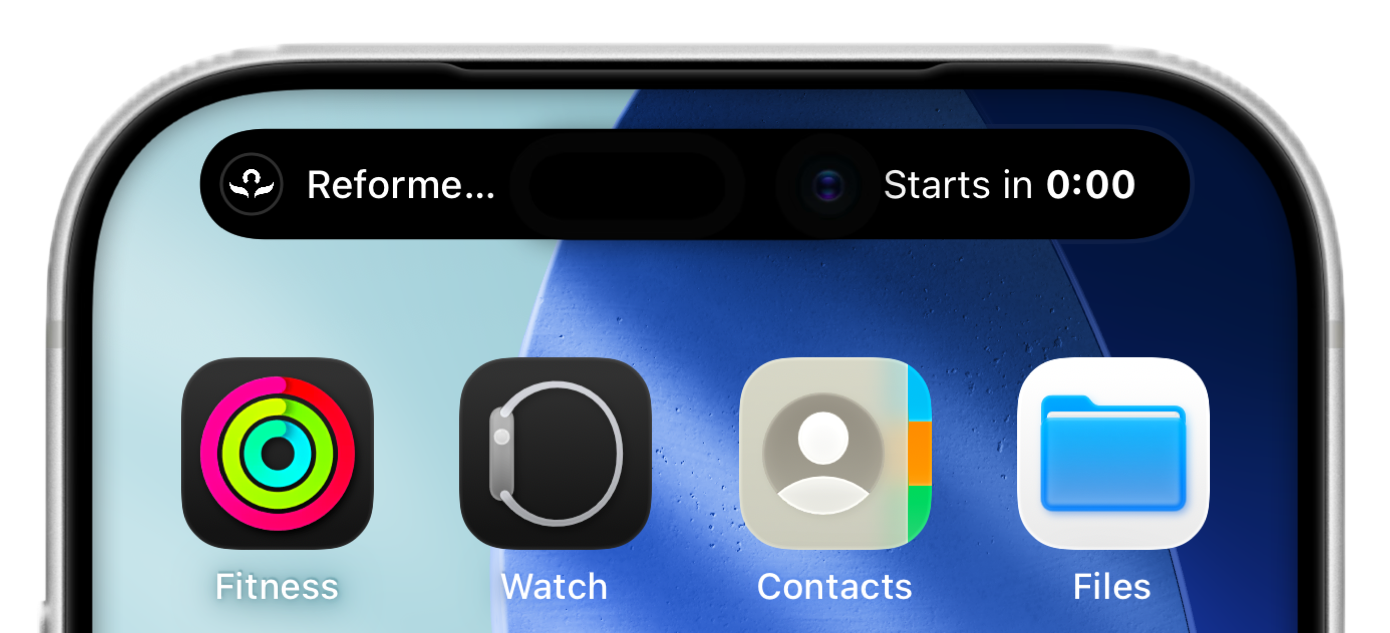
- The compact view shows your studio logo on the left and a live countdown timer on the right
- Tapping and holding the Dynamic Island expands it to show full details including your studio name, class times, and a countdown
The Live Activity updates in real time and uses colour to indicate the status of the class:
- Green — The class is coming up (countdown phase)
- Orange — The class is currently in progress
- Grey — The class has finished
After the class ends, the Live Activity remains briefly before automatically dismissing.
Because your logo and studio name sit on the Lock Screen for the hour before class, this doubles as branding — your clients see your studio, not a generic reminder.
Do you need to turn anything on?
Live Activities are enabled by default in the Clovo app. No Dashboard setting is required. Clients may need to open Clovo near class time to start the display.
Clients can control Live Activities themselves in two places, which is worth knowing if one of them tells you they aren’t seeing them.
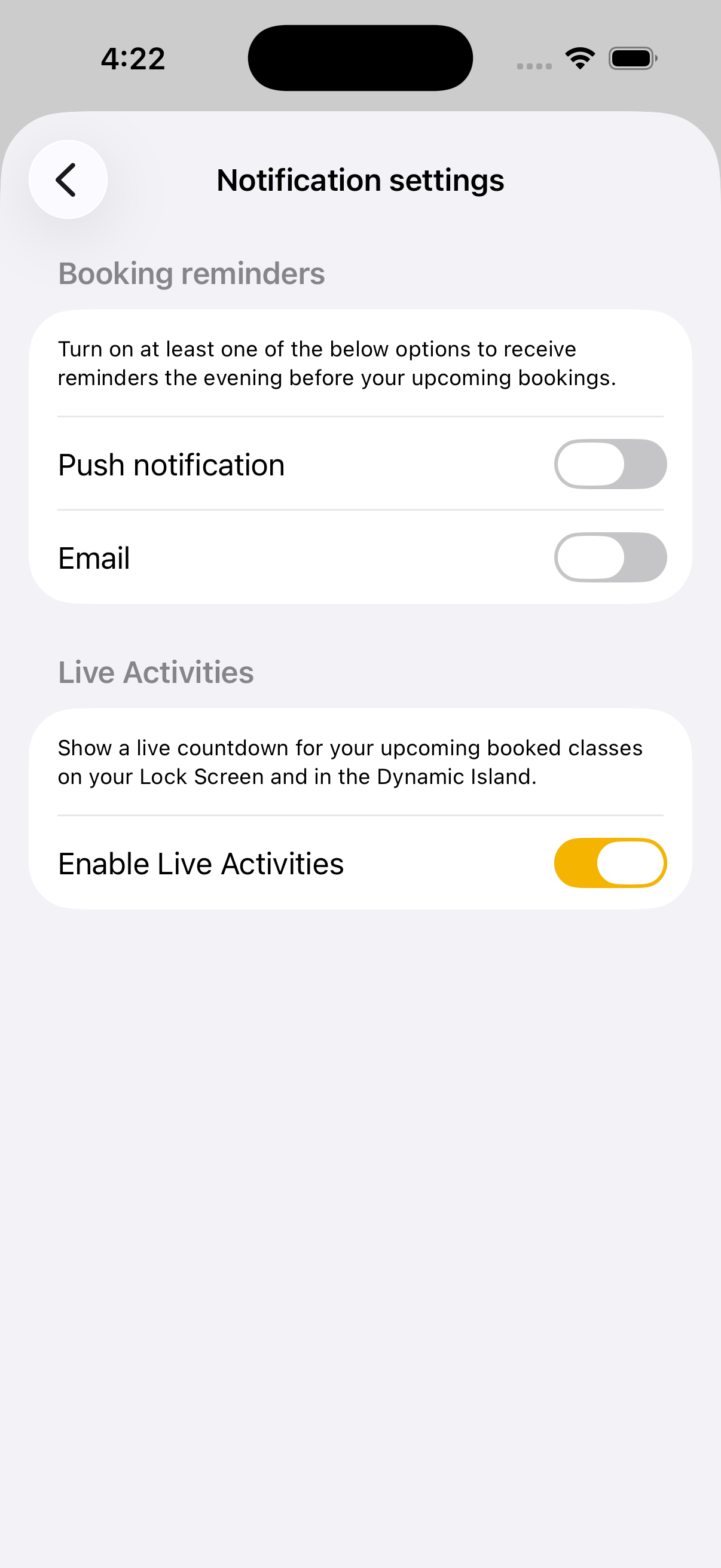
Within the Clovo app
- Open the Clovo app
- Tap You, then the … account menu beside your name
- Open Notification settings
- Under Live Activities, find Enable Live Activities
- Toggle it on or off
From iPhone Settings
Live Activities can also be allowed or blocked from the iPhone’s system settings:
- Open the Settings app
- Scroll down and tap Clovo
- Tap Live Activities
- Toggle Allow Live Activities on or off
If Live Activities are disabled at the system level, the Clovo app cannot display them regardless of the in-app setting.
Requirements
- An iPhone running iOS 16.4 or later
- The latest version of the Clovo app
- An upcoming booked class
- For Dynamic Island display: an iPhone with Dynamic Island
Frequently Asked Questions
When does the Live Activity appear?
From one hour before the client’s booked class starts. If it has not appeared, open Clovo during that hour.
What if a client has multiple bookings?
The Live Activity shows one class at a time, prioritising the class that is currently most relevant based on timing.
A client says they don’t see a Live Activity for their booking — what should I tell them?
Ask them to open Clovo within the hour before class. If the display still does not appear, check that Live Activities are enabled in both Clovo and their iPhone’s system settings, and that they are running iOS 16.4 or later with the latest Clovo app.
Related articles
What does the customer journey look like?
See the customer journey in the Clovo app: finding your studio, exploring, signing up, purchasing a pack, booking a class, and receiving confirmation and reminders.
How to manage your studio from an iPad
Use the Clovo iPad app to manage classes, clients and staff tasks, or run a self-serve check-in kiosk.
Track attendance by checking-in clients on your phone or desktop
Check clients in to record who attended a class in addition to who booked.
Get started in the Clovo app when your studio moves to Clovo
Your studio now takes bookings through Clovo and has already set up your account. Download the app, find your studio, then sign in with a code sent to your email or set a password with a reset.