
Require a form before clients book a class

Tobias Gundry
Updated
You can require clients to complete one or more forms, including health and intake forms, before they book a class themselves. Each required form only needs to be completed once; it is not requested again on later bookings for that class. Staff can still add a client to a class manually when an exception is needed.
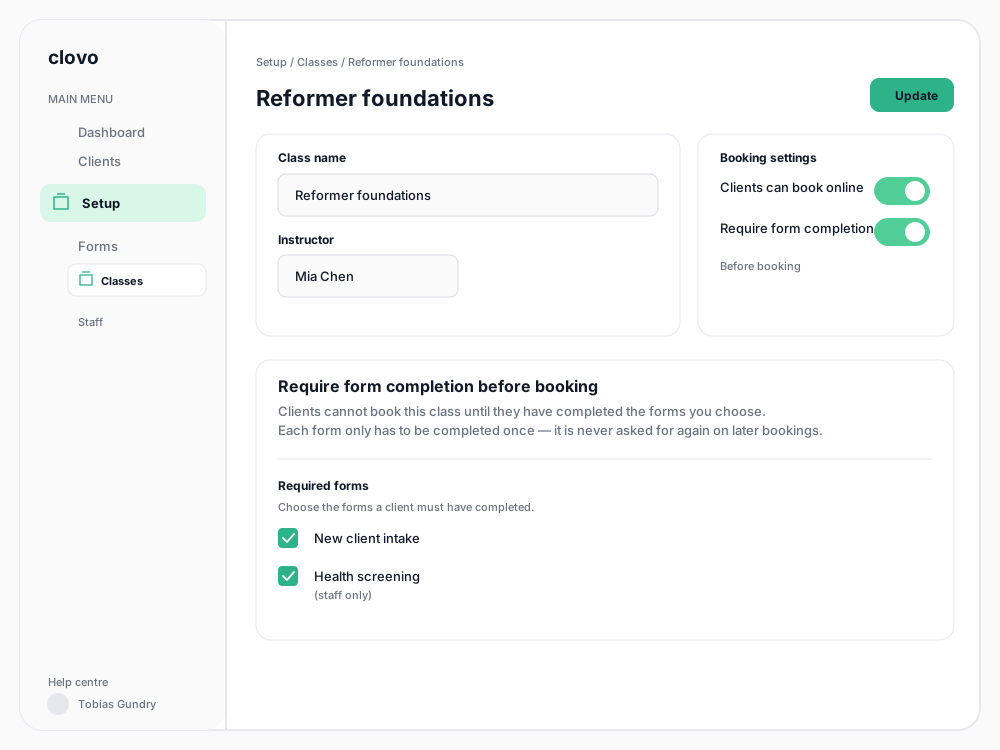
Add a form requirement to a class
- In Clovo Dashboard, open Setup → Classes.
- Open the class you want to change, or start a new class.
- Turn on Require form completion before booking.
- Under Required forms, select every form the client must have completed.
- Select Create or Update to save the class.

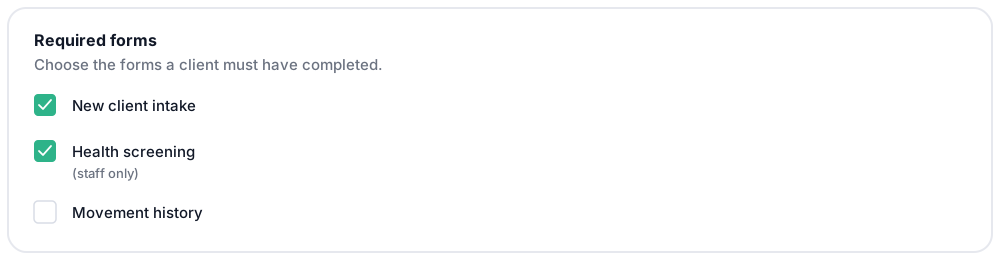
The selector includes active forms. A staff-only form is marked (staff only); it can be required when staff will fill it in on the client’s behalf. If there are no forms to select, build a form in Setup → Forms first.
To place the form on the client’s device when it blocks their booking, open the self-service form under Setup → Forms and turn on Automatic sending. This setting also sends the form whenever a new client account is created. See send forms to clients automatically for the full setup.
What happens when a client books
If a client has not completed a required form, Clovo stops the booking and names the form they need to complete. When a missing form has Automatic sending turned on, Clovo also places the request in the client’s Forms area and notifies them. The client completes the outstanding form and submits it before trying the booking again.
Forms without Automatic sending are not requested as part of the failed booking. Send those forms from the client’s Forms tab, or fill them in from the dashboard.
When a client books directly and payment would otherwise be needed, Clovo checks the form requirement before payment. The booking is not created and the client is not charged while a required form is missing.
After the required forms are complete, the client can book an available opening for the class.
Book a client yourself
Staff adding a client from the dashboard can override the form requirement when the booking needs to be recorded by the studio. If the form still needs to be completed, use the client’s Forms tab and choose Fill in a form or send a self-service form to the client.
Change the requirement later
Open the class under Setup → Classes to turn the requirement off or change the selected forms, then save the class again.
If you want to archive or remove a form that a class still requires, edit the class first and remove that form from Required forms. This keeps the class from referring to a form that staff can no longer use.
Related articles
Send a form to a client in the Clovo app
Request a self-service form from a client, see when it is completed, and understand how manual and automatic requests appear in the Clovo app.
Send forms to clients automatically
Automatically request a self-service form when a client joins your studio or when the incomplete form blocks their booking.
Build a client form with the Form Builder
Create reusable health and intake forms with questions, instructions, ratings and signatures, then choose who completes them and whether Clovo sends them automatically.
Set up a clinical intake and track client progress over time
Design a health and intake form that captures injury history and goals, make it a condition of the first class, then follow the client's progress with reassessments and progress notes.