
Send forms to clients automatically

Tobias Gundry
Updated
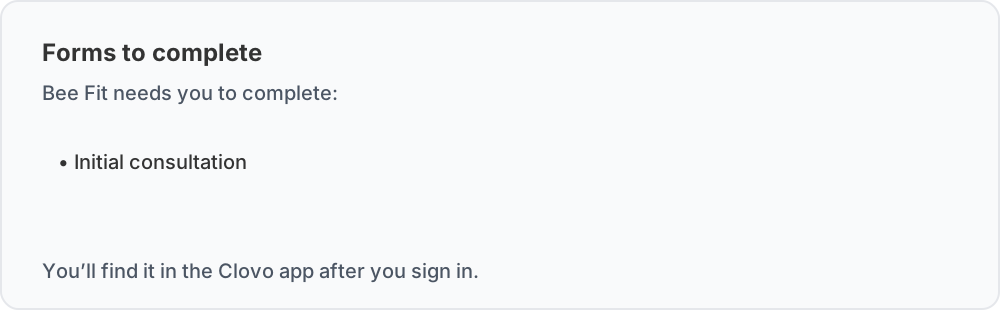
Turn on Send automatically to have Clovo request a self-service form at two points: when a client account is created, and when the incomplete form blocks a client’s own booking. The request appears in the client’s Forms area in the Clovo app. When a new client joins, their welcome email also names the forms your studio needs them to complete.
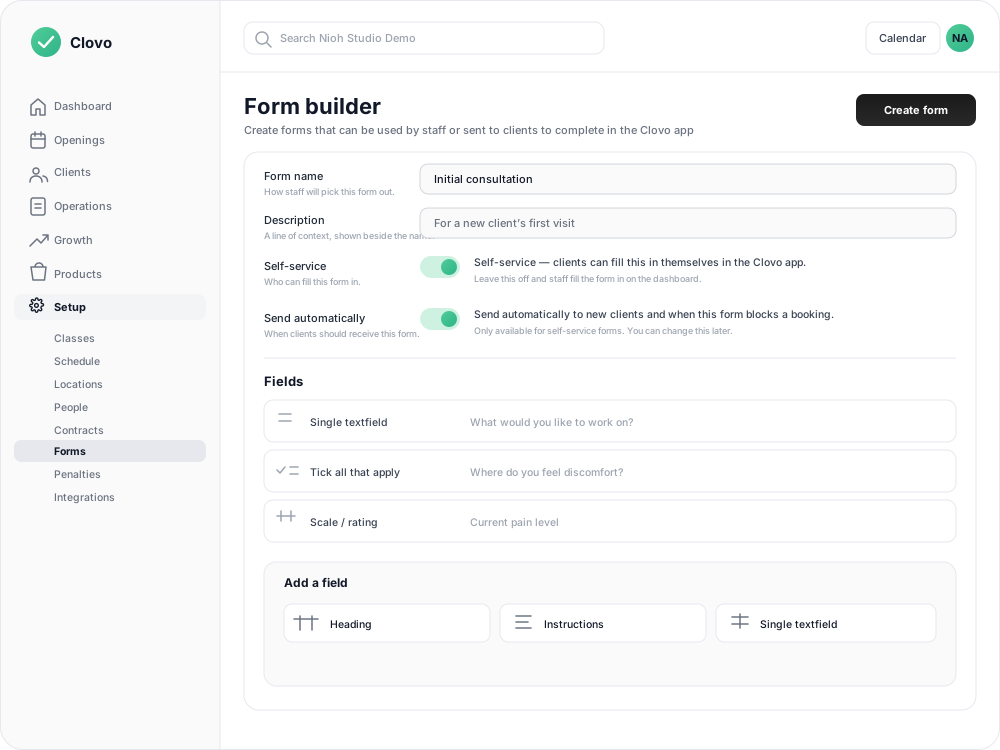
Automatic sending is available for active self-service forms. Staff-only forms stay on the dashboard because clients cannot complete them in the app.
When Clovo sends the form
With Send automatically turned on, Clovo requests the form in either of these situations:
- A client account is created. This includes clients who sign up themselves and clients your team adds from the dashboard.
- The incomplete form blocks a client’s own booking. The form must also be selected under Required forms for that class. Clovo sends the request, but the booking remains stopped until the client completes the form and tries again.
These two triggers use one setting, so turning it on enables both. If the form belongs to a particular appointment or review rather than every new client, leave automatic sending off and request it from the client’s profile when it is due.
New clients see a notice in their welcome email directing them to the forms waiting in the app.
Clovo does not send the same form again while it is already waiting for that client or after they have completed it. Turning the setting on does not immediately send the form to every existing client. You can still request it manually from an existing client’s profile, or let Clovo send it if the form later blocks their booking.
Turn on automatic sending for a new form
- In Clovo Dashboard, open Setup → Forms.
- Select Form builder.
- Enter the form details and turn on Self-service.
- Turn on Send automatically.
- Add the form fields, then select Create form.
The form is now ready for new client accounts. To use the booking trigger as well, require the form before clients book the relevant class.
Change automatic sending later
Open Setup → Forms, then select the form. Under Automatic sending, change the switch and select Save.

You can change this setting after the form has been used, even though its questions are locked. Archiving a form turns automatic sending off. If you restore the form later, return to this setting and turn it on again if clients should resume receiving it.
What the client needs to do
The client receives the same form request whether staff sent it or Clovo sent it automatically. A new client can follow the notice in their welcome email, then open Forms in the Clovo app, answer the form and select Submit form. A client whose booking was stopped then returns to the class and tries the booking again.
On the client’s Forms tab in the dashboard, Sent to client means the request is still waiting. Client completed means the answers are ready to review. See send a form to a client in the Clovo app for the full client experience and the options for a waiting request.
Related articles
Require a form before clients book a class
Make one or more completed forms, including health and intake forms, a condition of self-booking a class, while keeping a staff override for bookings you add yourself.
Send a form to a client in the Clovo app
Request a self-service form from a client, see when it is completed, and understand how manual and automatic requests appear in the Clovo app.
Build a client form with the Form Builder
Create reusable health and intake forms with questions, instructions, ratings and signatures, then choose who completes them and whether Clovo sends them automatically.
Set up a clinical intake and track client progress over time
Design a health and intake form that captures injury history and goals, make it a condition of the first class, then follow the client's progress with reassessments and progress notes.