
Set up a clinical intake and track client progress over time

Tobias Gundry
Updated
If you take a full history before you teach someone — injuries, surgery, medication, what they are training towards — you need two things from your software. The history has to be in front of you before the first class, and there has to be somewhere to record what changes afterwards.
Clovo keeps those two jobs apart. A form holds what the client tells you, in their words, and they can read it back in the Clovo app. A progress note holds what you observe, and it stays private to your team. This article puts them together into one record that runs from intake to reassessment.
Staff need Client Records to see a client’s Forms and Progress Notes tabs and work with those records. For the full workflow below, including Setup → Forms navigation and class booking requirements, they also need Setup. Owners already have access. See Staff roles and permissions for the role combinations.
Decide what the intake has to capture
Work out which answers change what you do, before you open the builder. A question is worth asking if it would change the class you put someone in, the movements you avoid, or the thing you measure again in three months.
A few choices are worth making deliberately:
- Group the form into sections with Heading fields — history, current symptoms, goals, consent. A long form is much easier to answer, and to read back, when it is broken up.
- Use an Instructions field to say how the answers are used and what to do if something changes between now and the class.
- Capture at least one measure you can ask again. A Scale / rating field is the one that compares cleanly over time. A saved rating is shown as the number on its own, so put the meaning of the range into the question: Pain in the last week (0 = no pain, 10 = worst pain).
- Ask for goals in the client's own words with a Multiline textfield. Their answer is usually more specific than anything a list of options would offer, and it is what you measure the reassessment against.
- Mark as mandatory the questions you would not teach without. The client cannot submit the form until those are answered.
- Finish with a Signature field if you need a declaration that the history is accurate.
This is what a completed intake looks like when you open it from the client's profile.

The field types and their settings are covered in build a client form with the Form Builder.
Build the intake, and a shorter form for reviews
Build the intake in Setup → Forms, turn on Self-service, then turn on Send automatically. New clients receive the intake when their account is created. Existing clients receive it if they try to book a class that requires it and have not already completed or received it.
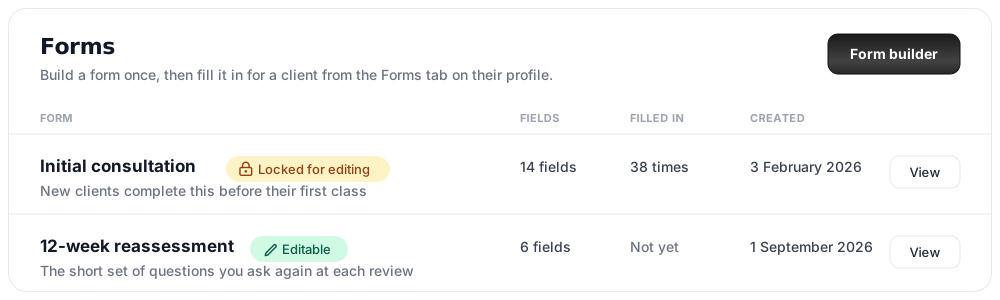
Then build a second, much shorter form for reassessments. It only needs the measures you want to repeat: the rating scales, the current goal, and anything that changes week to week. Leave Send automatically off for this form because it belongs to a particular review, rather than every new client. You will send it when each review is due, so keep it to a few questions the client can answer in a minute.
There is a practical reason to separate the two. Once a form has been filled in for anyone, its questions are locked, and the list marks it Locked for editing. That protects answers already recorded against the questions that were actually asked. If you need to change a locked form, open it and choose Duplicate, then edit the copy.
Make the intake a condition of the first class
Turn on Require form completion before booking on the class new clients start with — an assessment, an introductory session, or whichever class is their first — and select the intake form under Required forms.
A client who has not completed it cannot book that class themselves, and Clovo names the form they need. If they do not already have the intake request, automatic sending places it in their Forms area and notifies them. They complete the form, then try the booking again. The requirement is checked before payment, so nobody is charged for a booking that will not go through. Each form only has to be completed once; later bookings do not ask for it again.
Staff adding a client to a class from the dashboard can override the requirement. If the client already existed before you turned on automatic sending and has not attempted their own booking, send them the intake from their profile at the same time.
The full setup, including what the client sees when a form is missing, is in require a form before clients book a class.
Check the intake has arrived before they do
Open Clients, select the client and open the Forms tab. The row for the intake form tells you where it has got to.

- Sent to client means it is still on their device. Open the row and choose Fill in on their behalf if you would rather take the history over the phone; that closes the request and records the form as staff-entered.
- Client completed means their answers are ready to read.
- If nothing has been sent — for example, the client existed before automatic sending was turned on — use Request form to send it, or Fill in a form to complete it on the dashboard. See send a form to a client in the Clovo app.
Read the history before the session
Open the completed form from the Forms tab to read the answers in full. Download PDF gives you a copy to print or to pass to a treating practitioner with the client's agreement.
One thing to keep in mind as you read: clients can open their own completed forms in the Clovo app. A working diagnosis, a concern you have not yet raised, or anything else you would not hand them to read belongs in a progress note instead.
Write the baseline note after the first session
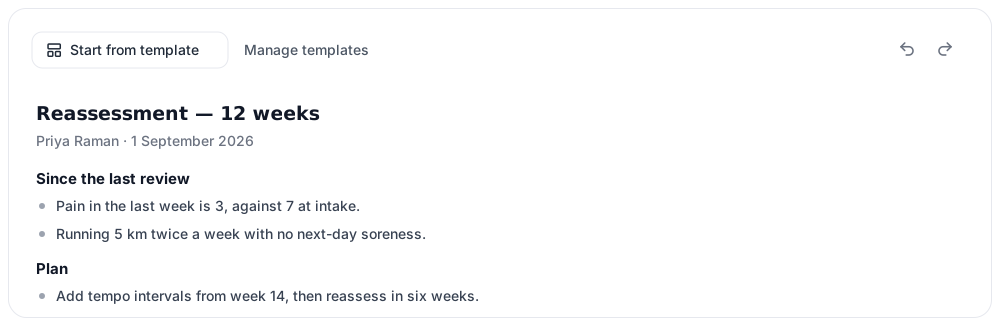
Open the client's Progress notes tab and select New. This first note is the baseline every later review is measured against, so give it a title your team will recognise later, such as Initial assessment.
Record what the form could not: what you saw them do, what you changed during the session, and what you are watching. It helps to carry the intake's key numbers into this note as well, so a reassessment can be compared in one place rather than across two screens.
If your reviews follow a set structure, build a template for them. A template gives every note the same shape, and the fields you add fill in details such as the client's name and the date when the template is used.
Writing, saving and versioning notes are covered in record client progress with Progress Notes.
Follow the client through each review
Once the baseline is in place, each review is the same short loop.
- Send the reassessment form a few days before the review, so the client's own ratings arrive before you see them.
- Read the new answers beside the intake on the Forms tab.
- Write the review note, starting from your review template.
- While writing, select Past notes to bring up earlier notes beside the editor and compare against the baseline without leaving the page.
If you correct a note afterwards, the earlier text stays available under Version history, so the record shows what was written at the time as well as what it says now.
Keeping the record readable years later
A few habits make the difference when you come back to a client after a long break:
- Keep titles consistent — Initial assessment, 6-week review, 12-week review — so the list reads as a timeline.
- Ask the same rating questions each time. A number is only useful next to the same number from an earlier date.
- Record what you decided, not only what you saw. The reason you changed a programme is the part that is hardest to reconstruct later.
- Send the reassessment form to the client rather than filling it in yourself where you can. Their own rating of their pain and confidence is a different measure from your observation of it, and both are worth having.
Related articles
Require a form before clients book a class
Make one or more completed forms, including health and intake forms, a condition of self-booking a class, while keeping a staff override for bookings you add yourself.
Send a form to a client in the Clovo app
Request a self-service form from a client, see when it is completed, and understand how manual and automatic requests appear in the Clovo app.
Send forms to clients automatically
Automatically request a self-service form when a client joins your studio or when the incomplete form blocks their booking.
Build a client form with the Form Builder
Create reusable health and intake forms with questions, instructions, ratings and signatures, then choose who completes them and whether Clovo sends them automatically.