
Track attendance by checking-in clients on your phone or desktop

Tobias Gundry
Updated
Check clients in to record who attended a class in addition to who booked.
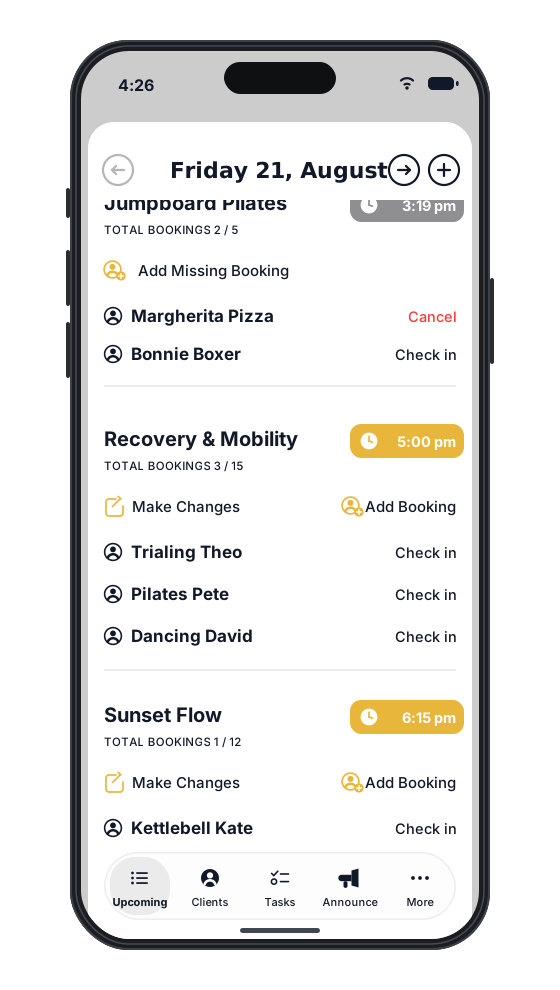
Check-ins are also required if you use no-show penalties.
There are multiple ways to check clients in with Clovo. You can use your phone, iPad, or desktop to accomplish the task, depending on your management style.
Checking in your clients as they arrive on the app
You can use the Clovo app to manage attendance as clients arrive. Sign in with an owner or staff account, then:
- Open the Admin tab. You can also use Manage from Our Studio.
- Open Openings. Choose a day from the horizontal date strip, then find the class and its booked clients. Tap Today to return to today.
- Tap Check in beside the client’s name.
- To reverse a check-in, tap Cancel beside that client on iPhone or iPad, or Cancel check-in on Android, then confirm. This removes their attendance mark without cancelling their booking.
Checking in on Desktop
You can also choose to check your clients in using Clovo on the desktop. This is a great option for any studio with a front of house or reception area.
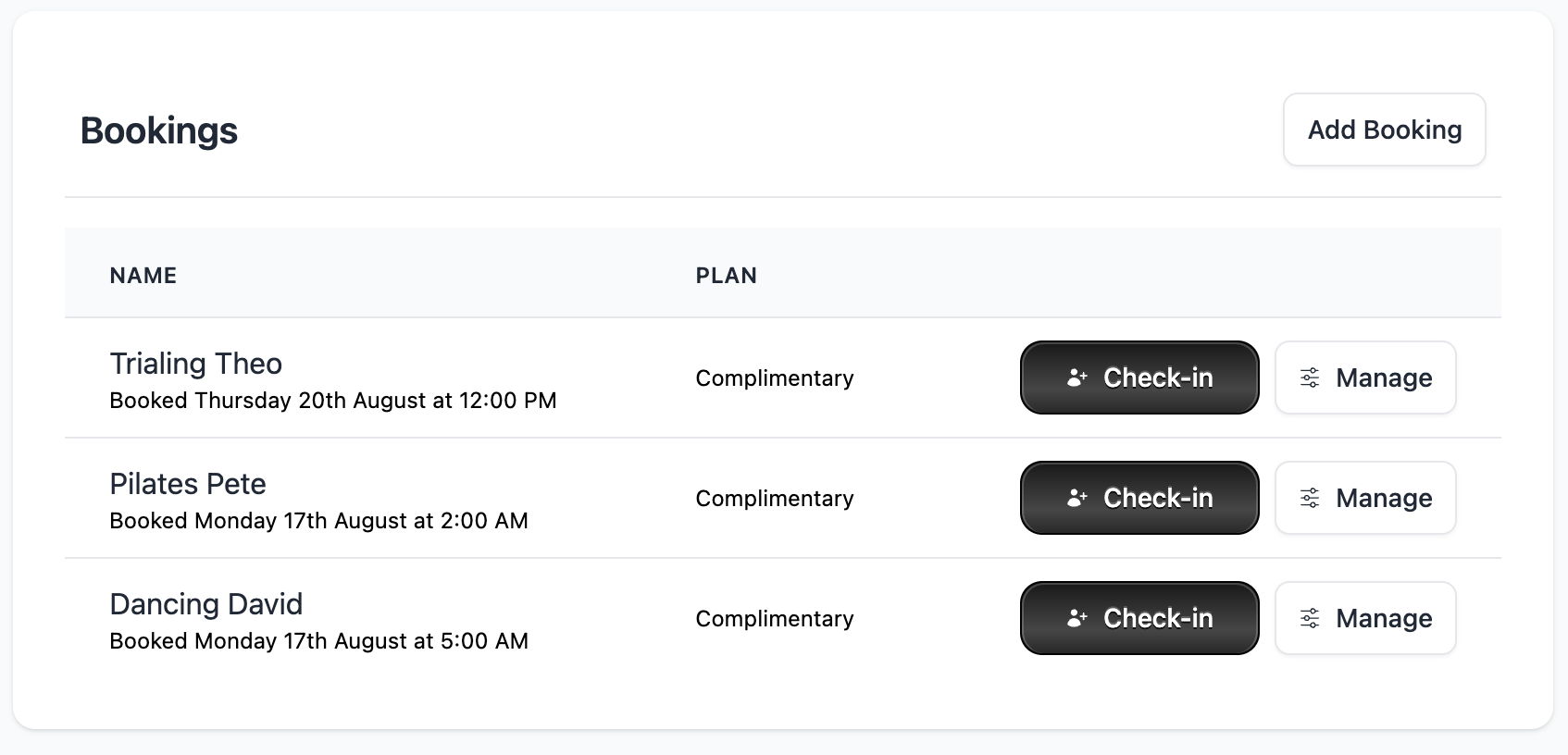
In Clovo Studio, open the class, find the client’s name, then select Check-in.
You can undo check-ins by tapping the undo button.
Related articles
Add a client to your studio manually
Create a client profile from the dashboard, record the required consent dates, confirm the email address, and understand which emails the client receives straight away.
What does the customer journey look like?
See the customer journey in the Clovo app: finding your studio, exploring, signing up, purchasing a pack, booking a class, and receiving confirmation and reminders.
Archive a client without deleting their history
Archive a client to hide them from day-to-day lists and stop them signing in, while keeping their record so you can bring them back later.
Deleting a client from your studio
Schedule a client for permanent deletion, cancel it while the grace period is still running, and understand when immediate deletion is available.