
Book classes with multiple memberships and credit packs

Tobias Gundry
Updated
Clients can purchase and hold more than one membership, more than one credit pack, or a combination of both at your studio. When booking a class, they choose which eligible membership or pack to use.
For example, a client could have a Reformer membership alongside a Mat Pilates membership, two different credit packs, or a weekly membership with a credit pack for extra classes. Each product keeps its own inclusions, allowance and validity dates.
View their passes
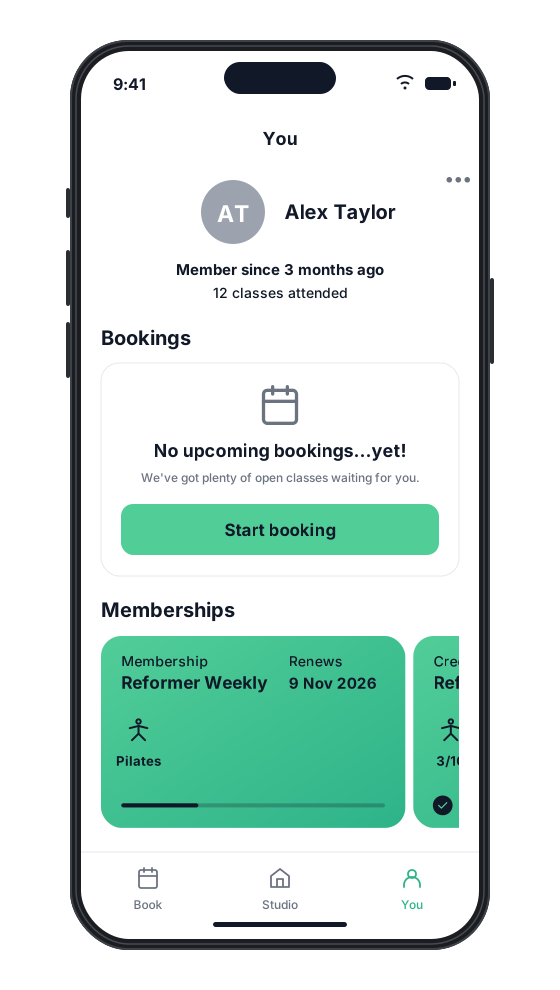
In the Clovo iPhone app, clients open You and scroll to Memberships. This section shows their membership and credit-pack pass cards. When they have several, they can swipe sideways to see the others; the edge of the next card peeks into view.
Choose a pass when booking
- Open Book, choose a class and time, then tap Book.
- On Confirm Booking, review the class details and the pass shown. The first pass is selected automatically.
- Swipe sideways through the cards to find the membership or pack they want to use.
- Tap the card to select it. A checkmark in its top-right corner marks the selected pass. Swiping alone does not change the selection.
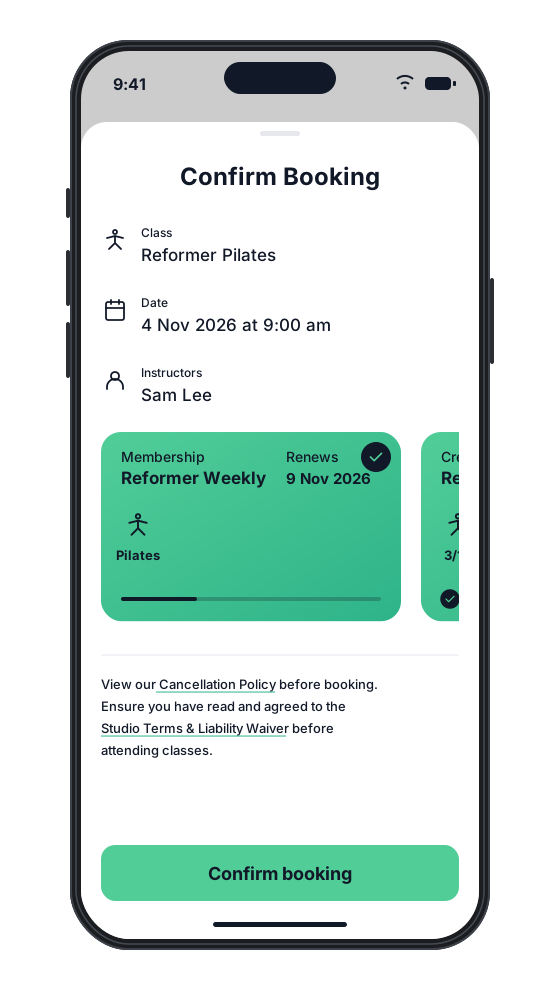
Clients can use their membership for this class, or swipe across and tap a credit pack to use that instead. The example below shows the same class with Reformer 10 Pack selected.
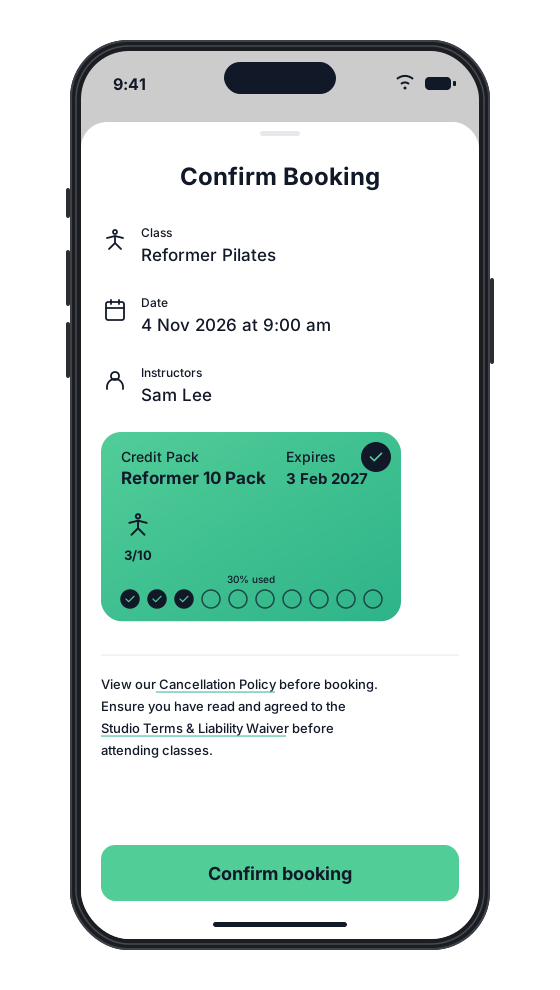
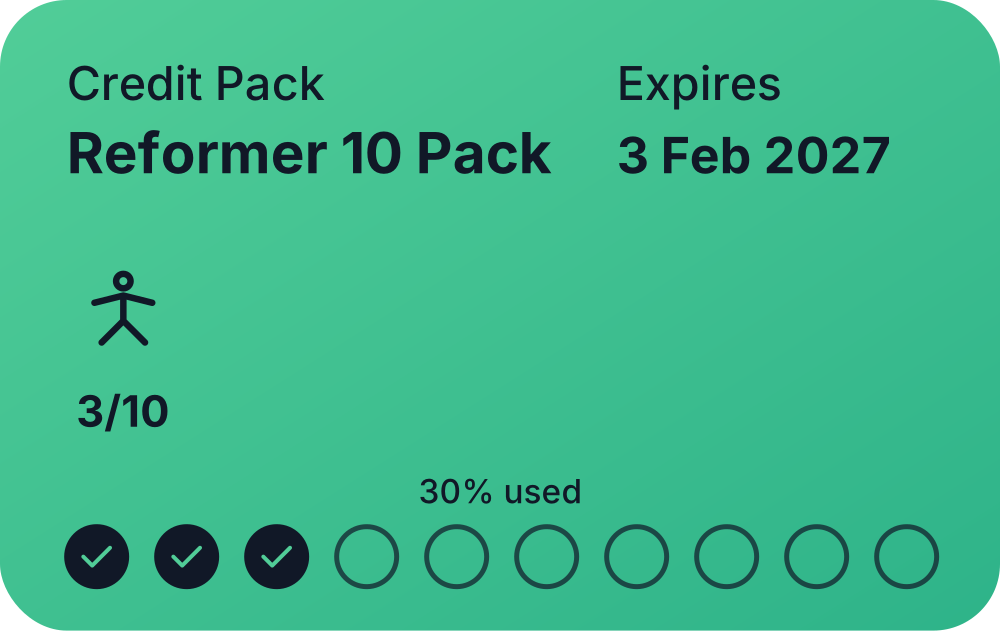
The selection checkmark appears when they tap the card:
- Review the cancellation policy, then tap Confirm booking.
The booking uses the selected pass's allowance or credits. Clients choose one pass for each booking and can choose a different pass next time. Credits and allowances from separate products are not pooled into one balance.
If a pass is missing or the booking cannot be completed
The booking screen shows active passes that include the chosen class. A Mat-only pack will not appear for a Reformer class. If only one pass includes the class, there is no carousel to choose from.
If a booking is declined, read the reason shown. Check that the selected product covers the class date, has enough allowance or credits, and is not paused for that date. Choose another eligible pass if needed.
If the screen shows Book with super credit, the app uses a Super Credit for that booking instead of showing the membership and pack picker. The picker returns when the client has no Super Credits remaining.
For help setting up the products clients can choose from, see Create a membership plan and Create a credit pack.
Related articles
Track the usage of memberships and packs
Read the usage panel on a client’s membership or credit pack, see what each credit was spent on, and correct a balance when it needs fixing.
What does the customer journey look like?
See the customer journey in the Clovo app: finding your studio, exploring, signing up, purchasing a pack, booking a class, and receiving confirmation and reminders.
Deactivate a pack or membership plan
Remove a credit pack or membership plan from future sales while letting clients who already have it keep using it.
Share a secret deal with a promo code
Create a code that unlocks a private plan or pack, so clients can claim the offer themselves instead of you granting access one person at a time.