
How to set up gift purchases for credit packs

Tobias Gundry
Updated
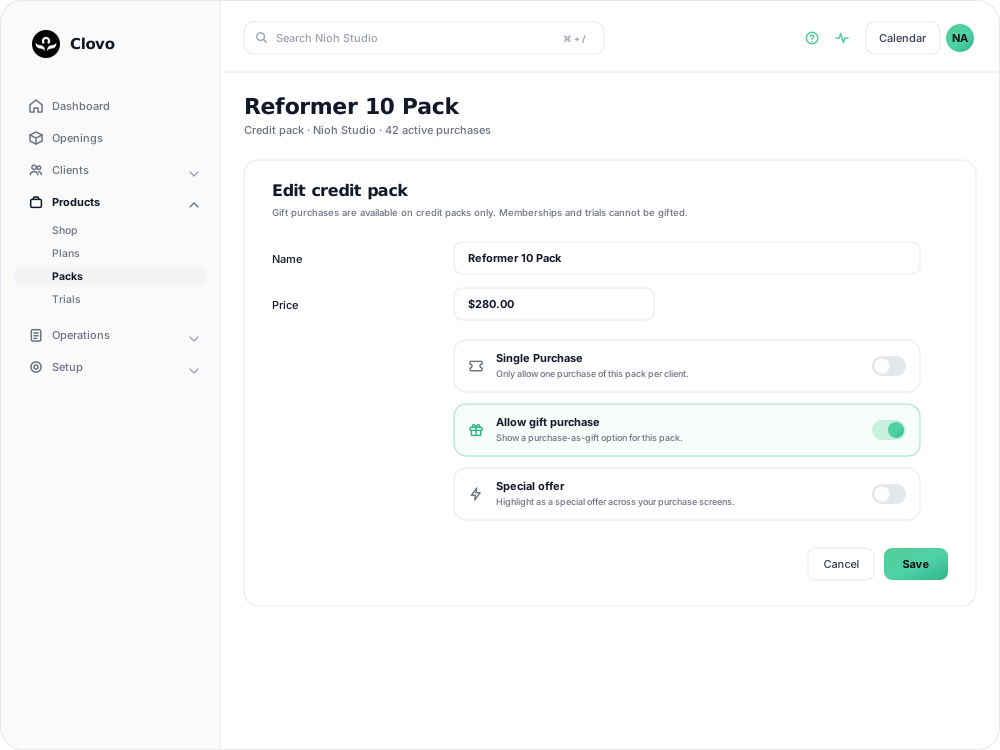
Gift purchases let your existing clients buy a credit pack for someone else. Once enabled, your public landing pages will show a Purchase as gift option for that pack.
Before you start
Gift purchases are available for credit packs only.
Before enabling gift purchases, check that:
- your studio has Stripe connected
- your landing page is enabled
- the pack you want to sell is active
- you enable gift purchases on each pack you want to offer
How to enable gift purchases

- Go to Services > Credit Packs.
- Create a new credit pack or open an existing one to edit it.
- In the pack settings, turn on Allow gift purchase.
- Save your changes.
That’s it. Once saved, that pack can be purchased as a gift.
What your clients will see
When gift purchases are enabled for a pack:
- a Purchase as gift button appears alongside the normal purchase option on your landing pages
- the purchaser must be an existing user and must sign in first
- the purchaser enters the recipient’s first name, last name, and email address
- the purchaser completes payment through Stripe
What happens after purchase
When a gift is purchased:
- your studio staff are notified
- the purchaser is notified
- the gift recipient is notified
- the purchaser email includes the purchase details and a Stripe receipt link
- the recipient receives a secure claim link by email
The gift is not activated immediately. It stays unclaimed until the recipient completes the claim process.
How gift claiming works
The recipient claims the gift through a secure email link.
- If they already have an account, they sign in with the same email address the gift was sent to.
- If they are new, they complete registration first.
- During registration they’ll be asked to add required details such as phone number and accept studio terms and waivers.
- Once completed, the gifted pack membership is created and the gift is marked as claimed.
When the gift is claimed:
- your studio staff are notified again
- the purchaser is notified
- the recipient is notified
How gifts appear in the dashboard
Once claimed, the membership is linked back to the gift purchase for tracking.
In the dashboard, gifted memberships are marked visually with a gift chip using a present icon.
Important notes
- Only packs with Allow gift purchase turned on can be bought as gifts.
- Recurring memberships and trials cannot be sold as gifts.
- Clients cannot use the gift flow to buy for themselves.
- The gift must be claimed using the email address it was purchased for.
Troubleshooting
If Purchase as gift is not showing:
- check that the product is a credit pack, not a recurring membership or trial
- confirm Allow gift purchase is turned on for that pack
- confirm the pack is active
- confirm Stripe is connected
- confirm your landing page is enabled
Related articles
Prevent repeat intro purchases with Blocked Purchasers
Block a client from buying a credit pack, including clients who bought your intro offer on another platform before moving to Clovo.
Track the usage of memberships and packs
Read the usage panel on a client’s membership or credit pack, see what each credit was spent on, and correct a balance when it needs fixing.
Credit packs in Clovo
Credit packs let clients book into classes with your studio without committing to a recurring subscription.
Give your clients free credits to book any of your classes, with Super Credits
Give clients free classes with Super Credits. Use them for rewards, make-goods, or other studio-approved credits.