
Share a secret deal with a promo code

Tobias Gundry
Updated
A secret deal is a plan or pack only certain clients can see. Granting that access from each client's profile works well for a handful of people. It stops working when the offer goes on a flyer, in a newsletter, or on a partner's website.
A promo code lets more people claim the offer without you granting access one profile at a time. You share one short code, and each client who enters it unlocks the deal for themselves.
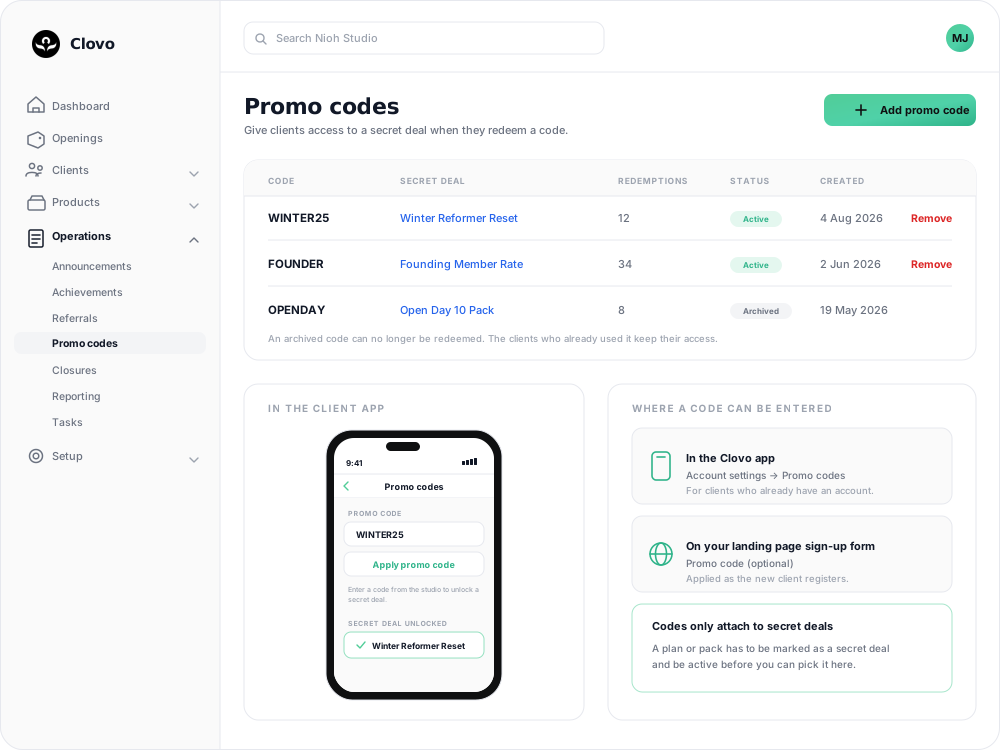
Before you start
The plan or pack has to exist first, and it has to be active and marked as a secret deal. Only those appear in the list you choose from, and if you have none the Create promo code button stays disabled.
If you have not set one up yet, start with How to offer secret deals on your plans and packs, then come back here.
Create a code
- Go to Operations → Promo codes.
- Select Add promo code.
- In Promo code, type the code clients will enter.
- In Secret deal, choose the plan or pack it should unlock.
- Select Create promo code.
A few things about the code itself:
- Case does not matter.
winter25andWINTER25are the same code, and the list shows it in capitals. - Letters, numbers, hyphens and underscores only, up to 64 characters. Choose a short code that is easy to type, because clients will enter it on a phone.
- It has to be unique within your studio. Reusing one you already have returns "That promo code already exists."
One code unlocks one deal. If you are running two offers, create two codes.
Where clients enter it
Clients can enter the same code in either of these places in the Clovo app.
During sign-up
On the second sign-up screen, the client enters the code in Promo code, then taps Complete. The field is optional and only appears while your studio has a promo code available to use.
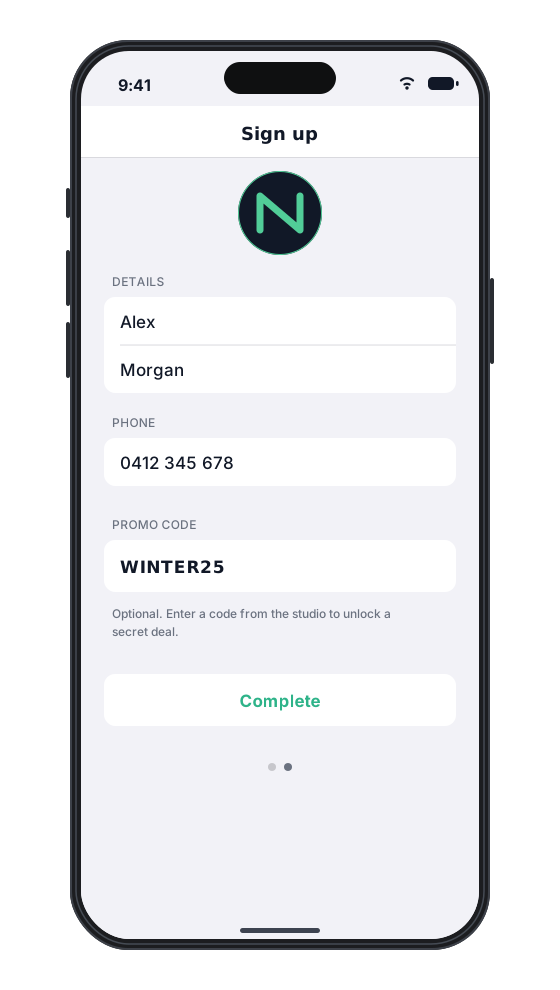
This route is useful when you share the code with someone who does not have an account yet. Their secret deal is unlocked as their registration is completed.
From an existing account
The client opens You, taps the … button to open Account settings, then selects Promo codes. They enter the code and tap Apply promo code.
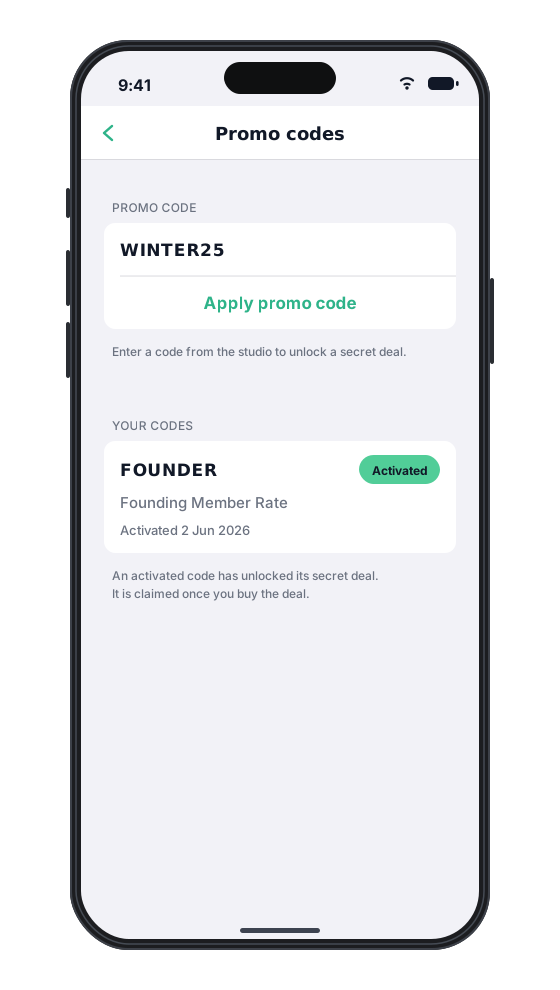
Once the code is accepted, it appears under Your codes with the name of the deal and an Activated status. The unlocked plan or pack also appears under Secret deals in the app, ready for the client to open and buy.
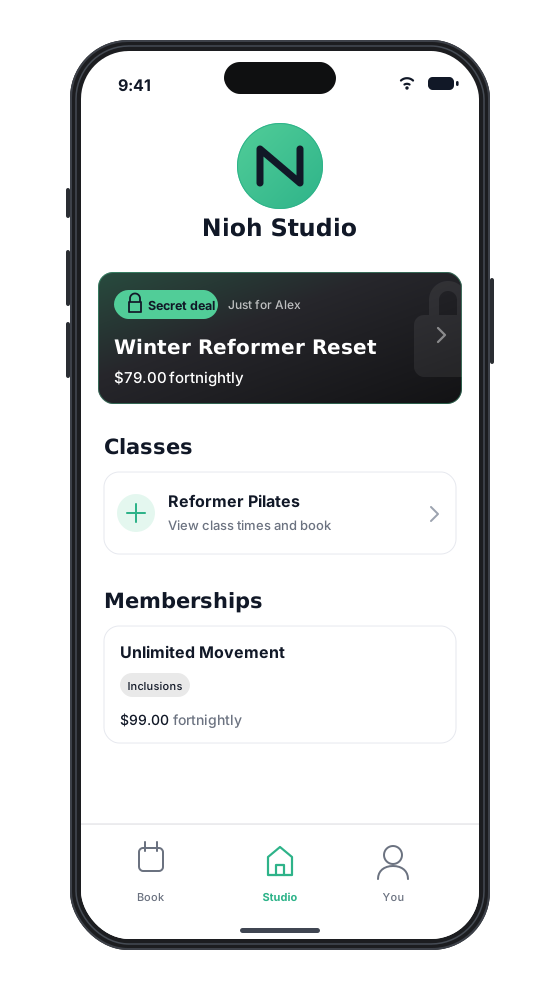
If the code is mistyped or the code or deal is no longer available, they see "That promo code is invalid or no longer available." Entering a code a second time changes nothing — access is already theirs.
Keep an eye on activations
The list shows how many clients have activated each code, so you can tell a flyer that worked from one that did not. Owners and staff with the Finance role are also notified each time a code is activated, naming the client, the code and the deal they unlocked. You can turn that notification off in your notification preferences.
Activating a code gives a client access to the deal. It does not buy it for them — they still choose to purchase in the usual way, so activations and sales are two different numbers.
Stop a code from being used
Select View beside the code to open its details. At the bottom of the details screen, select Delete or Archive. What happens next depends on whether anyone has activated it:
- Nobody has activated it. The code is deleted outright.
- Someone has activated it. The code is archived instead. It can no longer be activated, and it stays in your list with an Archived status so the activation history is still there. Clients who already activated it keep their access.

Deleting or archiving a code never takes a deal away from a client who has already activated it. If you need to withdraw access from someone, do that on their profile, the same way you would for any secret deal.
Common questions
A client says the code is not working. Where do I start? Check the code is still Active on this screen, and open the plan or pack it points to. A code stops working if that plan or pack is deactivated or is no longer marked as a secret deal, even while the code itself looks fine. Also check the client is using your studio's app or landing page — a code is tied to your studio.
Can I limit how many people use a code, or set an expiry date? Not currently. A code stays usable while its linked deal is active and private, until you delete or archive the code. Archive it when the promotion ends.
Can one client use two different codes? Yes. Each code unlocks its own deal, and a client can hold access to several.
Does the client have to enter the code before they pay? Yes. The code makes the deal visible to them; they then purchase it like anything else. There is no code field at the checkout.
I deleted or archived a code by mistake. Can I get it back? If it had never been activated, it was deleted. You can create it again with the same code. If it had been activated, it was archived instead, so its history is still on this screen. Create a new code if you want clients to activate the same deal again.
Related articles
Track the usage of memberships and packs
Read the usage panel on a client’s membership or credit pack, see what each credit was spent on, and correct a balance when it needs fixing.
Deactivate a pack or membership plan
Remove a credit pack or membership plan from future sales while letting clients who already have it keep using it.
How to offer secret deals on your plans and packs
Mark a membership plan or credit pack as a secret deal, grant access to the clients you choose, and remove it again.
Prevent repeat intro purchases with Blocked Purchasers
Block a client from buying a credit pack, including clients who bought your intro offer on another platform before moving to Clovo.