
Use dark mode in Clovo

Tobias Gundry
Updated
Studio work does not stop when the lights go down. If you close up at night, run the desk in a dim reception, or find a bright screen tiring, the Clovo Dashboard can be switched to dark mode.
Everything you normally use is still there — the same screens, the same cards, the same reports. Only the colours change.
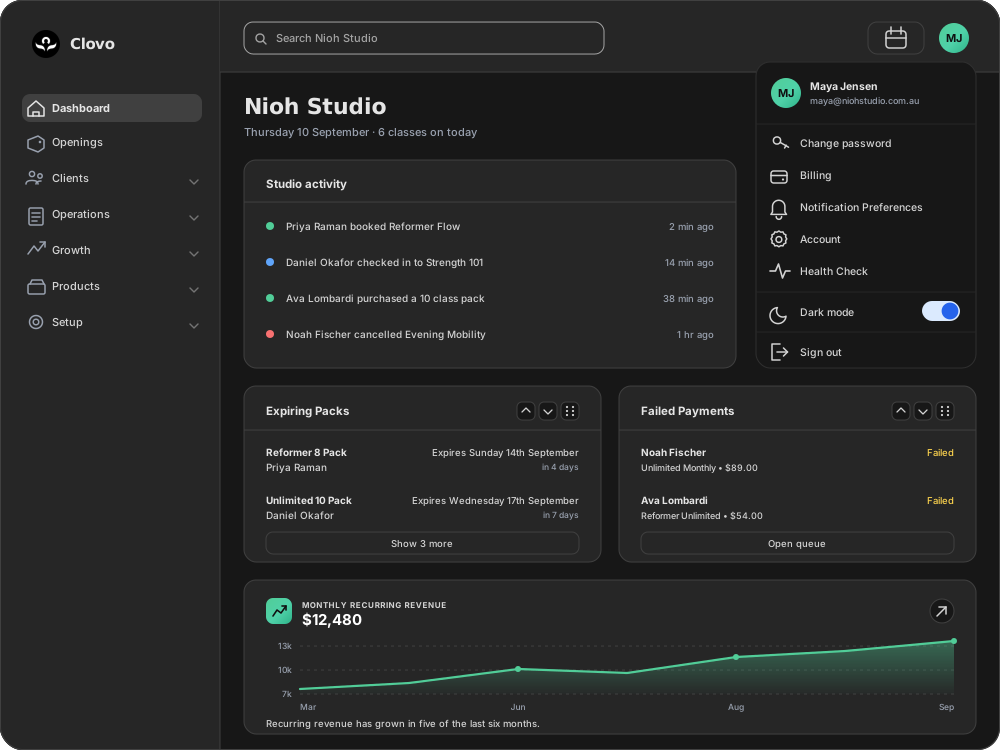
Turn dark mode on
- Select your avatar in the top right of the dashboard.
- Near the bottom of the menu, find Dark mode.
- Switch it on.
The dashboard changes as soon as you flip the switch. There is nothing to save and no page to reload. To go back, open the same menu and switch Dark mode off.
Where the setting is remembered
Dark mode is remembered in the browser you set it in. That has a few practical consequences:
- Sign in on a different computer — the front desk machine, a laptop at home — and the dashboard starts light again. Switch it on there too if you want it.
- Use a different browser on the same computer, or a private window, and the same applies.
- Clearing your browsing data clears the preference along with it, and the dashboard returns to light.
Nothing about this is shared. Turning dark mode on changes only your own view: colleagues keep whatever they have chosen, and clients see no difference at all.
It does not follow your computer's setting
Dark mode in the dashboard is a deliberate choice rather than something Clovo decides for you. If your computer is set to a dark appearance, the dashboard still opens light until you turn dark mode on yourself — and it stays dark afterwards even when your computer switches back to a light appearance during the day.
The client apps have dark mode too
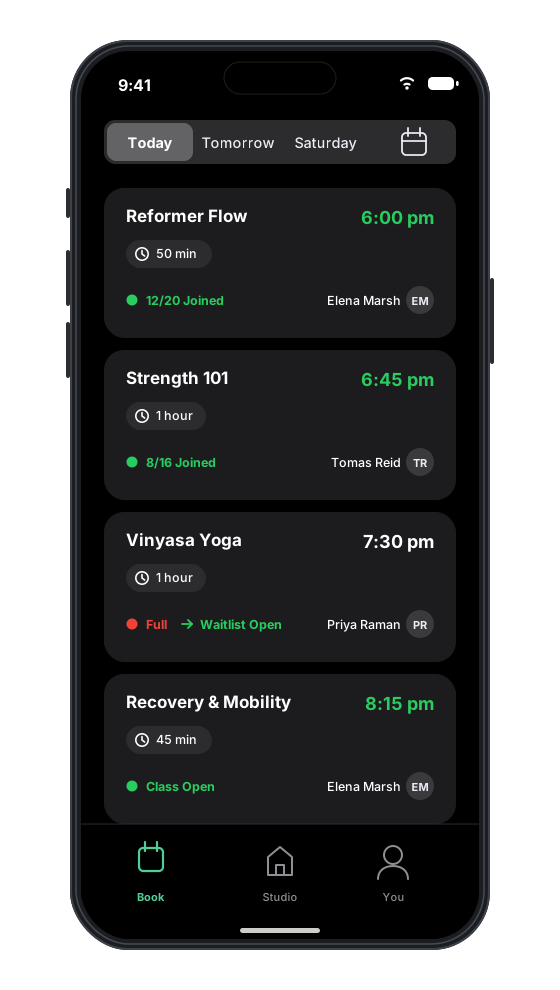
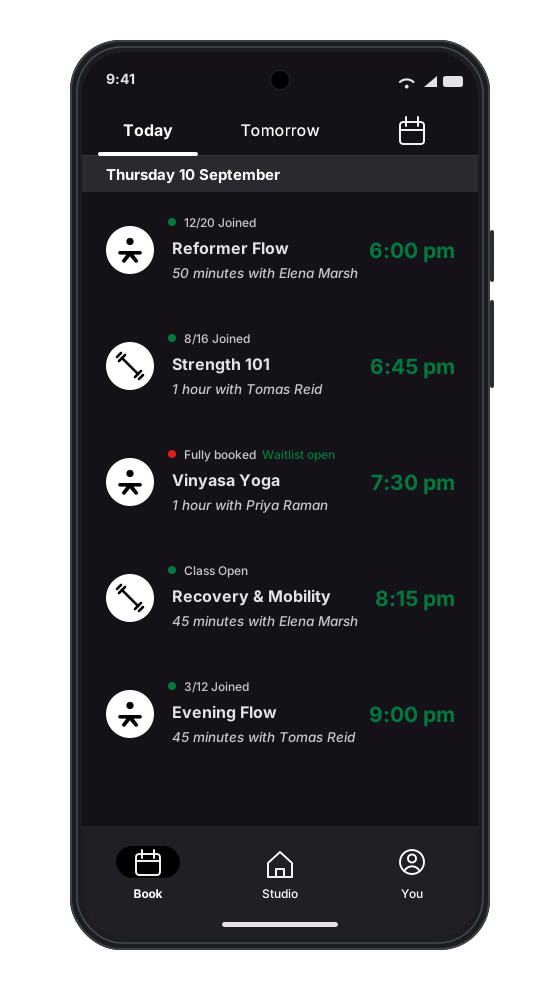
The Clovo apps for iPhone, iPad and Android already follow the appearance your device is set to. There is no dark mode switch inside the app, and nothing you or your clients need to turn on there.
- On iPhone and iPad, this is under Settings → Display & Brightness → Appearance.
- On Android, it is under Settings → Display → Dark theme. The exact wording varies between manufacturers.
Set the device to a dark appearance and the Clovo app follows. That covers your clients booking classes as well as staff working from the Admin tab on a phone or iPad at the front desk.
Your studio branding in dark mode
Your logo and brand colours appear in both light and dark mode.
It is worth checking how your colours read on both. The Accessibility (contrast) reading on the Branding screen gives a separate result on light and on dark for each colour — a colour that rates well on one can rate poorly on the other. See Change the branding of your clients' Clovo apps for how to read and act on those results.
Common questions
A colleague's dashboard is still light. Did I miss a step? No. Dark mode is a personal preference, not a studio setting. Each person turns it on for themselves.
I turned it on yesterday and today it is light again. You are most likely signed in from a different computer, a different browser, or a private window. Turn it on again there. If it reverted on the machine you always use, check whether your browsing data was cleared.
My computer is in dark mode but Clovo is not. That is expected — the dashboard does not follow your computer's appearance. Turn dark mode on in the account menu.
Will my clients get a dark app because I turned this on? No. Each person's app follows their own phone or tablet, and your dashboard setting has no effect on it.
Can I set dark mode for all my staff at once? No. There is no studio-wide control for it, so each staff member chooses for themselves.
Related articles
Ask members to leave a Google review after they review your studio
Add your Google Business Profile review link so members can copy their Clovo review and continue to Google.
Change the branding of your clients' Clovo apps
Upload your studio logo and set your two brand colours so the Clovo client apps, landing page, emails and invoices look like your studio rather than ours.
Collect and manage reviews from your members
Turn on Clovo reviews so eligible members can share feedback, then review and publish their responses from Clovo Studio.
Customise your dashboard layout
Turn dashboard cards on or off, put them in the order you want, and choose where the activity timeline sits — all saved to your own staff account.