
Collect and manage reviews from your members

Tobias Gundry
Updated
Clovo reviews give members a way to share feedback about your studio after they have attended a class. You can collect their responses in Clovo, decide which reviews to publish, and offer a Google review follow-up when you are ready.
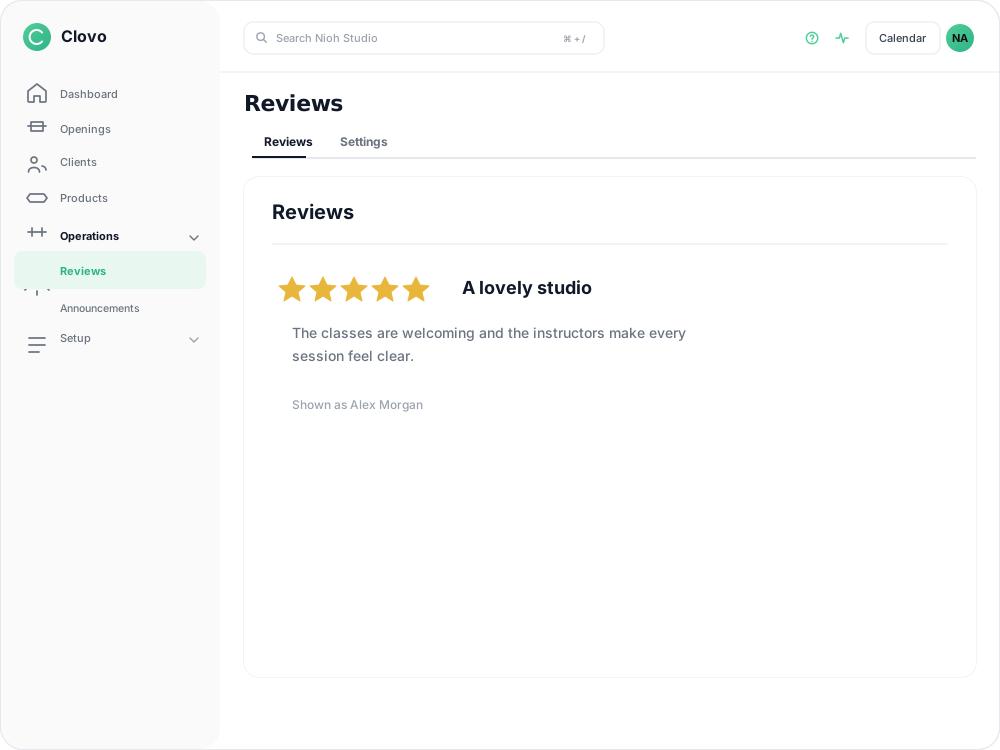
Turn on reviews
-
Open Reviews in Clovo Studio.
-
On the Settings tab, turn Reviews on.

Eligible members can now submit a review from the Clovo app.
How members leave a review
A member can choose Review this studio from their account settings after one completed class with a check-in recorded. On iPhone and iPad, the automatic Leave a review prompt can appear after five attended classes. A booking without a check-in, or a class still in progress, does not count.
They then:
- Choose a star rating.
- Add a Title and answer What was it like?.
- Check or change their Public display name.
- Select Send review.
Each member can submit one studio review. They see it after sending and cannot edit it afterwards.
Review member feedback in Clovo
Open Reviews in Clovo Studio to read the reviews members have submitted. A review stays private until you choose whether to publish it for other members to see.
If a review needs clarification, speak with the member before publishing it. Clovo reviews cannot be edited after they are sent.
Offer a Google review after Clovo
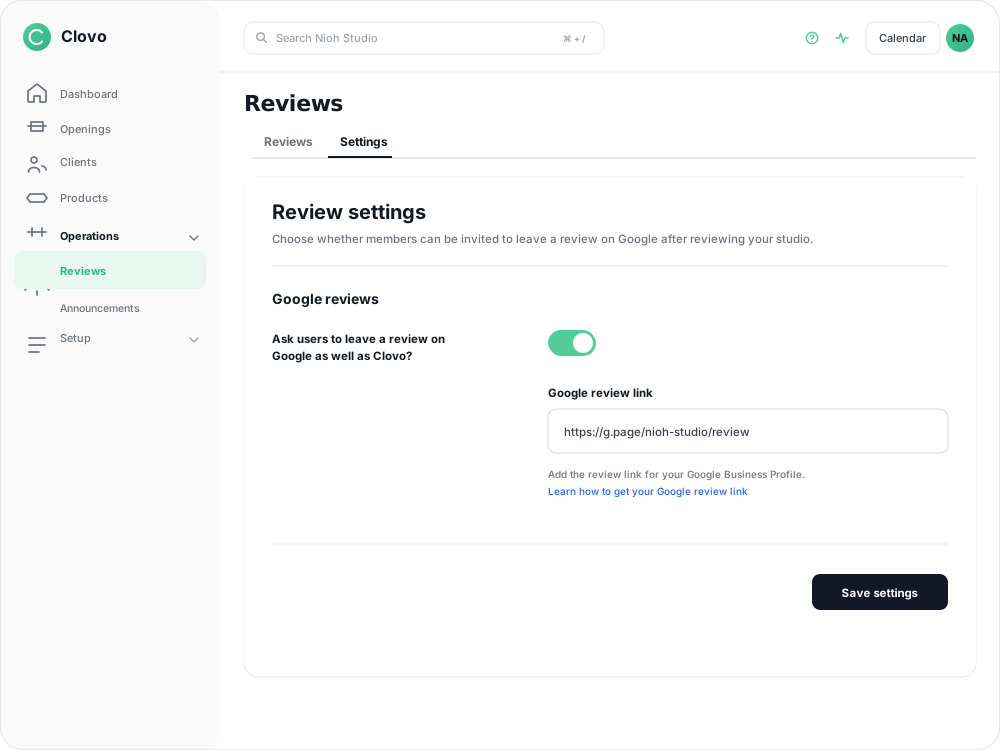
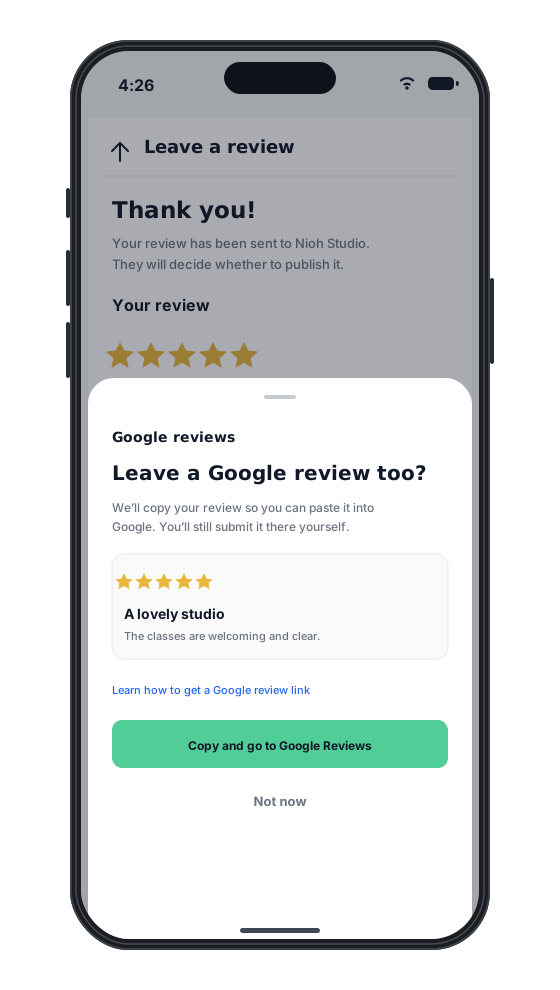
Clovo reviews and Google reviews are separate. If you want members to be able to copy their Clovo review and continue to Google after submitting it, add your Google Business Profile review link and turn on Google review requests in Reviews → Settings.
See Ask members to leave a Google review after they review your studio for the setup steps and what members see.
If a member cannot see the review prompt
Check that:
- Reviews is switched on in Clovo Studio.
- The member has at least one completed class with a check-in recorded.
- The member is using Leave a review from the prompt or Review this studio from their account settings.
If the member has already submitted a review, they cannot edit it afterwards.
Related articles
Ask members to leave a Google review after they review your studio
Add your Google Business Profile review link so members can copy their Clovo review and continue to Google.
Use dark mode in Clovo
Switch the Clovo Dashboard to dark mode from your account menu, understand where the setting is remembered, and see how the iPhone and Android apps follow each person's own device.
Change the branding of your clients' Clovo apps
Upload your studio logo and set your two brand colours so the Clovo client apps, landing page, emails and invoices look like your studio rather than ours.
Create a paid introductory offer with a credit pack
Use a paid intro offer when you want a new client to make a small first purchase before choosing a membership.