
Send staff alerts to a Slack channel

Tobias Gundry
Updated
Clovo is integrated with Slack, so your team can follow new enquiries, bookings, purchases and other staff alerts in a Slack channel they already use. You choose the channel and which alerts it receives.
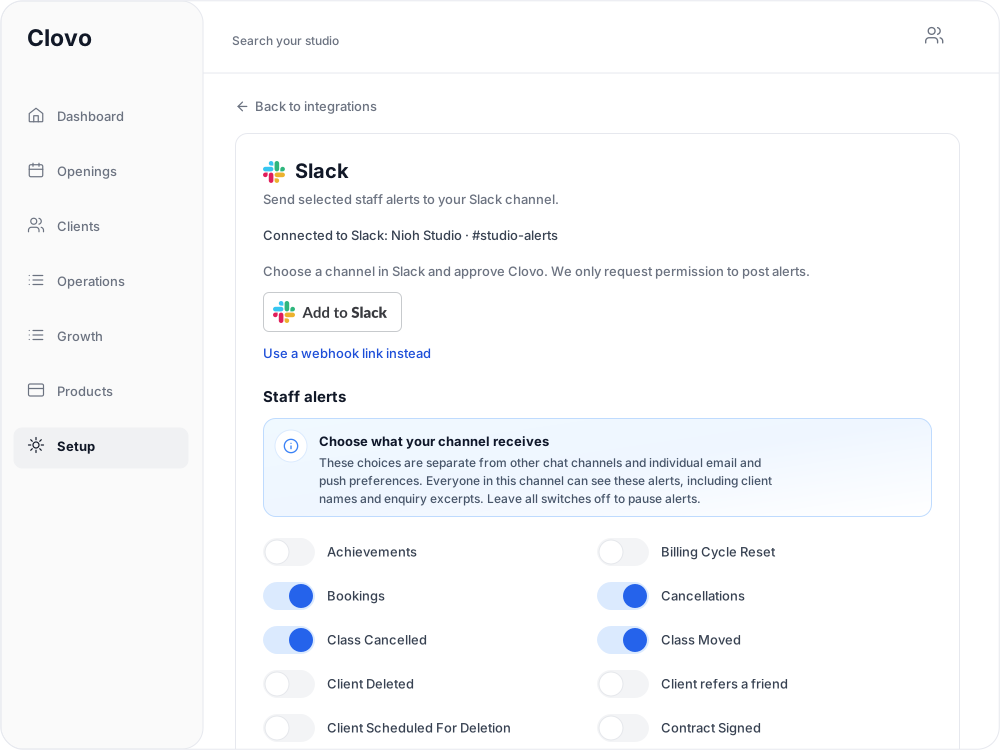
Before you connect
Only studio owners can connect a Slack channel, change its alerts, send a test alert or disconnect. You will also need to be able to add apps to your Slack workspace.
Everyone in the channel can see the alerts posted there, including client names and enquiry excerpts. Choose a channel whose members should see that information, such as a private channel for your studio team.
Connect a Slack channel
-
Open Setup → Integrations.
-
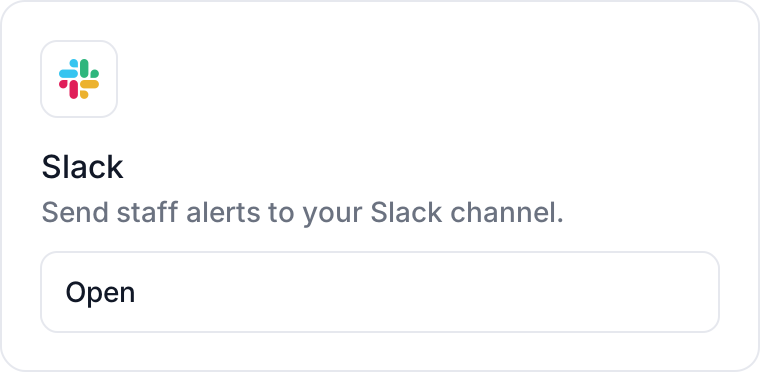
On the Slack card, select Open.
-
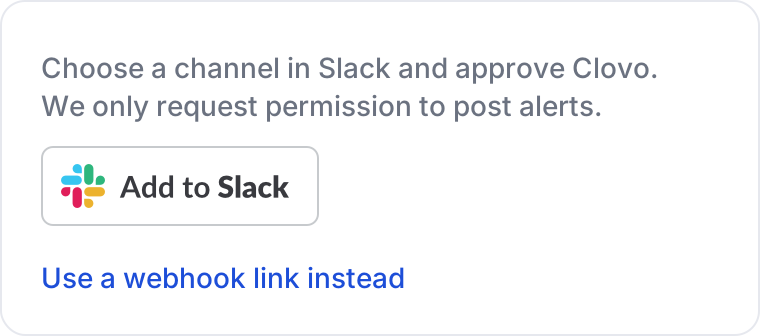
Select Add to Slack. Clovo only requests permission to post alerts.
-
Choose your Slack workspace and the channel for your alerts, then approve Clovo.
-
When you return to Clovo, you will see Slack connected. Choose your staff alerts and save settings.
The Slack screen now shows Connected to Slack: followed by your workspace and channel name.
If you cancel during approval, Clovo shows The connection was cancelled. Your existing settings have not changed. Select Add to Slack again when you are ready.
Choose your staff alerts
Under Staff alerts, switch on each alert you want the channel to receive, then select Save settings. Clovo confirms Team chat settings saved.

Staff alerts include Leads, sent when someone enquires through your landing page contact form, as well as Bookings, Cancellations, Purchase made, Trial started and Payment Failed.
These choices belong to the Slack channel. They do not change any staff member's own email and push preferences, and those preferences do not change what the channel receives.
Send a test alert
-
At the bottom of the Slack screen, select Send test alert. Clovo shows Test alert queued. Check your channel; any delivery failure will appear here after processing.
-
Open the Slack channel and look for a Team chat connected message from Clovo.
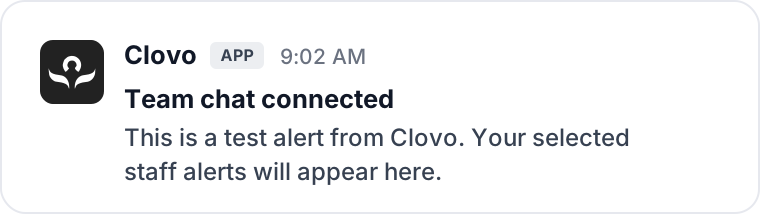
If the test does not arrive, return to the Slack screen in Clovo and check for a delivery problem.
What your team sees
Each alert posts to the channel as a message from Clovo. Alerts can include an Open in Clovo link so staff can open the related details in Clovo.
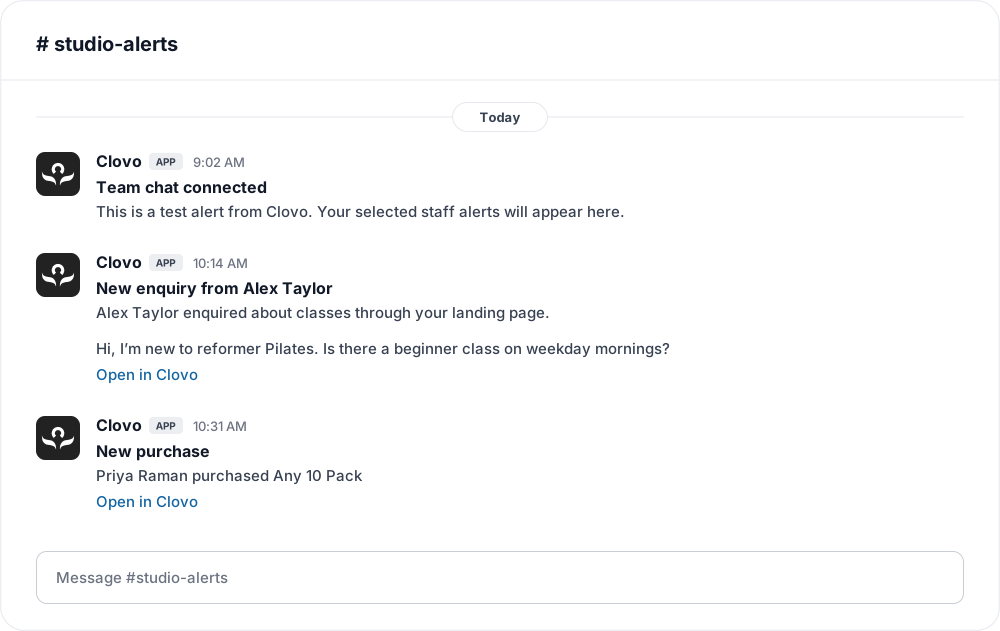
To send alerts to a different channel, select Add to Slack again and choose the new channel. Your studio connects one Slack channel at a time, and your alert choices stay the same.
Fix a connection or delivery problem
If an alert does not reach the channel, the Slack screen shows An alert could not be delivered with the reason. The notice clears once the next alert is delivered. Email and push notifications for your staff continue as usual.
| Message in Clovo | What to do |
|---|---|
| Slack no longer accepts this link. The webhook may have been removed or the channel archived. | Select Add to Slack and choose an active channel. |
| Slack could not be reached. or Slack was unavailable | Wait a few minutes, then select Send test alert again. |
| This connection request expired or does not belong to your account. Please start again. | Open the Slack screen and select Add to Slack again. Approve Clovo within ten minutes of starting. |
| Slack did not return a channel. Please reconnect and choose one. | Select Add to Slack again and choose a channel before approving. |
| Connect is temporarily unavailable | Connect with a webhook link instead. |
If a message continues after you have tried these steps, contact Clovo support with the message shown.
Pause or disconnect
To pause alerts, switch every alert off and select Save settings. The channel stays connected, so you can switch alerts back on at any time.
To stop alerts from your studio, select Disconnect. Clovo shows Team chat disconnected. and removes your studio's connection. Alerts that have not posted yet are not sent.
Disconnecting does not remove the Clovo app from your Slack workspace. To remove it too, open Tools & settings → Manage apps in your Slack workspace, choose the connected app, open App Details → Configuration, then select Remove App. If you cannot remove it, ask a Workspace Owner. Removing the app affects every studio that uses that Slack workspace. The Slack screen in Clovo also links to the Slack removal guide.
Connect with a webhook link instead
If you prefer not to use Add to Slack, you can connect with an incoming webhook link created in your Slack workspace.
- On the Slack screen, select Use a webhook link instead.
- In your Slack workspace, create an app, enable Incoming Webhooks, then select Add New Webhook to Workspace. Choose a channel, authorise the app and copy the webhook URL. The Create Slack app and Setup guide links in Clovo open the relevant Slack pages.
- Paste the link into Webhook link, choose your staff alerts and select Save settings.
Clovo never displays the saved link again. When you save changes later, leave Webhook link blank to keep it. If Clovo shows Enter a Slack webhook link., check that you copied the incoming webhook URL from your Slack app.
Slack and the Slack logo are trademarks and service marks of Slack Technologies, LLC, registered in the U.S. and in other countries. Clovo is integrated with Slack but is not produced, endorsed or supported by Slack.
Related articles
Connect Clovo to Mailchimp
Connect your Mailchimp account and choose the audience that receives your studio's client details.
Connect Stripe and check your payment settings
Stripe is what actually moves the money. Here's how to connect it, what the three connection states mean, and which payment settings live in Clovo rather than in Stripe.
Show your timetable on your studio’s website
Copy an embed code from Clovo Dashboard to place your live class timetable on your own website, with weekly and monthly views your visitors can switch between.
Accessing your Clovo ‘studio code’ needed for certain integrations
The Clovo Studio Code is a short 4-character alphanumeric string that uniquely identifies your studio. It is used when integrating your Clovo instance with external services like your website.