
Connect Clovo to Mailchimp

Tobias Gundry
Updated
Connect Mailchimp to keep client contact details available in the audience you use for studio newsletters and campaigns. You write and send those campaigns in Mailchimp.
Connect your account
Clovo chooses an initial audience and adds existing opted-in clients as the connection completes. If your Mailchimp account holds audiences for different businesses, contact Clovo support before connecting to confirm where those contacts will go.
- Open Setup → Integrations.
- Find Mailchimp and select Connect.
- Sign in to the Mailchimp account your studio uses and approve the connection.
- When you return to Clovo, review the Audience settings.
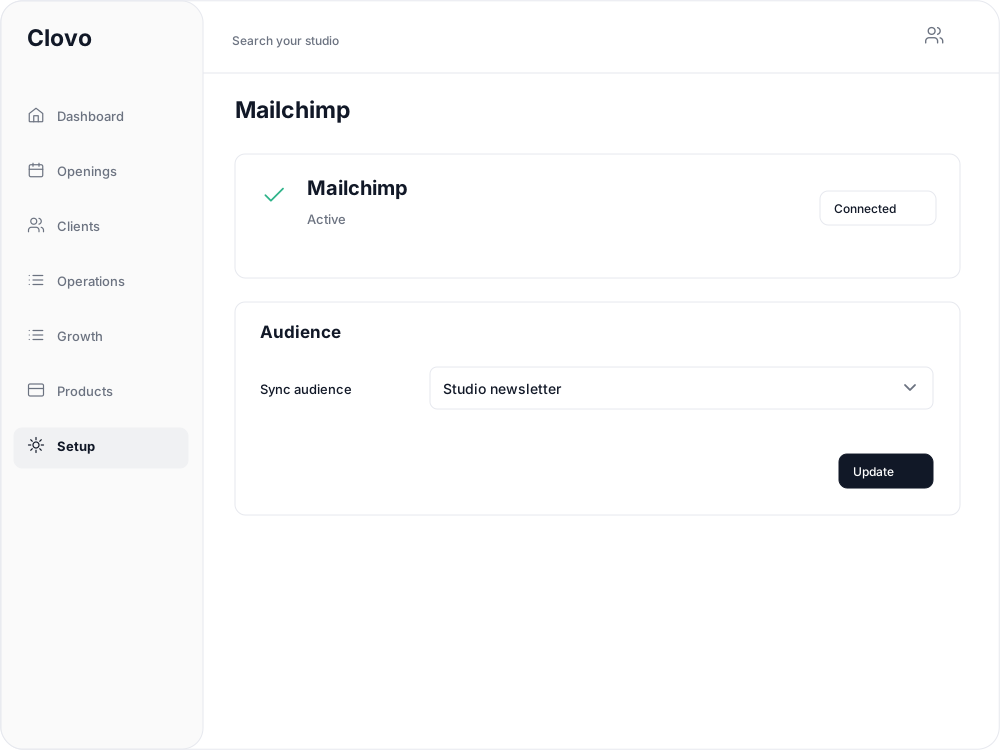
The integration shows Connected once the connection is complete. If you already connected it, select View integration to open its settings.
Choose your audience
Under Audience, choose the destination in Sync audience, then select Update. Clovo confirms Mailchimp sync audience updated.

Check the audience before sending a campaign, especially if your Mailchimp account contains lists for more than one business. To change it later, return to View integration, select the audience and update again.
Check the contacts in Mailchimp
The connection adds existing clients who have opted in to marketing. Client details include their email address, first name, last name and phone number where recorded. Connecting Mailchimp does not give marketing permission on a client's behalf.
Open the selected audience in Mailchimp to check the contacts and their subscription status before sending. If the audience list is empty, check that the connected Mailchimp account has an audience available. If the connection fails, return to Setup → Integrations and try Connect again; contact Clovo support if the error continues.
For a message you want clients to receive in Clovo instead, see Send an announcement to clients.
Related articles
Send staff alerts to a Slack channel
Connect a Slack channel to Clovo, choose which staff alerts it receives and send a test alert to check your team can see them.
Connect Stripe and check your payment settings
Stripe is what actually moves the money. Here's how to connect it, what the three connection states mean, and which payment settings live in Clovo rather than in Stripe.
Show your timetable on your studio’s website
Copy an embed code from Clovo Dashboard to place your live class timetable on your own website, with weekly and monthly views your visitors can switch between.
Accessing your Clovo ‘studio code’ needed for certain integrations
The Clovo Studio Code is a short 4-character alphanumeric string that uniquely identifies your studio. It is used when integrating your Clovo instance with external services like your website.