
Advertise studio hire on a custom landing page

Tobias Gundry
Updated
If you hire your studio to other instructors, you can use a custom landing page to describe your space and explain how to enquire.
Clovo does not provide a dedicated studio-hire booking or payment feature. The custom page advertises your service only. You arrange enquiries, bookings, hire agreements and payments directly with the hirer, outside Clovo.
Create your studio-hire page
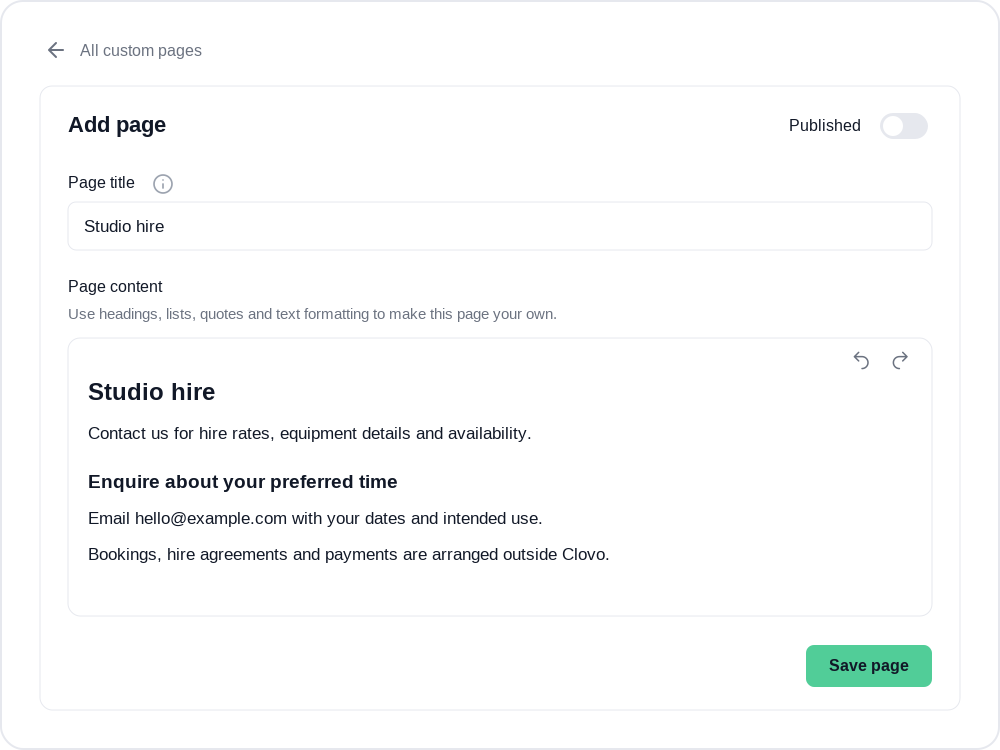
- Go to Setup → Landing page → Custom pages and select Add page.
- Enter a Page title, such as “Studio hire”.
- In Page content, describe the space, equipment available for use, hire rates and any restrictions. Include an email address or phone number for enquiries.
- Explain that availability must be confirmed directly with you, and that hire agreements and payments are arranged outside Clovo.
- Leave Published off while you prepare the page, then select Save page.
Before advertising, check that you have permission to hire out the premises and appropriate insurance for the arrangement. Agree access, equipment use, cancellation terms and responsibility for damage directly with the hirer.
Give visitors a clear next step
You can adapt this example for your Page content:
Studio hire
Our Pilates studio is available for hire by independent instructors at agreed times. Contact us for details of the space, equipment, rates and availability.
To enquire, email [your studio email] with your preferred date, time and intended use.
All studio-hire bookings, hire agreements and payments are arranged directly with us, outside Clovo. Sending an enquiry does not confirm a booking.
Replace the placeholder with your contact details and add the information relevant to your space. If you list typical hire times, ask visitors to contact you to confirm availability.
Publish and share
Open your saved page, turn on Published, then select Save page. Your main landing page must also be published under Setup → Landing page → Settings.

Reopen the published page and select View page. Check that your contact details are correct and the instructions explain how to arrange the hire. Copy the page address to share it with interested instructors.
Publishing this page does not reserve studio time or block your Clovo timetable. Keep your timetable consistent with any hire you confirm separately, so classes and appointments do not overlap with it.
For help editing or taking the page offline, see Create custom pages on your landing page.
Related articles
Change the subdomain of your landing page
Every studio on Clovo gets a landing page as standard. Your landing page lives at a subdomain like yourstudio.clovo.app, and you can change this subdomain at any time to better match your brand name.
Create custom pages on your landing page
Add your studio story, FAQs or first-visit information to your landing page, save drafts and publish when you’re ready.
Add a Meta pixel and Google tags to your landing pages
Connect Meta and Google to your Clovo landing pages, publish your studio privacy policy, set up optional Google Ads conversions, and understand visitor consent and reporting.
Give your clients branded support
Every Clovo studio has a member-facing help centre, live right now, with no setup required. It sits on your landing page, it’s written in your studio’s voice, and it wears your branding.