
Repeat your appointment schedule into future weeks

Tobias Gundry
Updated
Appointment hours and fixed slots apply to individual dates. Use Repeat Schedule to publish a weekly pattern into the future without adding each date separately. Bookings themselves are not repeated.
Prepare the week to repeat
Open Appointments, select the calendar and navigate to the week you want to use. Add its available hours or fixed appointment times, including any blocks you want to carry forward.
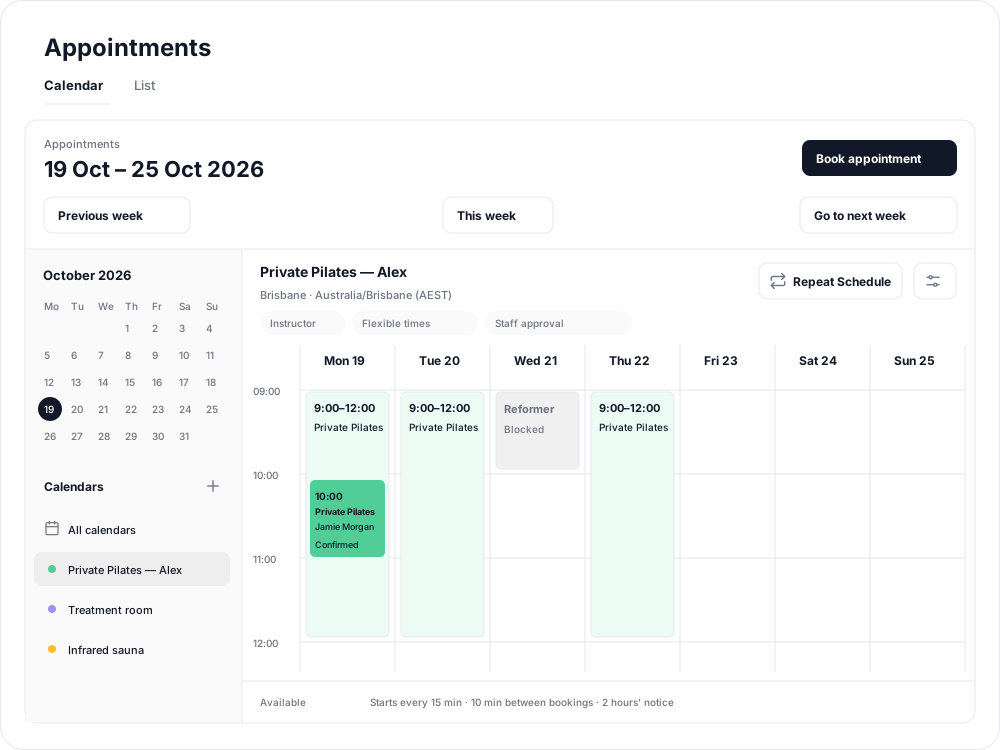
Repeat Schedule becomes available once the week has hours or appointment times to copy.
Choose how far ahead to publish
- Select Repeat Schedule.
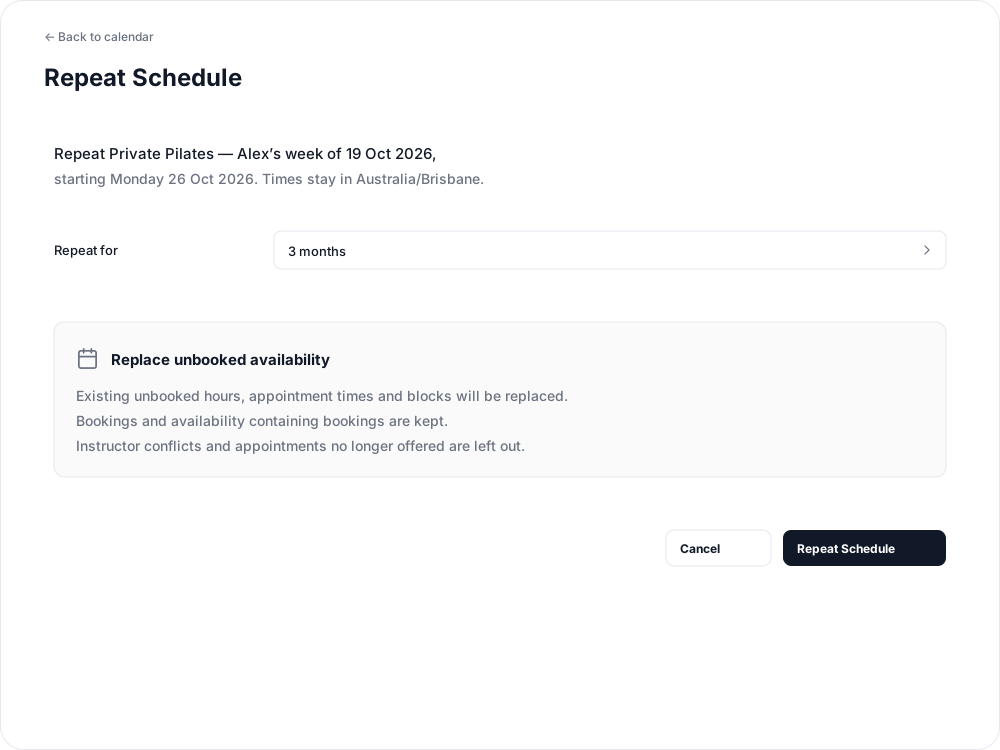
- Check the calendar name, source week and starting date shown in the window. Repeats begin the following Monday.
- Choose Repeat for: 1 week, 2 weeks, 1 month, 3 months, 6 months, 1 year, 2 years or 3 years.
- Read the replacement notice, select Repeat Schedule, then confirm.

Understand what is replaced
Existing unbooked hours, appointment times and blocks in the selected period are replaced by the copied pattern. Existing bookings and availability containing bookings are kept. Repeating the schedule is therefore useful for updating future availability as well as filling empty weeks.
Instructor conflicts and appointments you no longer offer are left out. Review the result for omitted dates and times before relying on the new schedule. You may need to add different hours around those commitments.
The repeated times stay at the same local times for the calendar's location. You can publish availability years ahead, but bookings can only be made up to 12 months ahead.
Copy only the previous week
On an unconfigured week, Copy from the previous week offers a shorter route. It copies the preceding week's availability and blocks without copying bookings. If the destination already has configured availability, use Repeat Schedule to replace unbooked time, or edit individual dates instead.
Later changes to the source week do not automatically update the copies. Repeat again to replace future unbooked availability with your revised pattern.
Related articles
Appointments in Clovo
Bring private sessions, room bookings and wellness appointments into Clovo, with flexible availability, staff approval and payments.
Book an appointment on behalf of a client
Choose a client, select an available appointment and take payment or submit it for staff approval.
Create an appointment calendar for a facility
Make an infrared sauna, massage chair or similar facility bookable through a room/location calendar.
Create an appointment calendar for a room or location
Let clients reserve a room or an entire location, and assign staff to manage its appointments.