
Reschedule or cancel an appointment

Tobias Gundry
Updated
Open an appointment before making a change so you can review its current status, payment and cancellation terms.
Move a booking
- Open Appointments and find the booking in Calendar or List.
- Open its details and select Reschedule when available.
- Choose an available new time and confirm the change.
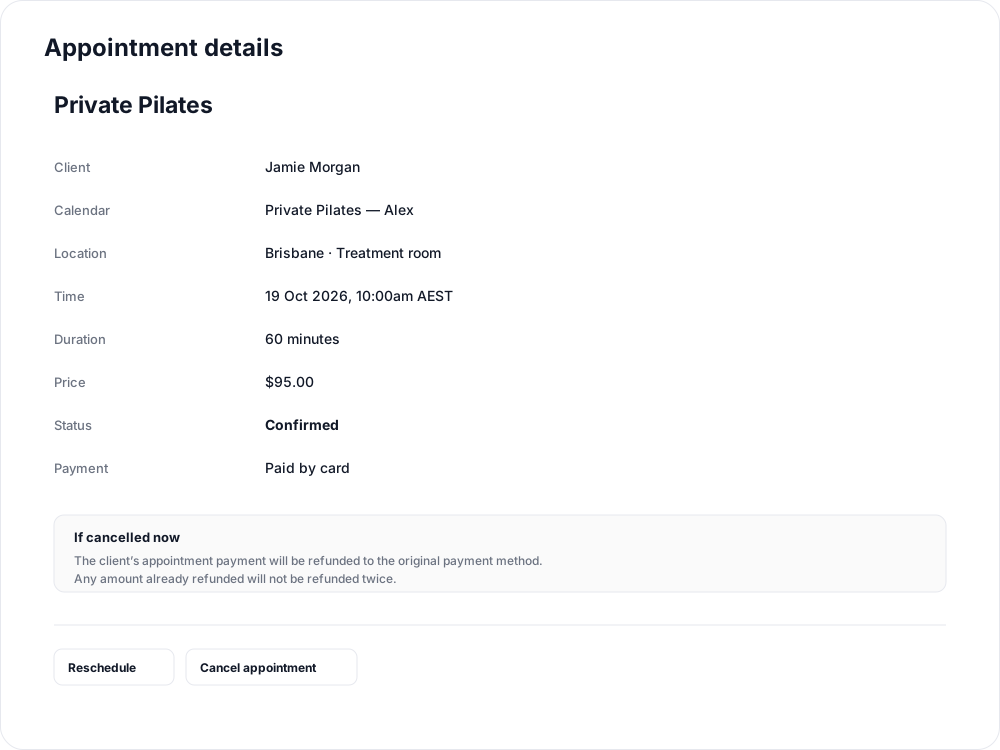
The new time must fit the calendar's availability and the client's payment eligibility. Moving a booking keeps its booked appointment, length, price and payment. The notification shows the old and new times.
Clients can also open their appointment on the studio website or in the iPhone app and choose an available new time before the rescheduling cutoff shown for their booking. A client change on an approval calendar may need staff approval again.
Cancel a booking
On a confirmed appointment, select Cancel appointment. Review the payment or credit outcome, then confirm. On a pending request, use Reject when the studio cannot accept it.

Cancelling releases the time. The cancellation policy saved when the appointment was booked determines whether the original payment or appointment credit is returned:
- If refundable cancellations were enabled and the required notice is met, the payment or credit is returned.
- If the required notice is not met, or refundable cancellations were off, the payment or credit is forfeited.
- A studio rejection releases the reserved credit or refunds an existing card payment.
Changing the appointment type's policy affects new bookings, so review the outcome shown on the actual appointment before confirming a cancellation.
Check an unresolved payment or refund
If the booking shows Processing payment, use Check payment result. Wait for its outcome before making a replacement booking.
If an eligible card refund is still pending, use Check refund in the appointment details. If it needs attention, inspect the payment in Payments and help the client resolve it. A refund that needs attention should not be treated as completed.
Clients see the applicable cancellation outcome before confirming their own cancellation. They can cancel before the appointment starts, while rescheduling uses the cutoff shown for the booking.
Related articles
Appointments in Clovo
Bring private sessions, room bookings and wellness appointments into Clovo, with flexible availability, staff approval and payments.
Book an appointment on behalf of a client
Choose a client, select an available appointment and take payment or submit it for staff approval.
Create an appointment calendar for a facility
Make an infrared sauna, massage chair or similar facility bookable through a room/location calendar.
Create an appointment calendar for a room or location
Let clients reserve a room or an entire location, and assign staff to manage its appointments.