
Changing the order that plans, packs and trials show in your apps and landing pages

Tobias Gundry
Updated
Choose which packs, plans and trials appear first in the Clovo app and landing pages to highlight your best-value or featured products.
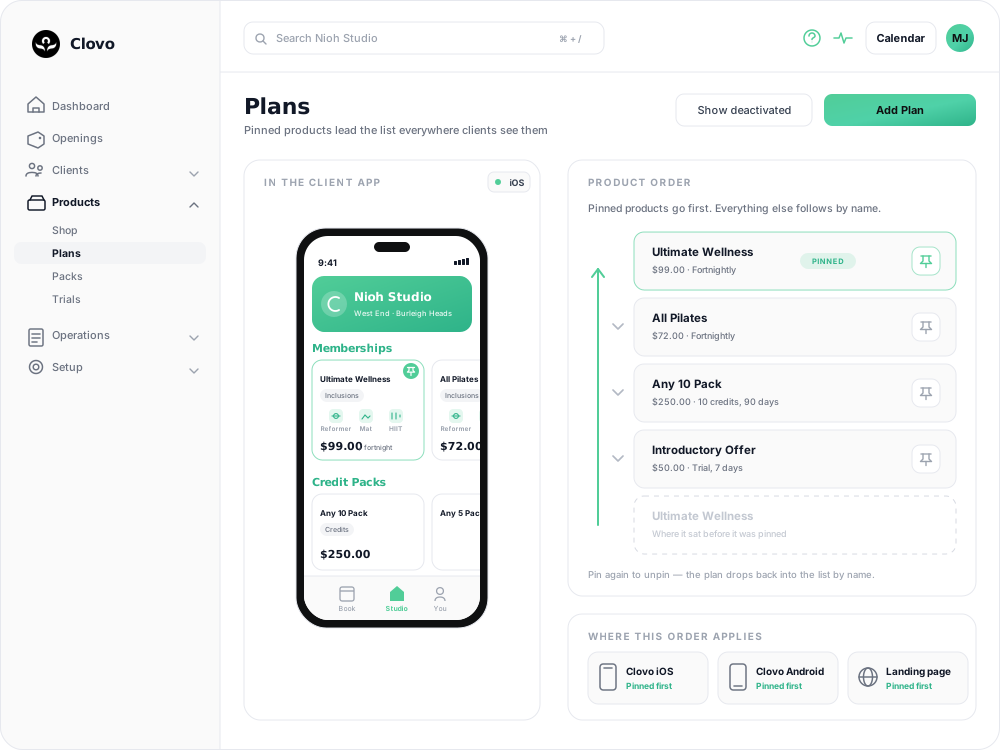
Pinning products to the top
Clovo lets you pin plans, packs, and trials so they always appear at the top of your product listings. Pinned products are shown before all other products in both the Clovo app and on your landing page.

How to reorder your products
- In Clovo Dashboard, go to Products.
- Find the plan, pack, or trial you want to feature.
- Toggle the pin option to move it to the top of the list.
- Repeat for any other products you want to prioritise.
Tips for product ordering
- Lead with your best-value option — most clients will consider the first product they see, so put your most popular or best-value offering at the top
- Use Special offer for intro offers, not pinning — marking a trial or introductory pack as a Special offer places it above every other product in the app, higher than anything you pin, so newcomers see it first
- Seasonal promotions — temporarily pin limited-time offers to drive urgency
- Pin a small selection — pinning a few products keeps the focus on the offerings you want to highlight
Related articles
What does the customer journey look like?
See the customer journey in the Clovo app: finding your studio, exploring, signing up, purchasing a pack, booking a class, and receiving confirmation and reminders.
Create custom pages on your landing page
Add your studio story, FAQs or first-visit information to your landing page, save drafts and publish when you’re ready.
How to manage your studio from an iPad
Use the Clovo iPad app to manage classes, clients and staff tasks, or run a self-serve check-in kiosk.
Track attendance by checking-in clients on your phone or desktop
Check clients in to record who attended a class in addition to who booked.