
Get started in the Clovo app when your studio moves to Clovo

Tobias Gundry
Updated
Your studio now runs its timetable, bookings and memberships on Clovo, and it has already set up your account using the email address it holds for you. There is no new account to create. Download the app, find your studio, then sign in.
Download the Clovo app
Clovo is free on iPhone and Android. Search for Clovo in the App Store or Google Play and look for this icon, or tap the badge for your phone.



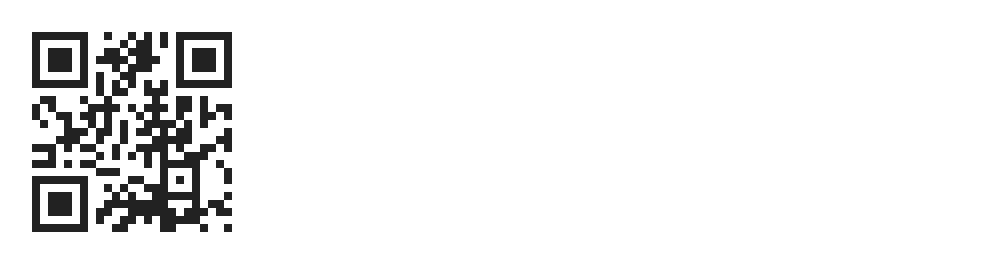
Reading this on a computer? Scan the QR code with your phone’s camera. It opens get.clovo.au, which sends you to the right app store for your phone.
Find your studio
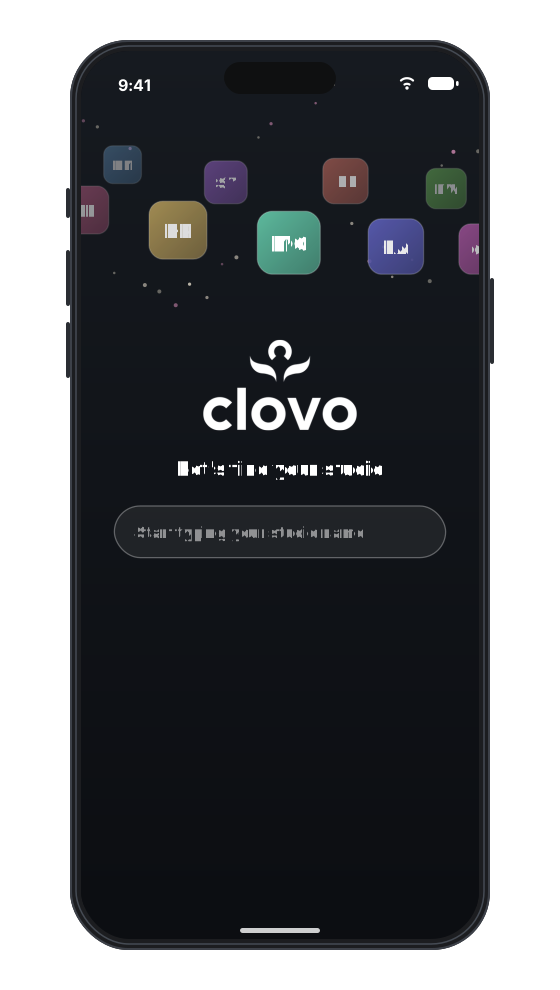
The first time you open Clovo, it asks which studio you belong to.
- Start typing your studio’s name. Matches appear as you type, and the start of any word in the name is enough.
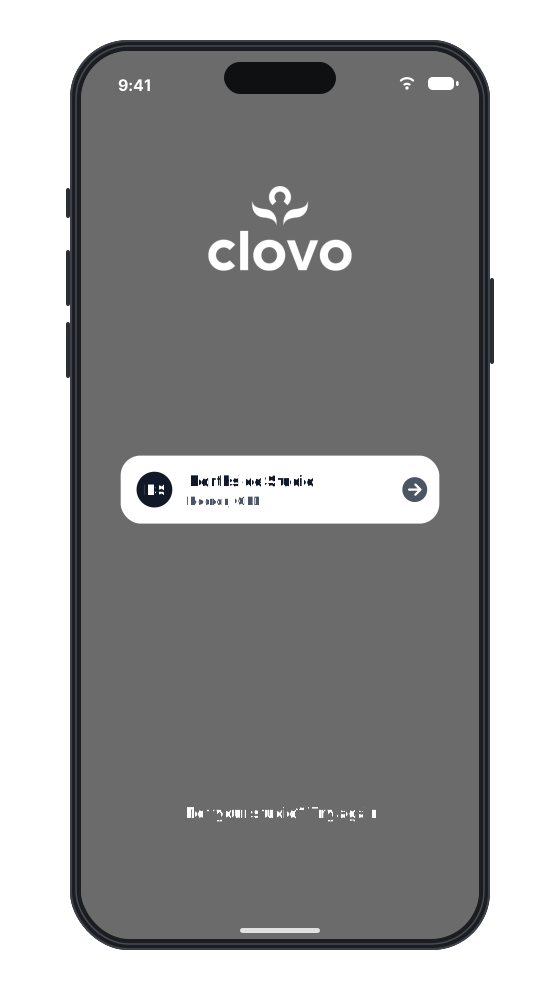
- Check the suburb under the name, then tap your studio’s card to continue.
- If you picked the wrong studio, tap Not your studio? Try again and search again.
Sign in with a code
A sign in code is the quickest way in, and you do not need a password. Clovo emails you a six-digit code and you enter it in the app.
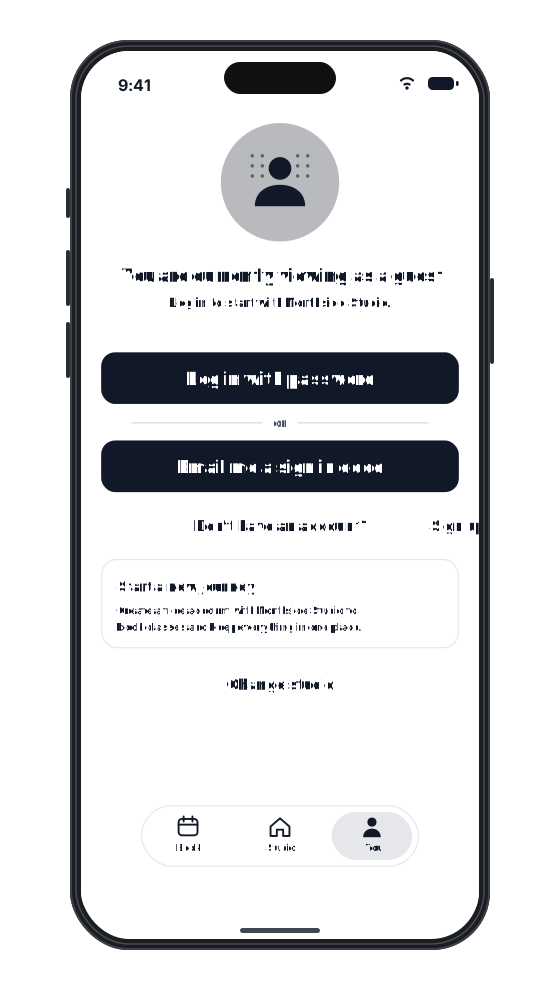
- Tap You in the bar along the bottom of the screen.
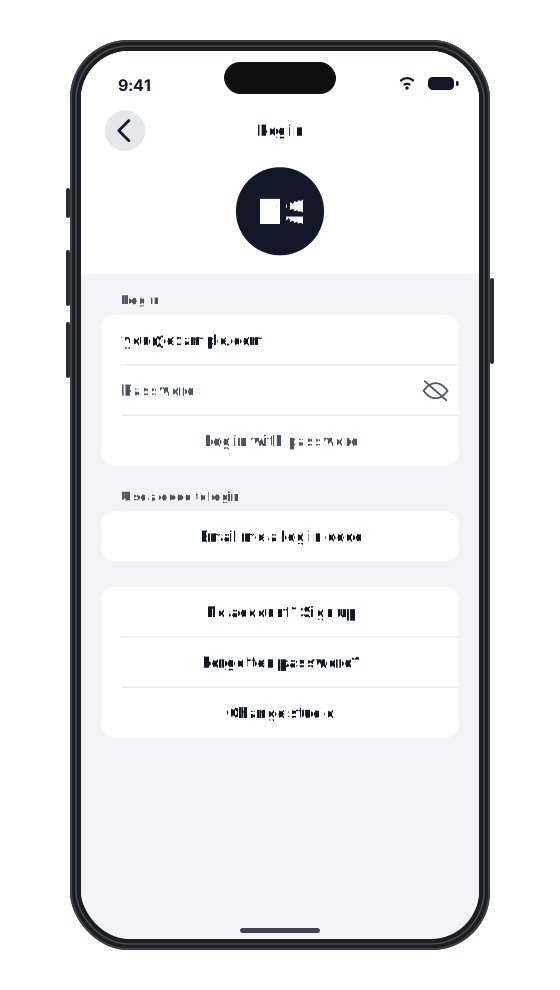
- Tap Email me a sign in code. On Android, the button reads Email me a code.
- Enter the email address your studio has for you, then tap Continue.
- Check your inbox. The code is in the email’s subject line, so you can often read it without opening the message.
- Enter the six digits and tap Sign in.
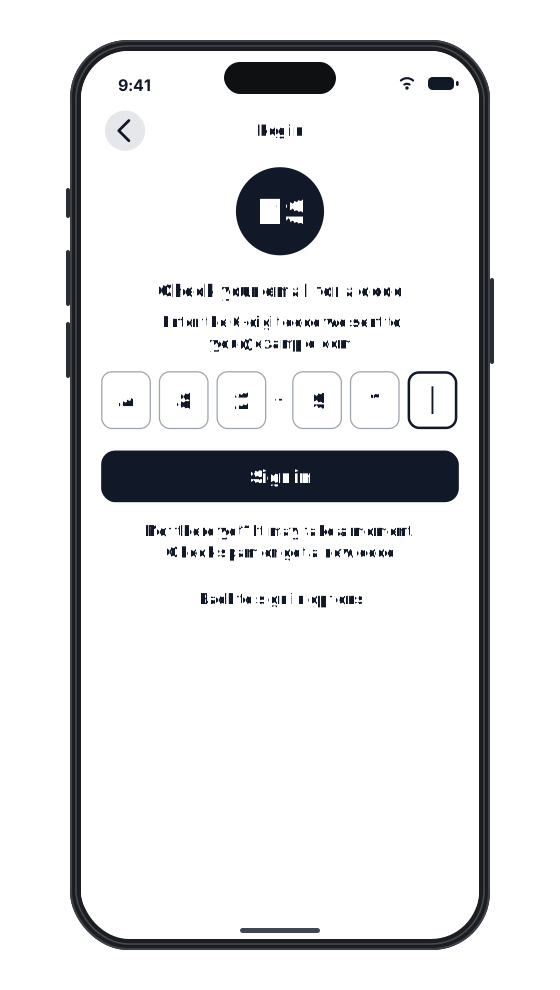
Each code expires after 10 minutes and allows three attempts. If a code expires, go back to the sign in options and request a new one. Your studio will never ask you to share your code.
Set a password with a reset
If you would rather sign in with a password, a password reset lets you choose one. It works the same way for your first sign in as it does when you have forgotten a password.
- Tap You, then Log in with password. On Android, tap Use password.
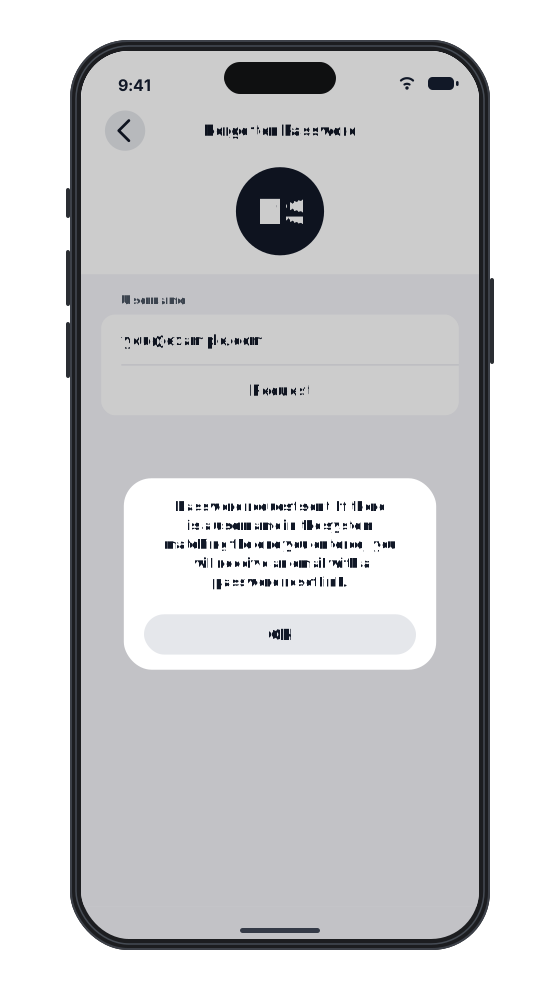
- Tap Forgotten password?
- Enter your email address and tap Request.
- Open the email and follow the link to choose a new password.
- Return to the app and sign in with your email address and new password.
If you cannot sign in
- Check the email address. Codes and reset links only arrive when the address matches the one your studio has for you.
- Check your junk folder, and allow a minute before requesting another code.
- Check that you chose the right studio. Your account belongs to your studio, so select it before you sign in. To switch, tap Change studio on the You tab.
- Contact your studio instead of signing up again. A second account with a different email address is separate from the one your studio set up. Your studio can confirm which address it holds for you.
For studio owners
Share this article with your clients when you move to Clovo. To bring a client across yourself, add them to your studio manually. If a client needs help signing in, confirm the email address on their profile, then send them a password reset.
Related articles
Leave a review for Clovo
Share your experience with Clovo on Capterra, Google, the Apple App Store or Google Play, or contact us if you need help.
What does the customer journey look like?
See the customer journey in the Clovo app: finding your studio, exploring, signing up, purchasing a pack, booking a class, and receiving confirmation and reminders.
How to manage your studio from an iPad
Use the Clovo iPad app to manage classes, clients and staff tasks, or run a self-serve check-in kiosk.
Keep upcoming classes visible with Live Activities
Clovo’s Live Activity feature puts a client’s next class on their iPhone Lock Screen and Dynamic Island in the hour before it starts, with no dashboard configuration required.