
Help a client update their payment method

Tobias Gundry
Updated
When a client needs to replace an expired card or change how they pay, they can add a payment method in the Clovo iPhone app. Give them the steps below to complete on their own device.
Add the replacement payment method
- Open your studio in the Clovo app.
- Tap You, then the … menu beside their name.
- Open Payment settings.
- Tap Add payment method and complete the payment form, including any approval their bank requests.
- Check that the new method appears under Saved payment methods.
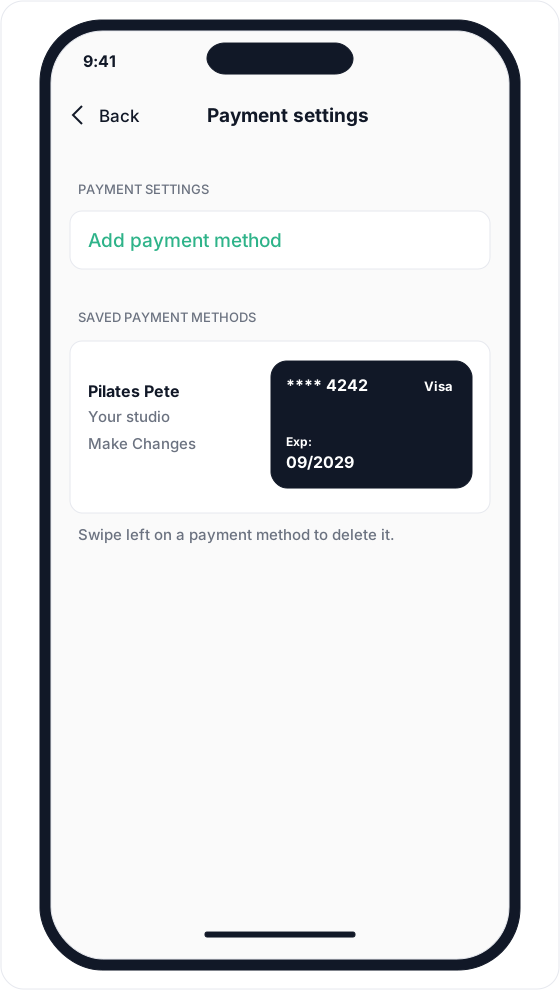

The newly added method becomes the default for the client’s payments and their existing recurring memberships with your studio. They do not need to cancel and repurchase their membership to replace a card.
If the screen says Loading… instead of showing the button, wait for the payment form to become available before continuing.
Remove an old payment method
After the replacement appears in the saved list, the client can swipe left on the old method, tap Delete, then confirm Delete. Use the last four digits and expiry date to identify the old card.
If Could not delete payment method appears, the removal did not complete. They can try again.
If a renewal payment has already failed
Adding a payment method does not by itself confirm that an overdue renewal has been paid. A staff member with Finance access, or an owner, can open Operations → Failed Payments in the dashboard to check whether the renewal is still outstanding and whether another attempt is scheduled.
You can select Send payment request on the failed renewal so the client can open its payment page. Follow Recover a failed membership renewal payment for the request and retry steps.
If the membership is on hold because of the failed payment, that hold is removed when the payment clears, rather than when the client saves a card.
Related articles
Connect Stripe and check your payment settings
Stripe is what actually moves the money. Here's how to connect it, what the three connection states mean, and which payment settings live in Clovo rather than in Stripe.
Refund a client payment
Find a client's payment, issue a full or partial refund, and check whether a separate membership or booking change is needed.
View your Clovo fees and annual fee cap
Find your studio's platform fee rate, check progress towards an annual cap and review fees by financial year.
Change the address shown on invoices
Choose your business address or a studio location as the From address on new client invoices and receipts.