
Change the address shown on invoices

Tobias Gundry
Updated
Choose which address appears under From on your client invoices and receipts. Clovo uses your Business address by default, but you can select one of your studio locations instead. Owners and staff with Finance access can change this setting.
Choose an invoice address
- Open Setup → Payments in Clovo Dashboard.
- Scroll to Invoices, then Invoice address.
- Select the card for Business address (default) or the location you want to use.
- Select Save changes beneath the invoice settings.
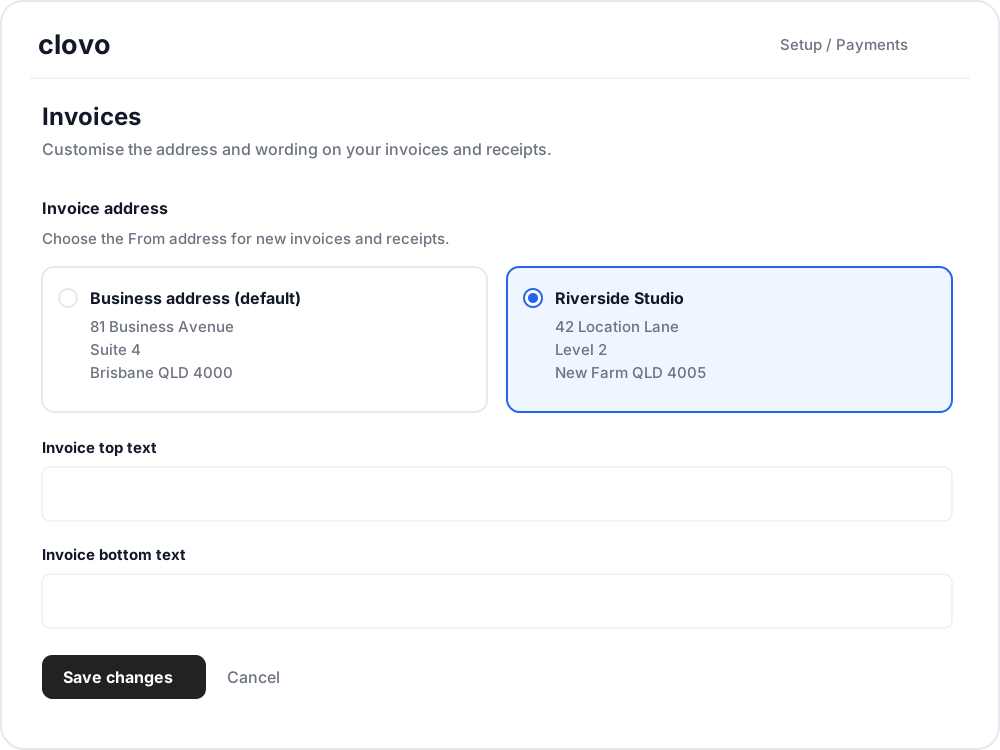
This selects the address for all newly generated invoices and receipts for your studio. It does not automatically choose a different sender address for each class or purchase, and it does not change the client's details under To.
Switch back to the business address
Select Business address (default) and save. This is also the starting choice if you have never changed the invoice address.

Preview the saved address
After saving, owners can select View invoice preview in the Invoices section. This opens the Invoice preview under Growth → Branding. Check the From block for your selected address. The To block contains sample client details.
If an address needs updating
- Business address: the owner can edit it under Account → Business address.
- Location address: edit the location under Setup → Locations, then return to the invoice settings to select it.
- Location missing: add the location first. Deleted locations cannot be selected.
If you delete the location currently selected for invoices, Clovo switches back to your business address and displays a message. Invoice address changes are recorded in the studio feed.
Will existing invoices change?
No. Previously generated invoices and receipts keep their original address, including when you download them again. Your saved selection and later edits to that address apply to newly generated documents.
For other invoice details, see Add GST and your ABN to client invoices and Add private health billing details to your invoices.
Related articles
Add GST and your ABN to client invoices
Enter your ABN and ACN, switch on GST registered so clients receive a tax invoice with a GST breakdown, and add your own wording to the top and bottom of every document.
Connect Stripe and check your payment settings
Stripe is what actually moves the money. Here's how to connect it, what the three connection states mean, and which payment settings live in Clovo rather than in Stripe.
Customise your dashboard layout
Turn dashboard cards on or off, put them in the order you want, and choose where the activity timeline sits — all saved to your own staff account.
Refund a client payment
Find a client's payment, issue a full or partial refund, and check whether a separate membership or booking change is needed.