
Refund a client payment

Tobias Gundry
Updated
You can refund a payment from the client's profile in Clovo. You need Owner or Finance access and access to your studio's connected Stripe account.
Find and refund the payment
- Open Clients and select the client.
- Scroll to Payments. Match the Date, Product and Amount to the payment you want to refund.
- Select the payment's date, product or amount to open its payment details.
- Use the refund action in the payment details panel. Review the amount: keep the full amount for a full refund, or enter the amount you want to return for a partial refund.
- Complete the reason requested by the panel and confirm the refund.
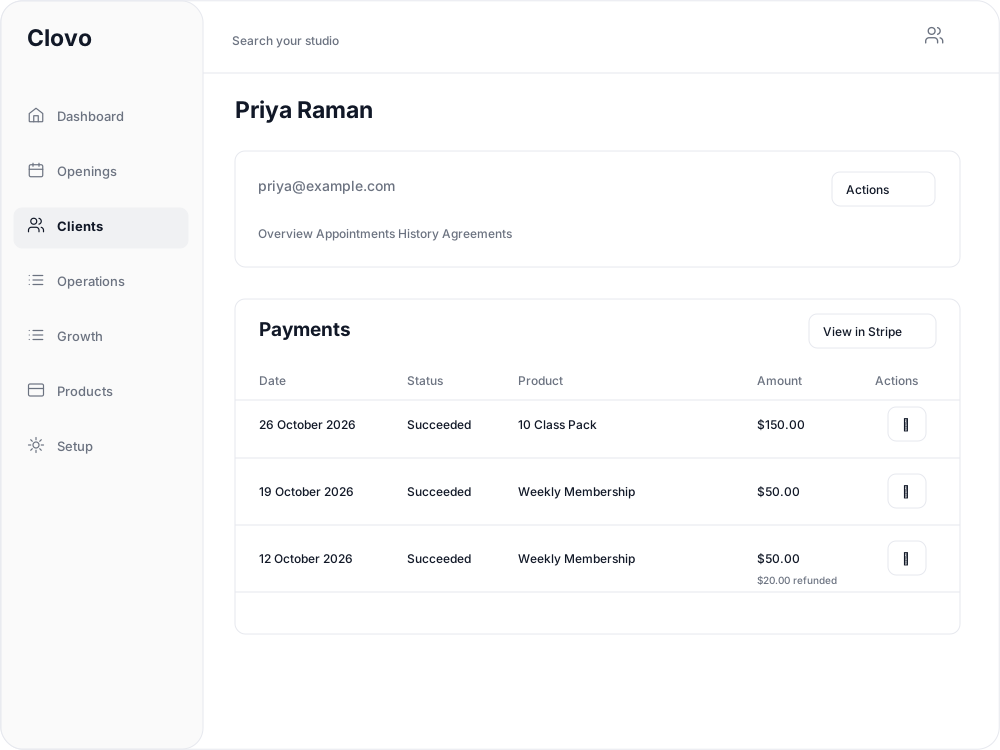
The row's three-dot menu includes invoice and payment-recovery actions. Open the payment itself to reach its refund controls.
Refunds go back to the original payment method. Stripe's original processing fees are not returned; see Stripe's refund guidance for refund timing and payment-method restrictions.
Check the refund amount
Return to the client's Payments list after the refund is recorded. A full refund strikes through the original amount and shows Refunded with a date. A partial refund leaves the original amount visible and shows how much was refunded underneath.

If the result is unclear, reopen the payment details and check its refund status before submitting another refund.
Update the service separately when needed
Refunding the money does not cancel a membership, stop its future renewals or remove a class booking. If the client is ending their membership, cancel it separately. If they are no longer attending a class, cancel their booking. For a credit correction, use the membership or pack usage panel.
For an appointment cancellation, follow Reschedule or cancel an appointment first so you can review its refund outcome. If a direct class payment succeeded but no booking was made, use Refund a payment when a direct booking failed.
Related articles
Connect Stripe and check your payment settings
Stripe is what actually moves the money. Here's how to connect it, what the three connection states mean, and which payment settings live in Clovo rather than in Stripe.
View your Clovo fees and annual fee cap
Find your studio's platform fee rate, check progress towards an annual cap and review fees by financial year.
Change the address shown on invoices
Choose your business address or a studio location as the From address on new client invoices and receipts.
Wait for BECS Direct Debit payments to clear before issuing plans
BECS Direct Debit payments do not clear immediately. They usually take a few business days to reach your studio and can still fail after the client has checked out.