
View your Clovo fees and annual fee cap

Tobias Gundry
Updated
Open your account menu in the dashboard and select Billing to see what Clovo charges your studio. You need Owner or Finance access to view this page.
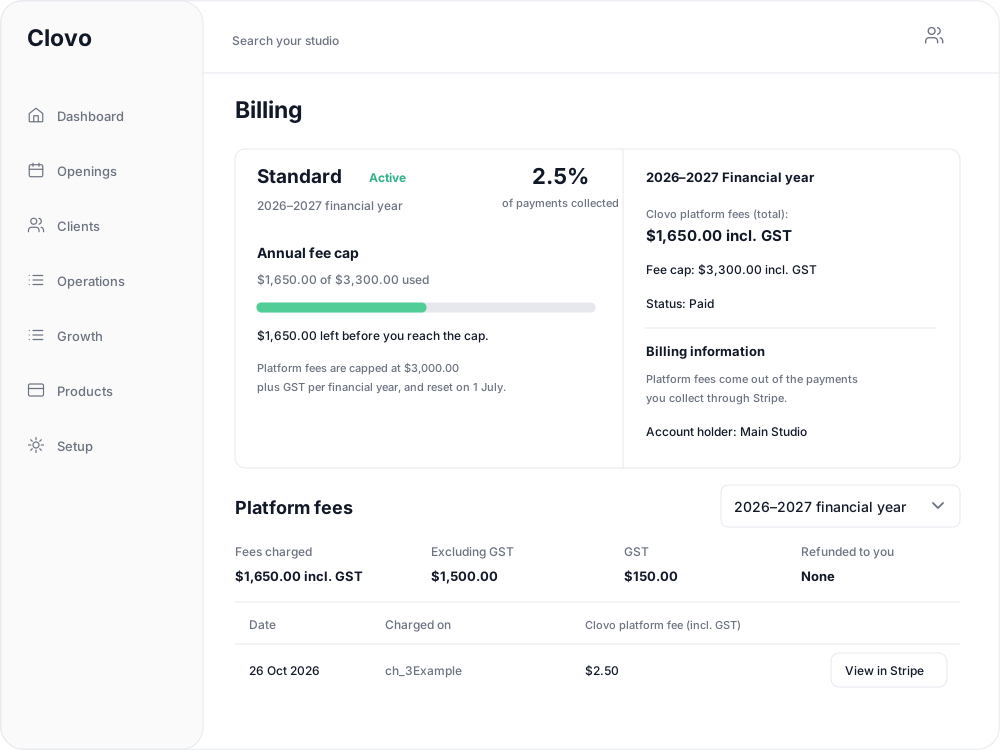
Check your rate and cap
The top card shows your studio's percentage of payments collected. Platform fees come out of the payments you collect through Stripe, so there is no separate payment method to add here.
If your account has an Annual fee cap, the card shows how much you have used and how much remains. Use the rate and cap displayed for your own studio; the illustration above is an example.
When you reach the cap, the page shows Cap reached and confirms that Clovo platform fees have stopped for the rest of the financial year. The cap resets and fees resume on 1 July. An account without a cap shows No annual fee cap applies to your account.
The cap applies to Clovo platform fees. For questions about Stripe's own charges or payouts, review your Stripe account through Setup → Payments.
Review an earlier financial year
Scroll to Platform fees and choose a Financial year. The totals and table below change to that year; the cap summary at the top continues to show the current financial year.

The summary includes Fees charged, Excluding GST, GST and Refunded to you. These are your studio's platform fees and fee refunds, rather than payments or refunds made to clients.
Use View in Stripe beside a fee to open its details. Where available, the link under Charged on opens the payment the fee relates to. A fee that has been partly or fully returned shows the refunded amount beneath it.
Related articles
Connect Stripe and check your payment settings
Stripe is what actually moves the money. Here's how to connect it, what the three connection states mean, and which payment settings live in Clovo rather than in Stripe.
Refund a client payment
Find a client's payment, issue a full or partial refund, and check whether a separate membership or booking change is needed.
Change the address shown on invoices
Choose your business address or a studio location as the From address on new client invoices and receipts.
Wait for BECS Direct Debit payments to clear before issuing plans
BECS Direct Debit payments do not clear immediately. They usually take a few business days to reach your studio and can still fail after the client has checked out.