
When will I get my first payout?

Tobias Gundry
Updated
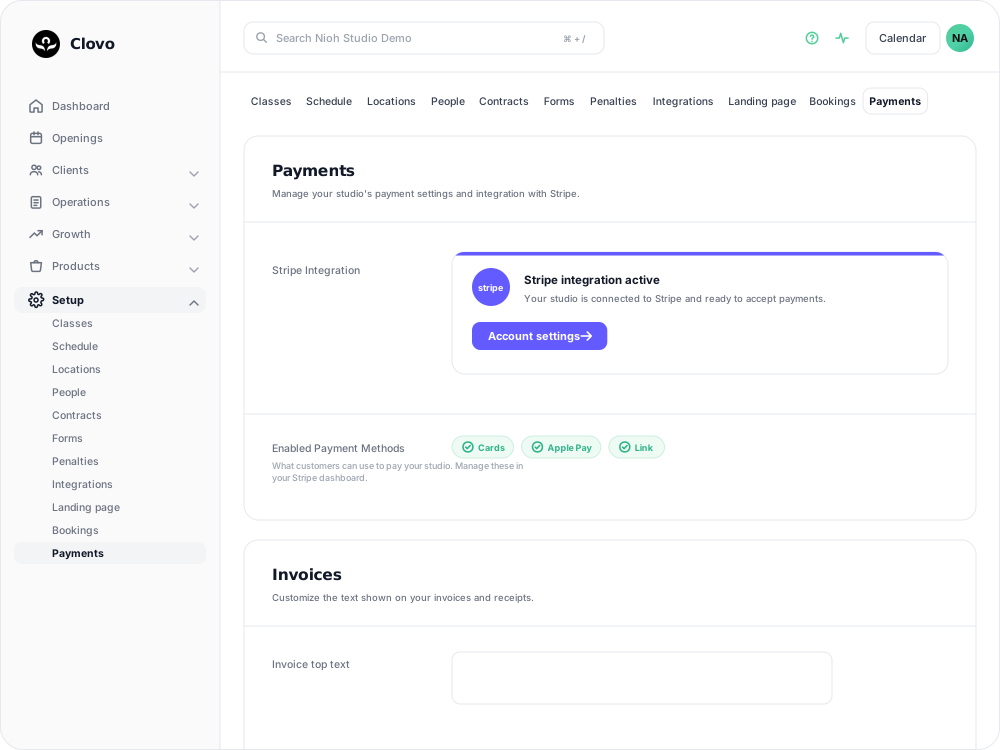
Money your studio takes is processed through your own Stripe account, and Stripe sends it to your bank. Once Setup → Payments shows Stripe integration active, your studio is ready to take payments. Stripe schedules the first payout separately, so it may take a little longer to reach your bank.
When to expect your first payout
For a new account, Stripe schedules the first payout 7 to 14 days after your first successful payment. Stripe sets this initial timing for new accounts, and the exact timing depends on the country your account is in and the kind of business you run.
In some countries, the first payout takes longer. In Brazil, for example, it can take up to 30 days.
The 7 to 14 day period begins with your first successful payment, rather than the day you connected Stripe. For example, if you finished setup in January and took your first payment in March, the period begins in March.
Future payouts
After the first payout, future payouts follow the schedule on your Stripe account. New payments are sent to your bank on that schedule.
See when your payout is expected
- Open Dashboard.
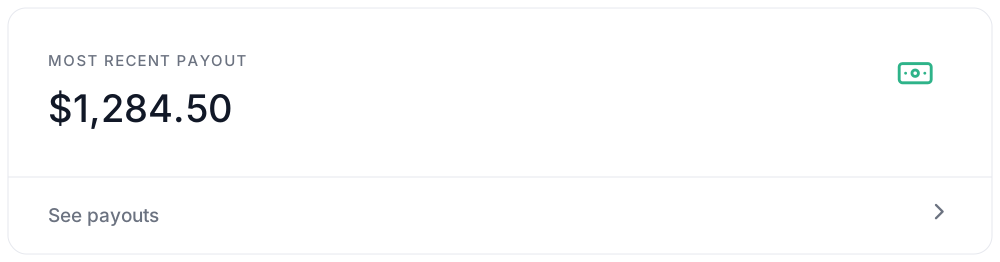
- Find the Most Recent Payout card and select See payouts.
The Payouts screen shows the payouts already sent, what is still on its way, and your current balance. You can also change how often payouts are made and which bank account they arrive in from the same screen.
Payouts are visible to the studio owner and to staff with the Finance role.
If your payout is taking longer
Stripe needs more information. Stripe may request identification, a business document, or bank details after you start taking payments. Payouts can be held until the requested information is provided. Check the inbox for the email address on your Stripe account, then open Setup → Payments and select Account settings to see what is outstanding.
Stripe setup is still in progress. If Setup → Payments reads Finish setting up Stripe rather than Stripe integration active, your studio is not ready to take payments and a payout cannot be scheduled yet. See Connect Stripe and check your payment settings.
Weekends and public holidays. Banks do not process transfers on those days, so a payout scheduled around one may arrive on the next business day.
Your bank details need updating. If Stripe cannot deposit a payout to the bank account on file, the money returns to your Stripe balance. Update the account on the Payouts screen, and Stripe will include the money in the next payout.
Bank transfer payments are still clearing. BECS Direct Debit payments take a few business days to reach your account, so a sale paid that way is not available to pay out as quickly as a card sale. See Wait for BECS Direct Debit payments to clear.
If the payout date has passed
Once Stripe marks a payout as sent, your bank may take a couple of business days to post it. If it has not arrived after that time, Stripe's own guide covers what to check next: Waiting on your first Stripe payout.
Related articles
Connect Stripe and check your payment settings
Stripe is what actually moves the money. Here's how to connect it, what the three connection states mean, and which payment settings live in Clovo rather than in Stripe.
Show your timetable on your studio’s website
Copy an embed code from Clovo Dashboard to place your live class timetable on your own website, with weekly and monthly views your visitors can switch between.
Accessing your Clovo ‘studio code’ needed for certain integrations
The Clovo Studio Code is a short 4-character alphanumeric string that uniquely identifies your studio. It is used when integrating your Clovo instance with external services like your website.
Add Clovo to your WordPress website with the Clovo WordPress Plugin
Add your live schedule and product listings to a WordPress website with the Clovo WordPress Plugin.