
Changing class schedules with existing openings

Tobias Gundry
Updated
A schedule is the rule Clovo follows when it opens classes for booking. It keeps a rolling window of openings ahead of today — 14 days by default — so your clients always have something to book.
Changing the schedule does not move the dates and times of openings already created or cancel them automatically. Before saving, Clovo asks which existing openings you want to keep or cancel.
Change the schedule
Go to Setup → Schedule and open the schedule you want to change. Adjust the day of week, time, class, room, instructors, schedule date range or priority booking, then choose Change.
Location is fixed once a schedule is created. To move a recurring class to another venue, create a schedule at the new location and review which openings to cancel when deleting the old schedule.
If the schedule already has open classes, a notice sits above the form telling you that current openings will be reviewed on the next step. Nothing is saved yet.
Review what will change
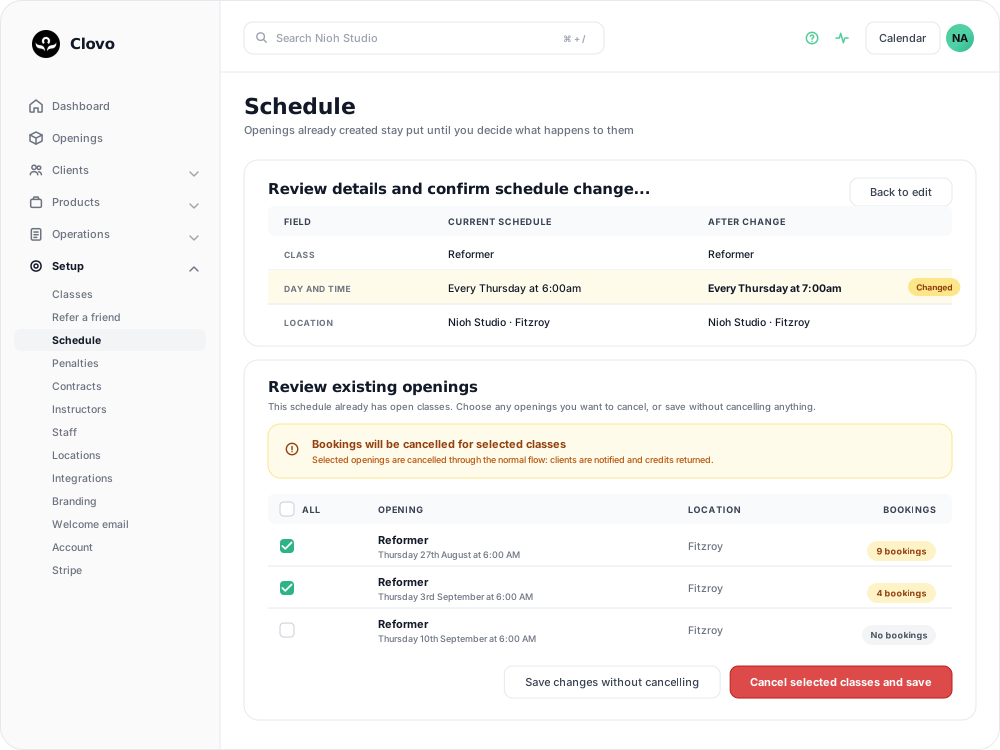
Clovo then shows a review step. The first card compares the schedule under Field, Current schedule and After change, covering the class, day and time, location and room, schedule dates, instructors and priority booking. Rows that differ are highlighted and tagged Changed, so you can confirm you are changing what you meant to.
Back to edit returns you to the form if something is wrong.
You will see this step even when the schedule has no open classes. In that case it is a plain confirmation with a single Save changes button.
Decide what happens to the openings already created
Under Review existing openings, Clovo lists every upcoming open class from this schedule with its date and time, its location, and how many bookings it holds.

Tick the openings you want to cancel, or use All in the header row to select every one of them.

Save changes without cancelling keeps existing openings at their current dates and times, with their bookings intact. The new pattern applies to classes Clovo opens from here on, so for a while both the old and the new times appear in your Openings list, until the old ones pass. This gives you time to announce the change before the old openings have run.
Cancel selected classes and save changes cancels the ticked openings as part of saving. This button stays unavailable until at least one opening is ticked.
Openings cancelled here are cancelled the same way as any other class. Booked clients get a push notification and an email, and the credit they used is returned to the pack or membership they booked with. No late-cancellation penalty is applied to them.
Changes to shared schedule details, such as the class, room and rostered instructors, also appear on existing openings. If clients need to know about those changes, send an announcement.
Openings you keep also keep the priority booking window they were opened with. That window is measured from the moment each opening was created, so changing the schedule does not restart it.
Deleting a schedule
Open the schedule and choose Delete in the Delete schedule section at the foot of the edit screen.
If the schedule has upcoming open classes, the same review step appears, headed Review details and confirm schedule deletion… and warning that the schedule will be deleted immediately and no further classes will be opened. You get the same list of openings and the same choice: Delete schedule without cancelling, or Cancel selected classes and delete schedule.
If there are no upcoming open classes, the schedule is deleted straight away.
Any openings you keep still run as normal. On the Openings list they carry a Last of schedule label, so whoever is rostered can see the class is not coming back.
Only cancellations reach your clients
Changing or deleting a schedule notifies your studio's admin users. It does not send clients a schedule-change notification.
If you move a class time and keep the existing openings, Clovo does not notify your members. Announce the new time to them and give them enough notice to rebook.
If you would rather keep the bookings that are already on an opening, move that opening instead of cancelling it. Booked clients are told about the new time and keep their spot — see change the date and time of existing openings. To close an opening on its own at any point after the schedule change, see cancel upcoming classes.
Related articles
Show your timetable on your studio’s website
Copy an embed code from Clovo Dashboard to place your live class timetable on your own website, with weekly and monthly views your visitors can switch between.
Share your timetable with clients, wherever they are
Your landing page is a public, always-current timetable anyone can open without the app. Share the whole thing, a single class, a social image, or embed it in your own website.
Hide class numbers from clients
Show clients whether a class has space, without showing how many people have booked or how many places it has.
Close the studio for a date range
Record a closure so Clovo stops opening classes at that location, then cancel the openings already on the timetable and extend or pause the memberships the closed days run through.