
Change the class type of an opening that already has bookings

Tobias Gundry
Updated
Now and then a class that clients have already booked needs to run as a different class — for example, a Reformer opening that will run as Reformer Jump on the day. You can change the class type of that one opening without cancelling it. Every booking stays in place, and Clovo tells the clients involved.
Change the class
-
Go to Openings and select the class.
-
In the Class row, select Change under the class name.

-
Under New class, choose the class that will run instead. Each option shows the time it would finish. The start time stays the same, so a longer or shorter class moves the finish time.
-
Select Review change.
-
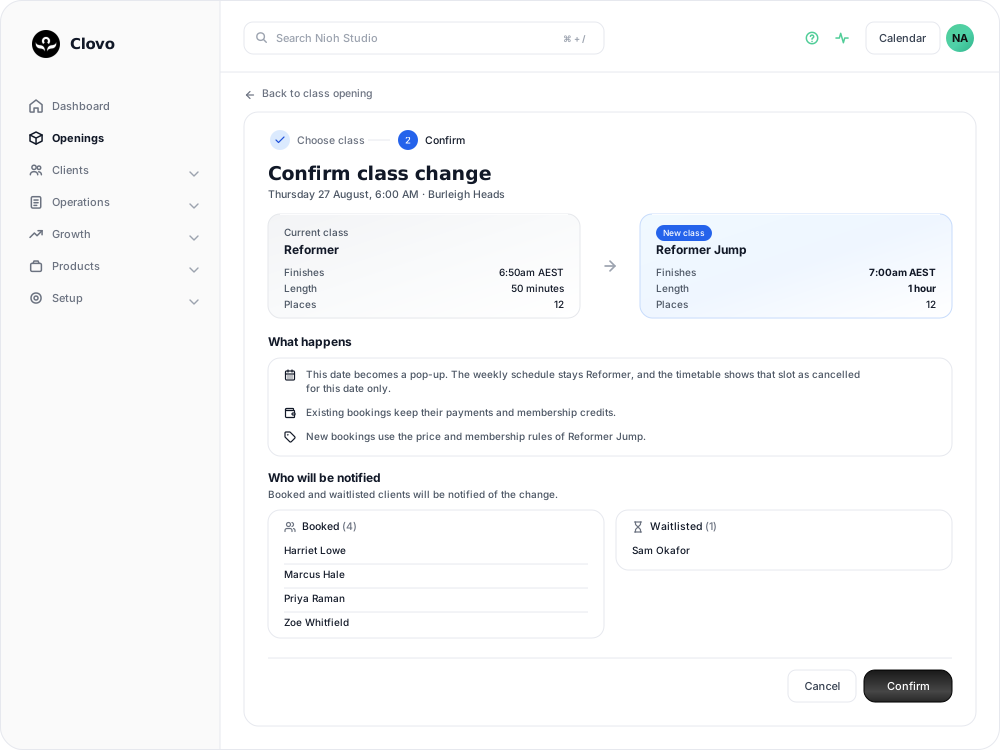
On Confirm class change, check the comparison of the two classes and the list of clients who will be notified.
-
Select Confirm.
The opening now shows the new class, with the message “This opening is now” followed by its name. Its start time, location, room and instructors are unchanged.
What changes for this opening
- Clients keep their bookings. Existing bookings keep the payment or membership credit they were made with, so nobody needs to rebook and nothing is refunded or charged.
- New bookings follow the new class. Anyone who books from now on pays the new class’s price and uses its membership rules.
- Only this date changes. If the opening came from your weekly schedule, this date becomes a pop-up for the new class. The weekly schedule keeps running the original class on every other date, and the original class shows as cancelled for this date only. If the opening was already a pop-up, it runs as the new class and nothing else is affected.
To change the class on every date, edit the schedule instead — see changing class schedules with existing openings.
Who is told
Each booked client receives a push notification and an email headed “Your booked class has changed”. It names the new class, the class it replaces, the date and the new finish time, and confirms their booking. Clients on the waitlist receive “Your waitlisted class has changed” and keep their place on the waitlist.
Your admin users are also notified. Because Clovo has already contacted everyone involved, you do not need to send a separate announcement.
Classes you cannot switch to
Some classes are listed under Not available for this opening, with the reason beside each — for example Lower capacity when the class has fewer places than the current one, or Requires additional forms when it asks clients for forms the current class does not. These limits make sure nobody who has already booked loses their place or is asked for something new.
When Change is not shown
Change appears only on an upcoming opening that has at least one booking. It is not offered on a class that has started or has been cancelled.
If nobody has booked yet, there is nothing to carry over. Cancel the opening and create a pop-up for the class you want to run instead.
If the class needs a different start time rather than a different class, see change the date and time of existing openings.
Related articles
Exempt a schedule from the booking cutoff
Keep bookings open until class starts for selected schedules while the rest of your timetable follows your studio booking cutoff.
Cancel upcoming classes that have already been scheduled
Cancelling an opening cancels every booking on it and returns credits automatically, but direct purchases are not refunded for you.
Change the date and time of existing openings
Move a single class opening to a new date or time. Clovo keeps the bookings, tells the clients who hold them, and leaves the schedule the class came from unchanged.
Close the studio for a date range
Record a closure so Clovo stops opening classes at that location, then cancel the openings already on the timetable and extend or pause the memberships the closed days run through.