
Cancel upcoming classes that have already been scheduled

Tobias Gundry
Updated
Cancelling a class opening cancels every booking on it, notifies the clients who were booked in, and takes the class off your timetable. Credits go back to the pack or membership they came from. Money a client paid directly for the class does not come back automatically — the studio refunds it separately from the client’s payment record.
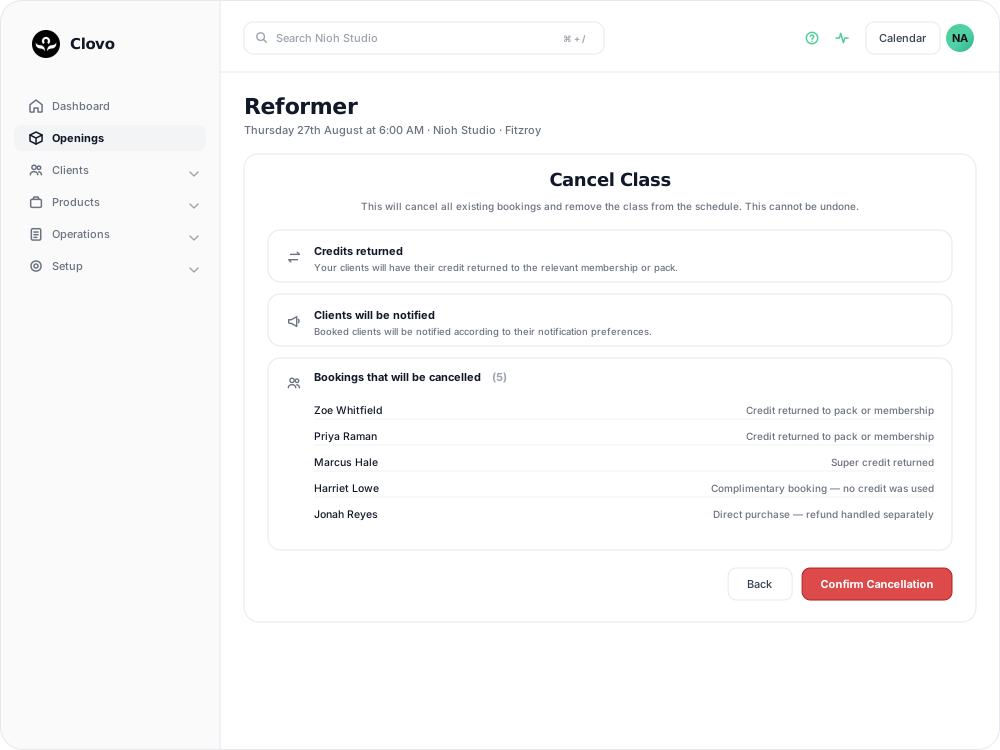
Cancel the opening
- Go to Openings, find the class and select Manage.
- Select Cancel.
- On the Cancel Class screen, read the list under Bookings that will be cancelled. Each client is listed with a note saying how their booking is handled.
- Select Confirm Cancellation.
Cancelling cannot be undone. There is no way to reinstate the opening or the bookings that were on it, and the Cancel button disappears afterwards. If the class ends up running after all, you would add it back as a pop-up class and rebook the clients. Cancel only appears while an opening is still in the future and not already cancelled.
If nobody has booked, the list reads No active bookings — this opening has no clients booked in, so you can confirm knowing no client is affected.
What each client gets back
The note beside each name on the cancel screen tells you which of four outcomes applies to that booking:
- Credit returned to pack or membership — the credit goes back where it came from and can be used again.
- Super credit returned — the super credit is released and is available for another booking.
- Complimentary booking — no credit was used — Clovo has no credit to return.
- Direct purchase — refund handled separately — the client paid for this class directly, and the refund is yours to make.
No late cancellation or no-show penalty is applied to anyone, because the studio cancelled the class rather than the client. See set up late cancellation and no-show penalties.
Direct purchases need a refund from you

When at least one client paid for their place directly, a red Direct Purchase Bookings panel appears above the booking list. Refunds for those payments are not processed automatically. Note who those clients are before you confirm, then refund them according to your own policy.
Refund a direct purchase from the client's payment record in Clovo. Refund a payment when a direct booking failed describes a different situation, but the steps for finding and refunding the payment are the same.
After you confirm
- Booked clients are notified according to their notification preferences.
- The class stops appearing in the Clovo app and on your public timetable, so nobody can book it.
- The opening stays on your Openings list, greyed out and marked with the time it was cancelled and who cancelled it.
- Your admin users receive a cancellation summary naming who was affected and how each booking was handled.
Cancelling from the Clovo app
Open the class in the app, tap Move or Cancel, then Cancel Class, and confirm. The app does not show the booking list or the direct purchase warning. When you need to see who paid directly before committing, cancel from the dashboard instead.
One opening, or the whole schedule
Cancelling affects that one date. The schedule carries on opening the class on later dates.
If the class has stopped running altogether, edit or delete the schedule rather than cancelling openings one at a time. Clovo shows a Review existing openings step where you can select which openings to cancel and save the change in one go, or save the change without cancelling anything. See changing class schedules with existing openings.
If the studio is shut for a date range, record it under Operations → Closures. From the closure you can cancel the affected openings together, and resolve the memberships caught by it — extending packs and trials, or pausing plan memberships. See close the studio for a date range.
Related articles
Show your timetable on your studio’s website
Copy an embed code from Clovo Dashboard to place your live class timetable on your own website, with weekly and monthly views your visitors can switch between.
Share your timetable with clients, wherever they are
Your landing page is a public, always-current timetable anyone can open without the app. Share the whole thing, a single class, a social image, or embed it in your own website.
Hide class numbers from clients
Show clients whether a class has space, without showing how many people have booked or how many places it has.
Close the studio for a date range
Record a closure so Clovo stops opening classes at that location, then cancel the openings already on the timetable and extend or pause the memberships the closed days run through.