
Hide class numbers from clients

Tobias Gundry
Updated
A new class showing “1/12 Joined” can put people off booking, and a one-on-one session doesn't need to advertise that it has a single place. Hide class numbers lets clients see whether they can get in, without the counts.
Turn it on
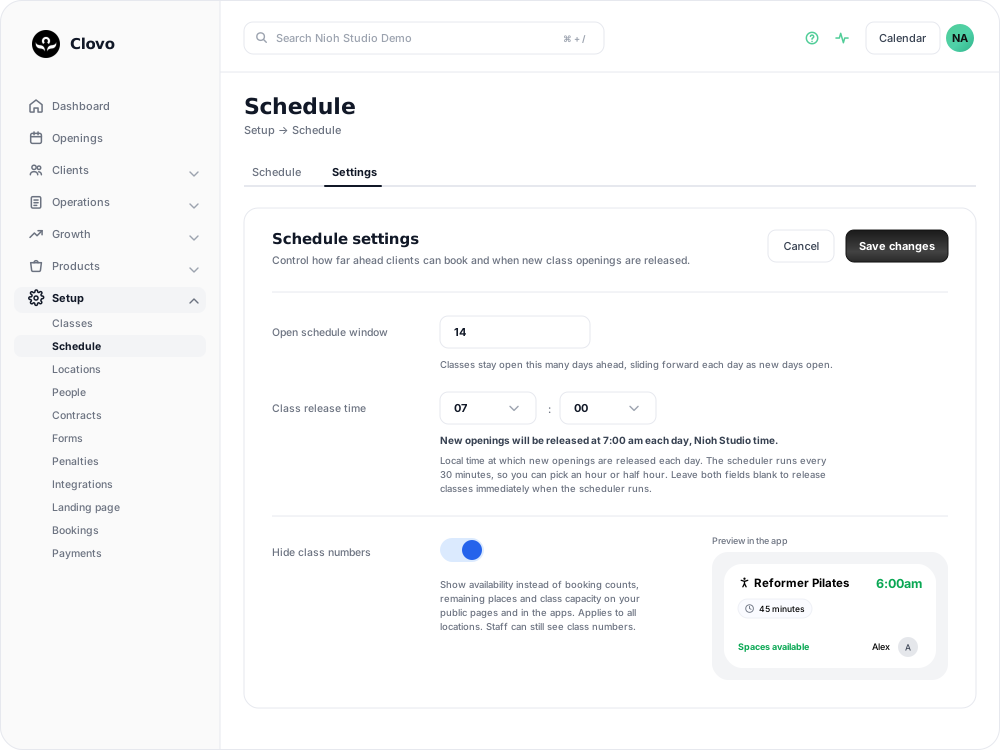
- In Clovo Dashboard, go to Setup → Schedule.
- Open the Settings tab.
- Switch on Hide class numbers. The preview beside it updates to show what clients will see.
- Click Save changes.
The setting covers every location in your studio. To show numbers again, switch it off and save.
What clients see
Clients see availability instead of counts, both in the Clovo app and on your public class pages. A class with room shows Spaces available, and a full class shows Fully booked. Sessions that take one person show Available or Unavailable, so a private session doesn't read as an oddly small class.
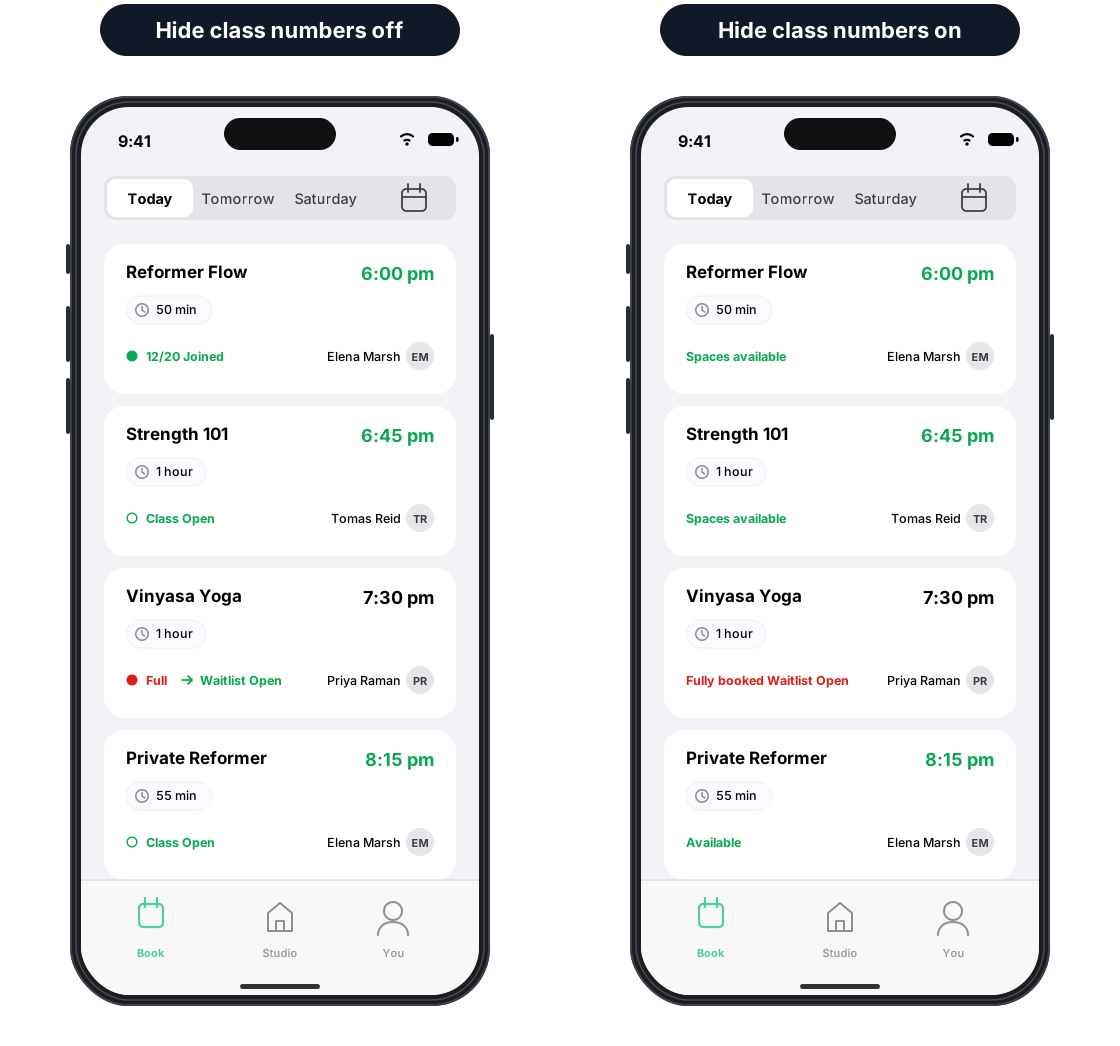
Only the display changes. Bookings, waitlists and booking cutoffs work the same way, and clients can still join the waitlist for a full class.
Clients who haven't updated the Clovo app will keep seeing numbers until they do.
Admins always see class numbers
If you're signed in to the app as an admin, you'll always see class numbers, whatever this setting is. Your team needs the real counts to run classes, so they stay visible on your own phone and throughout Clovo Dashboard.
This means you can't check the client view from your own admin account. Use the preview next to the setting, open one of your public class pages in a private browser window, or sign in to the app with a client account.
Related articles
Close the studio for a date range
Record a closure so Clovo stops opening classes at that location, then cancel the openings already on the timetable and extend or pause the memberships the closed days run through.
How to automatically book regular clients into new openings
Automatically book regular clients into each new opening on a schedule so their recurring place does not depend on a separate booking each week.
Schedules in Clovo
Build your studio’s recurring weekly timetable under Setup → Schedule, and understand how Clovo turns it into bookable class openings.
Share your timetable with clients, wherever they are
Your landing page is a public, always-current timetable anyone can open without the app. Share the whole thing, a single class, a social image, or embed it in your own website.