
Set up and manage your studio locations

Tobias Gundry
Updated
If your studio operates from one or more physical locations, you’ll need to set them up in Clovo so that classes can be assigned to the right venue. Locations appear on your timetable, in the booking app, and on your landing page so clients always know where they’re going.
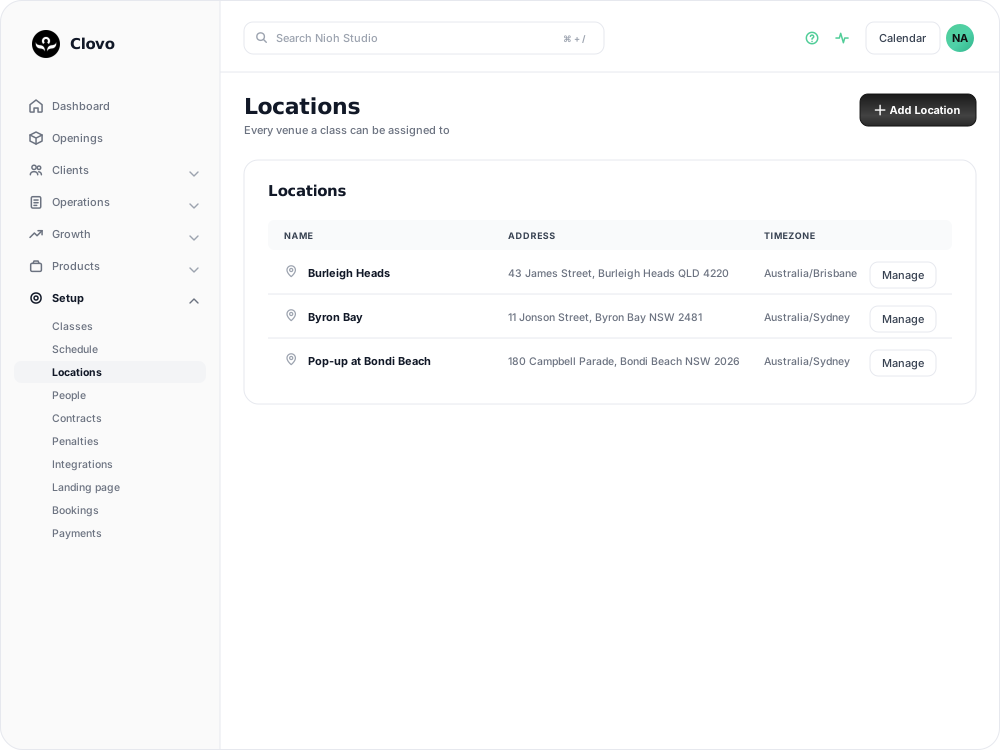
Adding a location
- In Clovo Dashboard, go to Setup > Locations.
- Click Add Location.
- Enter the location name (e.g. “Main Studio”, “Rose Bay Studio”, “Pop-up at Bondi Beach”).
- Add the address details and check the state before saving. The state sets the location’s timezone and cannot be changed afterwards.
- Save the location.
Add rooms within a location
Use rooms when several teaching spaces share one address, such as a Reformer room and a Mat room.
- Open the location under Setup → Locations.
- Select Manage rooms, then Add room.
- Enter the room’s Name and, if useful, a Description, then save.
- Choose the room when creating or editing a schedule, or when creating a pop-up class.
Rooms are optional. Select No room to use the location alone. Clients see the location and room together in the iOS and Android apps, for example Main Studio (Reformer).

How locations are used
- Schedule entries — each scheduled class is assigned to a location, so you can run different classes at different venues
- Client-facing timetable — clients see the location for each class in the app and on your landing page
- Pop-up classes — one-off classes can be assigned to any location, including temporary venues
- Social timetable images — when generating timetable graphics for social media, you select which location to feature
Multi-location studios
If you run classes across multiple venues, having separate locations set up ensures your clients can easily filter and find classes near them. Each location has its own address, making it clear where clients need to go.
Related articles
Understand the meaning of different plan statuses in Clovo
Use the status beside a client’s membership, credit pack or trial to understand whether they can use it and when their access changes.
Change the address shown on invoices
Choose your business address or a studio location as the From address on new client invoices and receipts.
Customise your dashboard layout
Turn dashboard cards on or off, put them in the order you want, and choose where the activity timeline sits — all saved to your own staff account.
Read your Studio Health Check
A scored, printable report that reviews your studio's setup, revenue, retention, growth and engagement, and links straight to the screen that fixes each finding.