
Change the reply to address for your studio

Tobias Gundry
Updated
When a client selects Reply on the emails listed below, their reply goes to your Studio email address. Choose an inbox your team checks so clients can reach you with questions about their bookings, purchases or membership.
Clovo still sends these emails from noreply@clovo.au. The reply-to address tells the client's email app where to send their reply.
Change the address
The studio owner can change this setting.
- Open the account menu from your initials at the top right of Clovo Dashboard, then select Account.
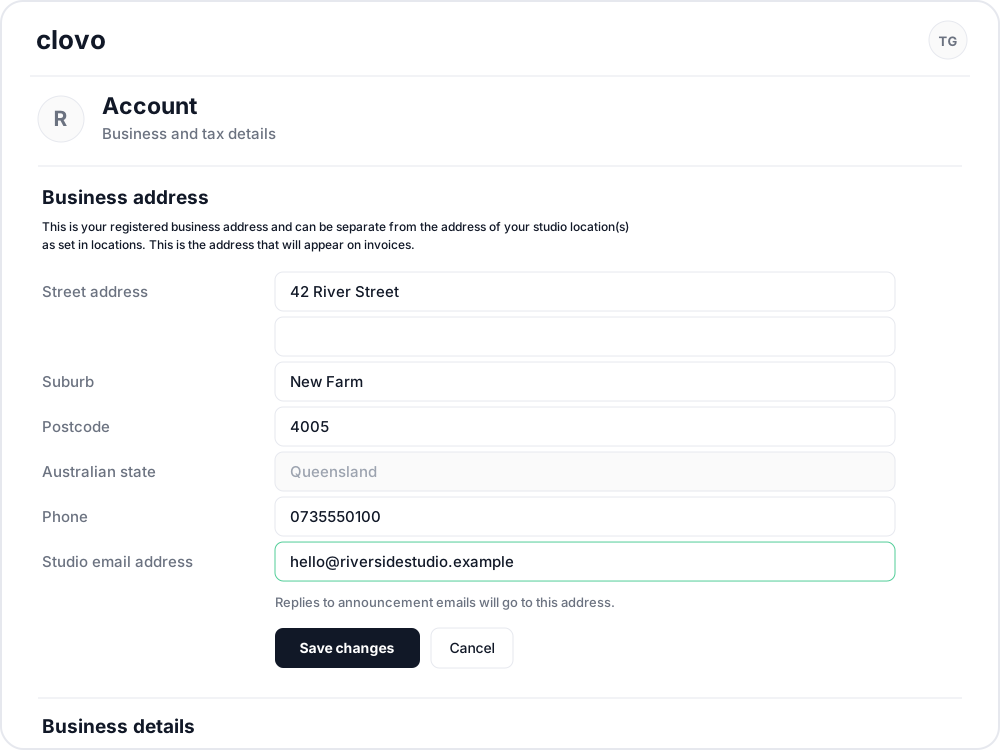
- Scroll to Business address.
-
Enter the inbox you want to use in Studio email address.

-
Select Save changes beneath that section.
The new address applies to emails sent after you save. Emails clients already received keep their original reply destination.
Which emails use your studio address for replies?
These client emails use your saved Studio email address when they are sent.
| Uses your studio address for replies? | |
|---|---|
| Studio announcements | Yes |
| Welcome emails, including welcome email tests | Yes |
| Booking confirmations, including bookings made by staff and pay-per-class purchases; after-booking messages and booking reminders | Yes |
| Booking moves and cancellations; class time changes and class cancellations | Yes |
| Waitlist spot offers, successful bookings and unsuccessful booking notices | Yes |
| Membership and credit pack purchase confirmations with receipts; after-purchase messages; direct debit purchase pending notices | Yes |
| Membership renewal confirmations with receipts | Yes |
| Membership plan changes, class inclusion changes, upcoming renewal price or billing term changes, expiry date changes and billing schedule resets | Yes |
| Membership pauses and resumes, cancelled scheduled pauses, resume dates added or changed, membership cancellations and bookings cancelled because the membership is ending | Yes |
| Invitations to purchase a private plan | Yes |
| Failed-payment recovery emails, payment refund confirmations and super credit return notices | Yes |
| Pay-per-class purchase notices when payment succeeds but the booking cannot be completed | Yes |
| Member shop order confirmations with receipts | Yes |
| Gift purchase confirmations, invitations to claim a gift and gift claim confirmations for the purchaser and recipient | Yes |
| Form requests sent by staff or automatically | Yes |
| Related profile added or removed notices; account deletion request acknowledgements | Yes |
| Sign-in, email verification and password reset emails | No |
| Staff notification emails | No |
Check the reply destination
On a newly received email from the table, select Reply and check the To address before sending. It should match the address you saved. If it shows a different address, check that the email was sent after your change and that it is one of the supported emails above.
Related articles
Understand the meaning of different plan statuses in Clovo
Use the status beside a client’s membership, credit pack or trial to understand whether they can use it and when their access changes.
Change the address shown on invoices
Choose your business address or a studio location as the From address on new client invoices and receipts.
Customise the welcome email that is sent to new clients when they join
You can now customise the welcome email your studio sends to new clients when they join.
Customise your dashboard layout
Turn dashboard cards on or off, put them in the order you want, and choose where the activity timeline sits — all saved to your own staff account.