
Review activity in your studio with the Studio feed

Tobias Gundry
Updated
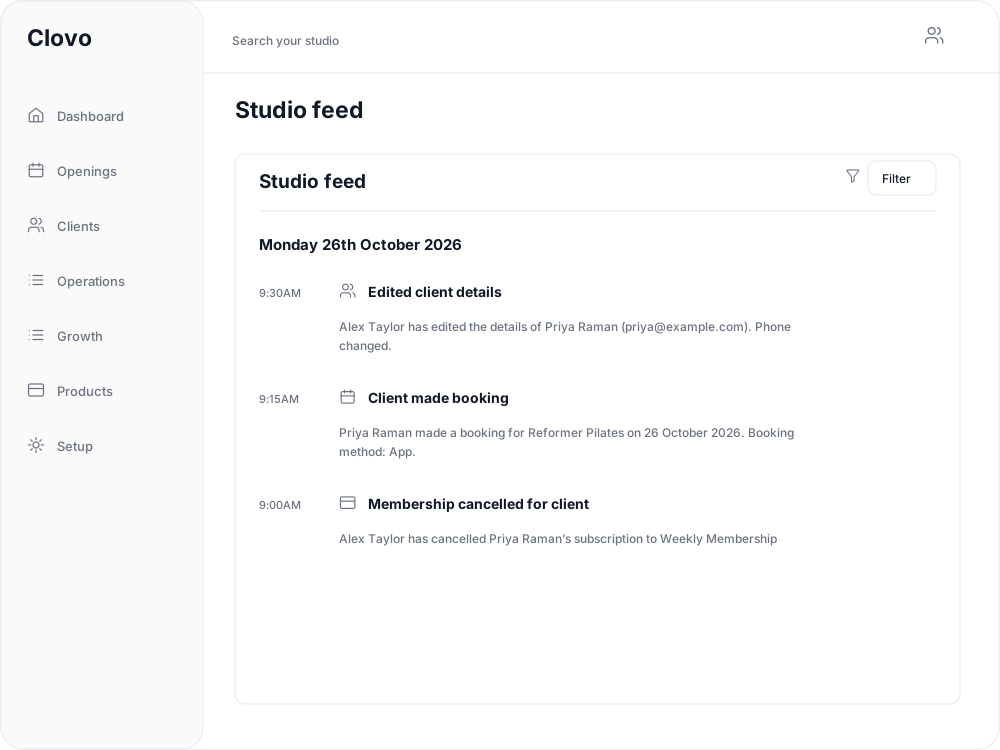
Use the Studio feed to review recorded activity when you need to understand a booking, a client account change or a studio setting change. Entries are grouped by date and show the time and a description of what happened.
Open the full feed
Select Studio feed in the dashboard's top bar to open the side panel. Select the expand icon, labelled Open full studio feed, at the top of that panel to open the full page.
Find the activity you need
- Select Filter on the full Studio feed page.
- Choose one or more categories, such as Bookings, Payments, Memberships or Setup.
- Select Apply filters.
Results include activity from any category you selected. For example, choosing Payments and Memberships brings both kinds of activity into the same list. The number beside Filter shows how many categories are selected.
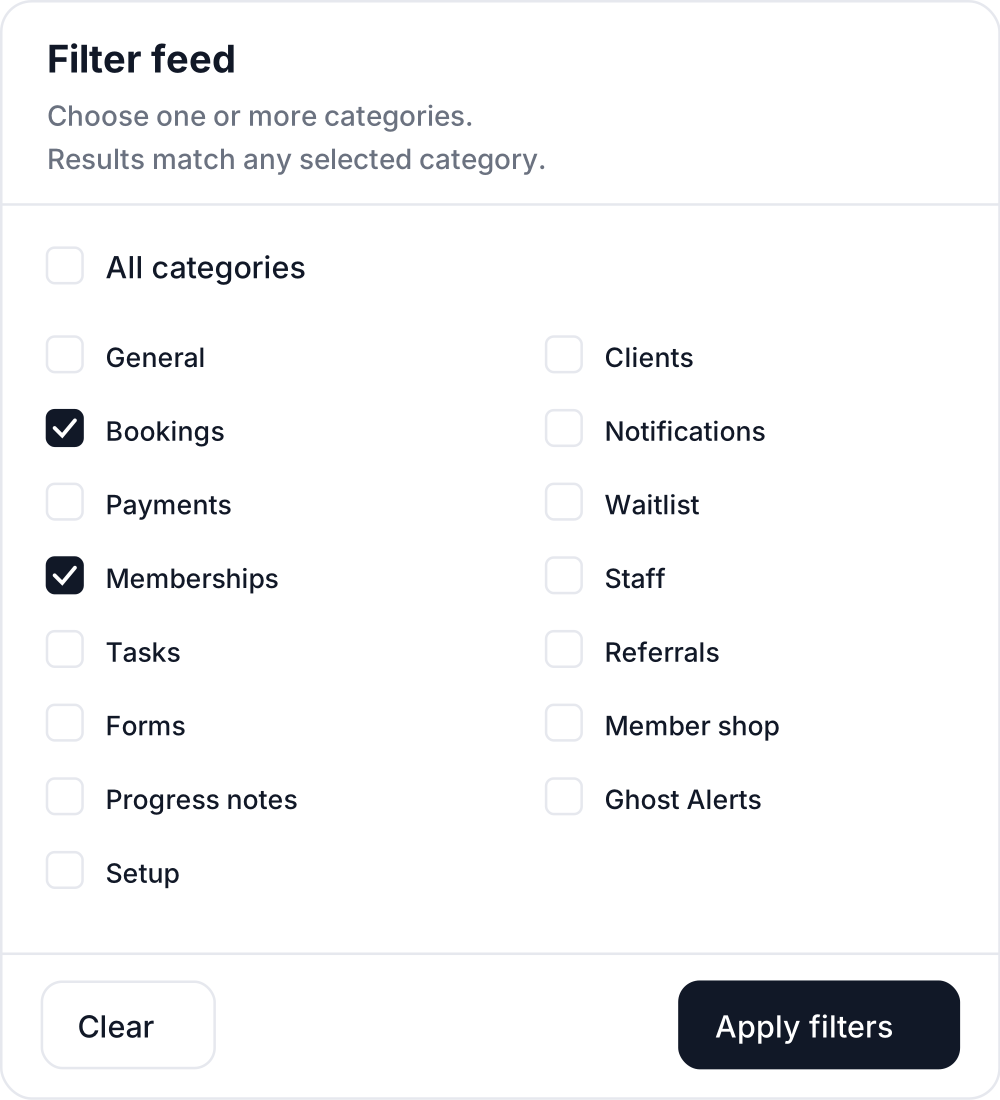
Use Clear to return to the unfiltered feed, or choose All categories and apply. Use the page controls below the list to look further back.
If you see No feed items, clear the filters or choose another category. It means there is no recorded activity matching the current selection.
Follow up on an entry
Read the entry's description alongside its date and time. When an entry names the staff member who made a change, that can help you work out who to ask about it. Open the relevant client, booking or payment to review its current details before making another change.
For credit deductions and returns on a particular membership, see Track the usage of memberships and packs.
Related articles
Customise your dashboard layout
Turn dashboard cards on or off, put them in the order you want, and choose where the activity timeline sits — all saved to your own staff account.
Add a staff member and choose their roles
Add staff under Setup → People, give them dashboard access, and choose the Setup, Finance or Client Records roles they need.
Choose which notifications you and your staff receive
Notification preferences are set per person and grouped by role, so each of your team is told about the studio events their job covers.
Staff roles and permissions
A detailed reference for Staff, Setup, Finance, Client Records and Owner access, including role combinations for forms, payments and staff management.