
Staff roles and permissions

Tobias Gundry
Updated
Use this reference to decide which roles a staff member needs, check why a control is missing, or understand what access a role gives them. Roles apply to the staff member’s access within your studio.
Every staff account has base Staff access. Web Dashboard Access lets the person sign in to the dashboard. Setup, Finance and Client Records add access to particular areas; they can be selected together. Owner includes the permissions described here and has additional controls for managing staff and studio business settings.
For someone who will create forms through Setup → Forms, select both Setup and Client Records. Setup makes the sidebar section available; Client Records allows them to work with forms. The forms section below explains this combination and the difference between finding a page and being allowed to use it.
Check or change a staff member’s roles
An owner can change additional roles:
- Open Setup → People → Staff Accounts and select the staff member.
- Open Details.
- Turn on Web Dashboard Access if they need to use the dashboard.
- Select the permissions they need under Additional Roles.
- Select Update.
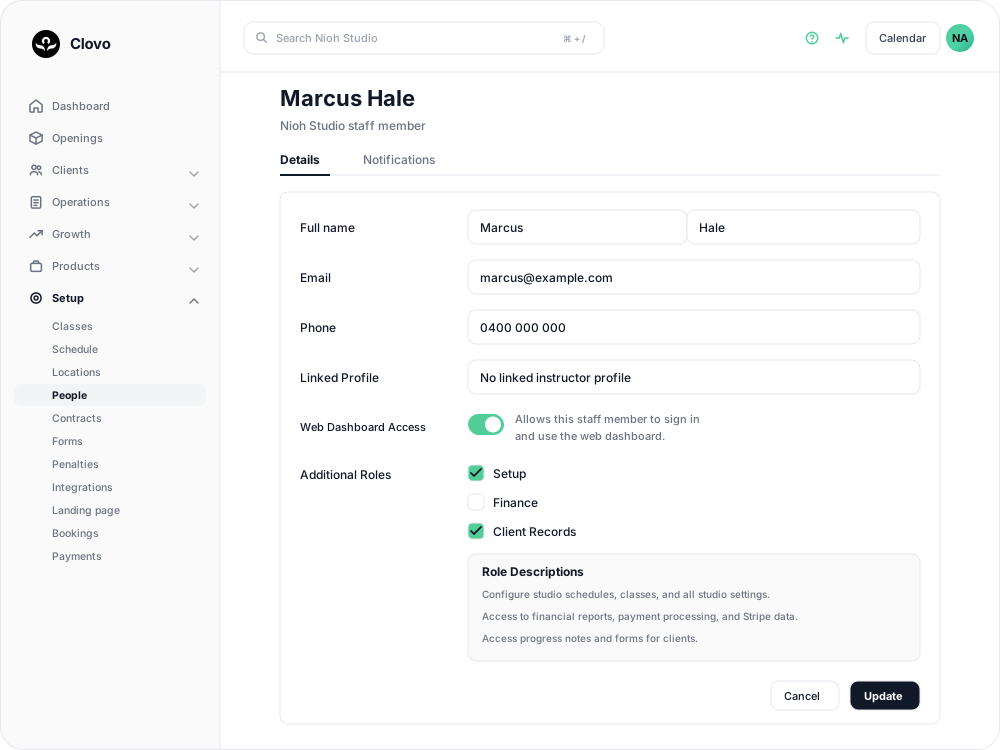
Turning off Web Dashboard Access removes the additional roles when the change is saved. Turning access back on does not restore those selections: an owner needs to select the required roles again. Owners always have dashboard access, and their roles cannot be edited here.
Staff with Setup can edit an existing staff member’s details, linked instructor profile and dashboard access. They cannot choose additional roles; that part of the screen says Only studio owners can edit staff roles. Creating or deleting a staff account also requires an owner.
For the new-account steps, see Add a staff member and choose their roles.
Roles at a glance
The table assumes Web Dashboard Access is on. Each additional role includes the person’s existing Staff access.
| Access | What it gives the person | What it does not add |
|---|---|---|
| Staff | Everyday client, booking, class attendance, membership and task work. | Setup permissions, protected payment details, client forms or Progress Notes. |
| Setup | Class and schedule setup, locations, instructor profiles, contracts, studio configuration and access to the Setup, Products and Growth sidebar sections. | Finance or Client Records permissions; creating or deleting staff accounts; choosing staff roles; owner-only business settings. |
| Finance | Failed-payment recovery, protected payment details, invoices, financial components, Clovo billing and Stripe access. | Setup navigation, staff role management, client forms or Progress Notes. |
| Client Records | Client forms, submitted answers, Progress Notes, note history and shared note templates; form management. | Setup sidebar navigation, class configuration or financial access. |
| Owner | All of the above, plus creating and deleting staff, choosing staff roles and editing owner-only business settings. | An owner account cannot be deleted or have its roles or dashboard access changed through the staff editor. |
Roles add together. Selecting Setup does not automatically select Finance or Client Records. Selecting all additional roles does not turn a staff account into an owner.
A missing menu is different from denied access
Some roles control whether a sidebar section appears. A page within that section can have a different permission requirement.
For example, Client Records lets a staff member open the Forms page from a direct link, even when they do not have the Setup sidebar section. Conversely, someone with Setup can reach studio setup screens but still needs Client Records to manage forms.
Do not use the absence of a sidebar item as evidence that someone cannot use a feature. The tables below distinguish navigation from access where that affects your choice of roles.
Everyday Staff permissions
Base Staff access supports day-to-day studio work. These tasks do not require Finance, Setup or Client Records unless an additional restriction is listed.
| Task | Permission or limit |
|---|---|
| Browse clients and open their profiles | Staff. Client Records is not needed for ordinary client profile access. |
| Add or update client details and archive clients | Staff. |
| Manage bookings, cancellations, attendance and waitlists | Staff. Booking and waitlist rules still apply. |
| See and act on appointments in the iPhone app's Admin > Appointments | Owner, for every calendar. Other staff see only the calendars they are assigned to as the instructor's linked staff account, the location's manager or an additional manager. In the dashboard, Staff can see every calendar's appointments. |
| Work with a client’s existing memberships | Staff, including available cancellation, extension, plan-change and billing-cycle actions. Each action remains subject to the membership’s rules. |
| View failed payments and send a recovery request | Finance or Owner. Staff or Setup alone is not enough. |
| Create and work with tasks | Staff. |
| Delete a task | The staff member who created it, or an owner. An additional role does not grant permission to delete everyone else’s tasks. |
| Read or write Progress Notes, or view client forms | Client Records or Owner. These are separate from ordinary profile access. |
| View protected Stripe payment details or download payment invoices | Finance or Owner. |
Staff is not a read-only role. Withholding Finance does not remove everyday membership actions. Failed-payment recovery requires Finance or Owner. If you are deciding whether someone should be able to use the dashboard, take the base permissions into account as well as the additional roles.
Setup permissions
Setup is for staff who maintain how the studio operates. It also makes the Setup, Products and Growth sidebar sections available.
| Task | Roles to use |
|---|---|
| Create or edit classes and recurring schedules | Setup. Managing bookings on a class is separate from changing its setup. |
| Manage studio locations and public instructor profiles | Setup. |
| Manage membership contracts, penalties, booking settings and the studio landing page | Setup. |
| Manage branding, welcome-email settings and studio integrations | Setup. Stripe features also require Finance. |
| Edit an existing staff member’s contact details, linked profile or Web Dashboard Access | Setup, or Owner. Choosing additional roles remains owner-only. |
| Change another staff member’s notification preferences | Setup, or Owner. The recipient’s roles determine which notification groups they can receive. |
| Open and act on the Studio Health Check | Setup, or Owner. |
| Configure Ghost Alert or referral programme settings | Setup, or Owner. |
| Create and manage merchandise in the member shop | Setup, or Owner. |
| Manage forms using the Setup sidebar | Setup and Client Records. |
| Open Stripe settings from studio setup and use Stripe features | Setup and Finance for the full navigation workflow. Finance controls Stripe access. |
| Create or delete staff, or choose their additional roles | Owner. Setup is not enough. |
| Edit the main studio business settings page | Owner. Setup does not grant access to every settings page. |
Products, Growth and Reporting
Give Setup to someone who needs to find Plans, Packs, Trials, Merch, or the Growth tools through the sidebar. Finance is not a substitute for Setup navigation.
Some of these pages also accept staff who open them from a direct link. In particular, standard Staff can access plans, packs, trials, promo codes, reviews and Reporting without Setup. Merchandise management, Ghost Alert settings and referral programme settings have their own Setup requirement.
Reporting is not restricted to Finance. Staff can open report pages directly; Setup makes Growth → Reporting available in the sidebar. Finance controls separate financial features such as Stripe payment details and the Upcoming Renewals dashboard card. Do not assume that removing Finance hides all reports or every money-related figure.
Forms and client records
Client Records grants access to both forms and Progress Notes. There is no separate checkbox for forms only, notes only, or read-only client records. Give it to staff who should be able to work with that information across the studio, rather than treating it as access only to their own clients or notes.
| Task | Roles to use |
|---|---|
| Open a client’s Forms tab and read submitted answers | Client Records. |
| Fill in a staff-completed form or request a self-service form from a client | Client Records. |
| Create, edit, duplicate or archive reusable forms through Setup → Forms | Setup and Client Records for the sidebar workflow. See the direct-link distinction below. |
| Change a form’s automatic sending setting through Setup → Forms | Setup and Client Records for the sidebar workflow. |
| Select an existing form as a class booking requirement | Setup. Selecting a requirement does not grant access to clients’ answers. |
| Create a new form and make it a class booking requirement | Setup and Client Records. |
| Read, create or edit Progress Notes; view note history and versions; download a note PDF | Client Records. |
| Create, edit or delete shared Progress Note templates | Client Records. Setup is not needed for these templates. |
Owners can perform all of these tasks without selecting additional roles.
Why form creation uses two roles in the sidebar
For the usual Setup → Forms → Form builder workflow, select Setup and Client Records together.

- Setup only: the person has studio setup access, but cannot manage reusable forms or open client form answers.
- Client Records only: the person can use forms and Progress Notes on client profiles. They can also create and manage reusable forms by opening the Forms page directly, but the Setup sidebar section is absent.
- Setup and Client Records: the person can use the sidebar workflow, manage forms and configure class requirements without switching to a direct link.
This means Client Records is a broader permission than filling in existing forms. If a person has it, removing Setup does not prevent them from creating forms through a direct link.
For the full workflow, see Build a client form with the Form Builder.
Requiring a form is different from reading its answers
A staff member with Setup can choose an existing form under a class’s Required forms. They do not need Client Records to choose that requirement. They do need Client Records if they also need to create the form or read a client’s submitted answers.
If there are no forms to choose, the Create a form action is available to owners and staff who also hold Client Records. See Require a form before clients book a class.
When a form cannot be edited
Permissions do not override a form’s editing rules. Once a form has submitted answers, its questions are locked. Even an owner needs to duplicate it to make a revised version. Automatic sending can still be changed. If the person can open the form but cannot change its questions, check whether it has already been completed before changing their roles.
Finance and payment permissions
Finance provides access to protected payment information and financial tools. It is not required for every action that affects a membership or payment.
| Task | Permission or limit |
|---|---|
| View protected payment details on client and membership screens | Finance or Owner. |
| Download a payment invoice | Finance or Owner. |
| Connect or reconnect a client to Stripe | Finance or Owner. |
| Open Stripe settings and supported embedded Stripe tools | Finance or Owner. Stripe availability also depends on account and studio verification and the Stripe connection. |
| Open Clovo billing and fee information | Finance or Owner. |
| Use the Upcoming Renewals dashboard card | Finance or Owner. |
| View failed-payment recovery work and send a recovery request | Finance or Owner, including recovery details on client and membership screens. |
| Use the Failed Payments dashboard card | Finance or Owner. |
| Carry out available changes to an existing membership | Staff is enough; the membership’s own rules still apply. |
| Open Reporting | Staff is enough through a direct link. Setup makes the Growth sidebar section available. |
Finance can open Stripe settings directly without Setup. Add Setup if the person also needs the studio setup navigation and configuration tools. Setup alone does not allow access to Stripe settings or protected payment details.
A Finance role does not guarantee that Stripe is ready to use. If access is allowed but the screen asks for verification or connection setup, complete the step shown on that screen.
Owner-only permissions
An owner is needed to:
- Create a staff account.
- Delete a non-owner staff account.
- Choose or change a staff member’s additional roles.
- Edit the main studio business settings page.
- Delete a task created by another staff member.
Setup staff can help maintain existing staff details and notification preferences, but cannot assign themselves or another person additional roles. There is no Owner checkbox under Additional Roles. Selecting Setup, Finance and Client Records together does not grant the owner-only actions above.
Role combinations for common responsibilities
These are starting points for choosing access. Every row assumes the person already has Staff and Web Dashboard Access. Consider the full scope of each role before selecting it.
| Responsibility | Additional roles |
|---|---|
| Reception: clients, bookings, attendance and memberships | None needed for those everyday tasks. |
| Staff responsible for failed-payment follow-up and recovery requests | Finance. |
| Instructor who also records progress and completes or requests client forms | Client Records. A linked public instructor profile does not grant this role. |
| Studio coordinator maintaining classes, schedules and locations | Setup. |
| Staff member who builds forms and assigns them to classes | Setup + Client Records. |
| Accounts staff who need payment details, invoices, billing and Stripe | Finance. Add Setup if they also need its navigation and configuration tools. |
| Manager responsible for configuration and payment details | Setup + Finance. |
| Manager responsible for configuration, payments, forms and Progress Notes | Setup + Finance + Client Records. Owner-only actions still need an owner. |
A linked instructor profile connects a staff account to its public profile, appointment notifications and access to its instructor calendars in the iPhone app. It does not change dashboard permissions or restrict access to the instructor’s own classes.
Roles and notifications
Notification eligibility and dashboard actions are related, but they are not identical.
| Notification group | Who can receive it |
|---|---|
| General | Staff and owners, according to their preferences. |
| Finance | Staff with Finance, and owners. |
| Client Records | Staff with Client Records, and owners. |
Adding a role makes the corresponding notification group available; it does not automatically enable every notification. Check the recipient’s preferences after changing their roles. Setup alone does not make someone eligible for Finance or Client Records notifications.
A staff member responsible for failed-payment recovery needs Finance. To receive Payment Failed notifications as well, they also need that notification switched on. Giving the role alone does not enable the notification.
Owners and Setup staff can change another staff member’s preferences from their staff record. Use your own notification settings for your own preferences. See Choose which notifications you and your staff receive.
Troubleshoot an access question
| What the person sees | What to check |
|---|---|
| They cannot sign in to the web dashboard | Confirm Web Dashboard Access is enabled for the staff account they are using. Having a staff or public instructor profile alone is not enough. |
| Additional Roles is missing | Turn on Web Dashboard Access. |
| Additional Roles says only owners can edit roles | Ask an owner to make the role change. Setup does not allow it. |
| Setup is missing from the sidebar | Check for Setup. Finance and Client Records do not add this sidebar section. |
| They can use client forms, but cannot find Setup → Forms | Add Setup for the sidebar workflow, or use the direct Forms link if they only need form management. |
| Forms or Progress Notes is missing from a client profile | These tabs appear for Client Records or Owner. Ask an owner to add Client Records if the person needs that access. |
| They have Setup but cannot find Forms in the sidebar | The Forms item also needs Client Records. Setup alone does not grant form management. |
| They can select required forms on a class but cannot read the answers | Class setup and client record access are separate. Client Records is needed for answers. |
| Failed Payments is missing, or its page denies access | Check for Finance or Owner. Setup alone does not allow the queue, recovery requests or Failed Payments dashboard card. |
| They can manage a membership but cannot see payment details or failed-payment recovery controls | Everyday membership actions are available to Staff. Protected details and recovery controls require Finance or Owner. |
| They have Finance but cannot see Products or Growth in the sidebar | Those sidebar sections use Setup. Finance does not add them. |
| They have every additional role but cannot add staff or change roles | Those actions remain owner-only. |
| A form opens but its questions are locked | Check for submitted answers. Duplicate the form to revise its questions. |
| A notification is unavailable or does not arrive | Check both the recipient’s role and the individual notification preference. |
If Clovo shows You don’t have access to this area, check the Required role shown, when present, and ask the studio owner to review the account’s roles.
If the account has the expected access and the problem remains, contact Clovo support with the page or task, the roles selected on the staff account, and the exact message shown. For a client-record issue, describe the access problem without copying the client’s form answers or Progress Notes.
Related articles
Add a staff member and choose their roles
Add staff under Setup → People, give them dashboard access, and choose the Setup, Finance or Client Records roles they need.
Customise your dashboard layout
Turn dashboard cards on or off, put them in the order you want, and choose where the activity timeline sits — all saved to your own staff account.
Review activity in your studio with the Studio feed
Open the Studio feed and filter activity to find bookings, payments, membership changes and setup changes.
Choose which notifications you and your staff receive
Notification preferences are set per person and grouped by role, so each of your team is told about the studio events their job covers.