
Sell a shop product to a client at the front desk

Tobias Gundry
Updated
Members can buy from your shop themselves, but staff can also sell them something over the counter. The sale runs through POS Purchase on the client's profile, the same screen you use for memberships and credit packs, and it finishes the way a member's own order does: paid by card, and held for collection at a location you choose together.
Find the product
- Open the client's profile.
- In the Purchases card, select POS Purchase.
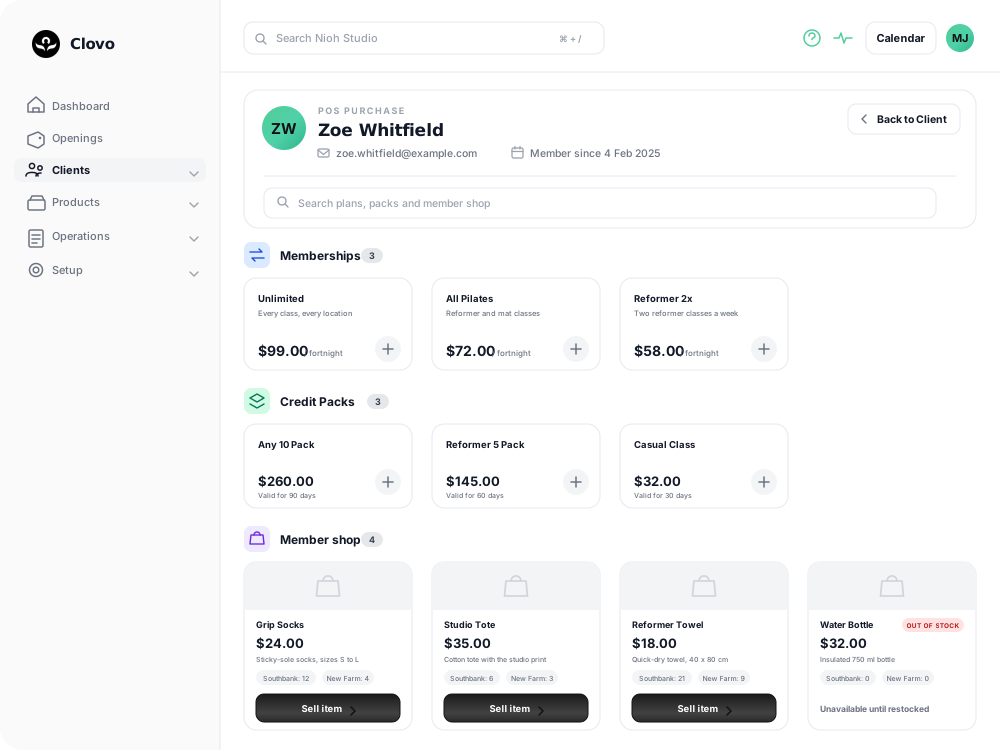
- Scroll to Member shop. If the client has more than six plans, packs and products available between them, a search box appears above the sections and filters all three at once.
- Select Sell item on the product card.
Each card carries the price and a chip for every pickup location, with the quantity held there, so you can see where the item actually is before you begin. A product with nothing left anywhere shows an Out of stock badge and reads Unavailable until restocked in place of the button — it cannot be sold until you add stock.
The client's Sales tab has a Shop Sale button that opens the same screen, if you are already looking at their orders.
Choose the quantity and pickup location
Sell item opens Configure Sale, with the product and its price on the left and the sale settings on the right.
Set the Quantity, then choose a Pickup location. Each location the product can be collected from is listed with how many are on hand there, such as Bondi Beach (12 available). A location with none left reads (out of stock) and cannot be chosen. Agree the collection location with the member before continuing.
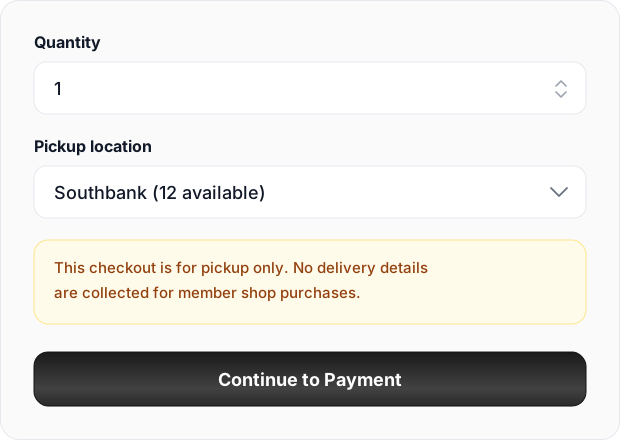
The notice on the panel is a reminder that Member Shop orders are always collected in person. Clovo does not ask for a delivery address, and there is no way to post an order to a member.
When the quantity and pickup location are set, select Continue to Payment.
Take the payment
The next screen is headed Complete Sale for the client's name and repeats the product and quantity. Enter the card details and select Complete Purchase. Change quantity or pickup location at the foot of the screen goes back a step if something needs adjusting.
A shop sale is card only. Offline Purchase, the button beside POS Purchase on the client's profile, records a membership or a pack without taking payment through Clovo and does not list shop products, so there is no cash or offline route for merchandise. Money taken in cash for a product has to be reconciled outside Clovo.
Two things will stop the sale:
- Your studio needs Stripe connected. Without it, Continue to Payment returns you to POS Purchase with the message This studio is not setup to accept payments.
- The quantity cannot exceed the stock at the chosen location. Configure Sale reappears saying there is not enough stock at that location to fulfil the order. Lower the quantity, or choose a location with enough on hand.
Once the card goes through you get a Payment submitted confirmation, with Sell another item and Back to Client. The sale joins the sales lists once Stripe confirms the payment.
What follows a completed sale
- Stock at the chosen pickup location drops by the quantity sold.
- The sale appears under Products > Shop on the Sales tab, and on the client's own Sales tab, with the status Pending pickup.
- The member receives a push notification and an email headed Your order is ready, naming the product and the pickup location, with their receipt attached. Owners and staff with the Finance role receive a Shop purchase notification at the same time.
- If Automatically create tasks is switched on in Shop Settings, the sale also raises a Fulfill member shop sale task.
The order stays open until someone hands the item over and selects Mark Picked Up. When you have sold something that is sitting on the counter, you can close it out immediately — see tracking and fulfilling Member Shop sales for how that works.
Which screen should I use?
- POS Purchase — memberships, credit packs and Member Shop products, paid by card at the counter.
- Offline Purchase — a membership or credit pack given to a client without taking payment through Clovo. It does not sell shop products.
- The client's Sales tab — reviewing that member's shop orders, or starting another one with Shop Sale.
Related articles
How to create a product in the Member Shop
Work through the product form field by field, including the $5.00 minimum price, the pickup locations you cannot detach later, and the fact that a saved product cannot be deleted.
Managing stock and inventory in the Member Shop
The Member Shop includes a complete stock management system that tracks inventory separately for each of your studio locations. Every stock change is recorded in a detailed ledger so you always have a clear history of what happened, when, and why.
Tracking and fulfilling Member Shop sales
Read the Sales tab, mark an order as picked up, and choose whether every paid sale also creates a task for your staff.
Getting started with the Member Shop
What the Member Shop sells, where members see it, and what has to be in place before your first product goes on sale.