
How clients book appointments

Tobias Gundry
Updated
Clients can book on your studio website or in the Clovo iPhone app. Both show the appointments and lengths you offer, then the dates and start times available for the selected calendar.
Find an appointment
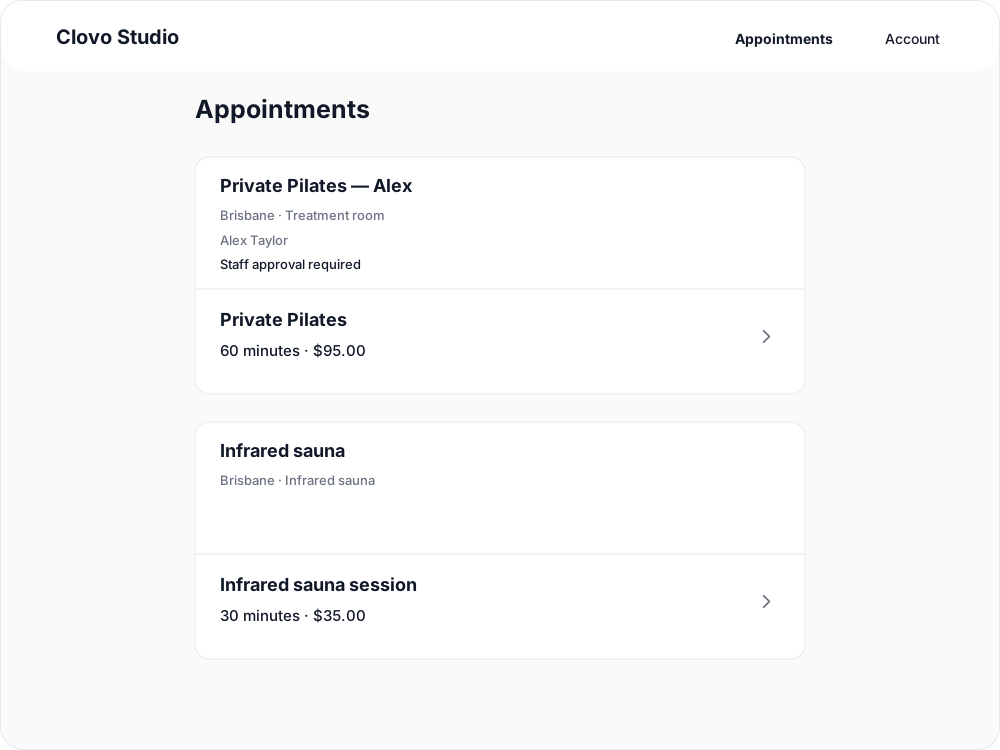
On the studio website, clients open Appointments, choose an offering under the relevant calendar, then choose a date and time. They can browse before signing in; choosing a time takes them through sign-in before booking.
In the iPhone app, clients open Book, switch from Classes to Appointments, then choose a calendar, appointment length, date and time. Appointments are booked for the signed-in client, rather than an additional profile.
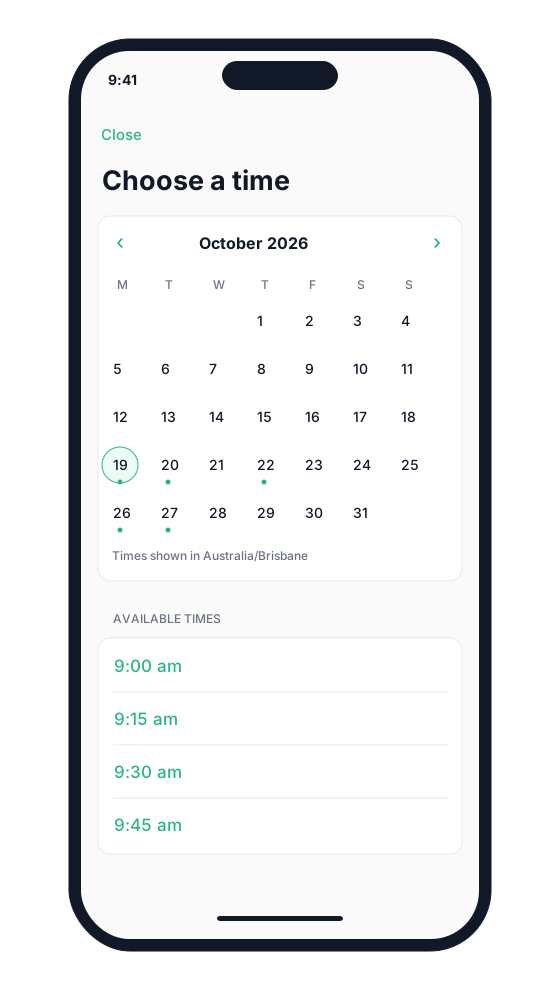
Flexible example: choose a time within your hours
Suppose Private Pilates is available from 9:00 to 12:00 in 30- and 60-minute lengths. A client chooses a length first, then a date. Clovo offers starts that fit that length, your booking rules and remaining availability.
The client might see 9:00, 9:15 and 9:30 for a 60-minute session. They cannot choose a start that runs past your hours or overlaps another booking.
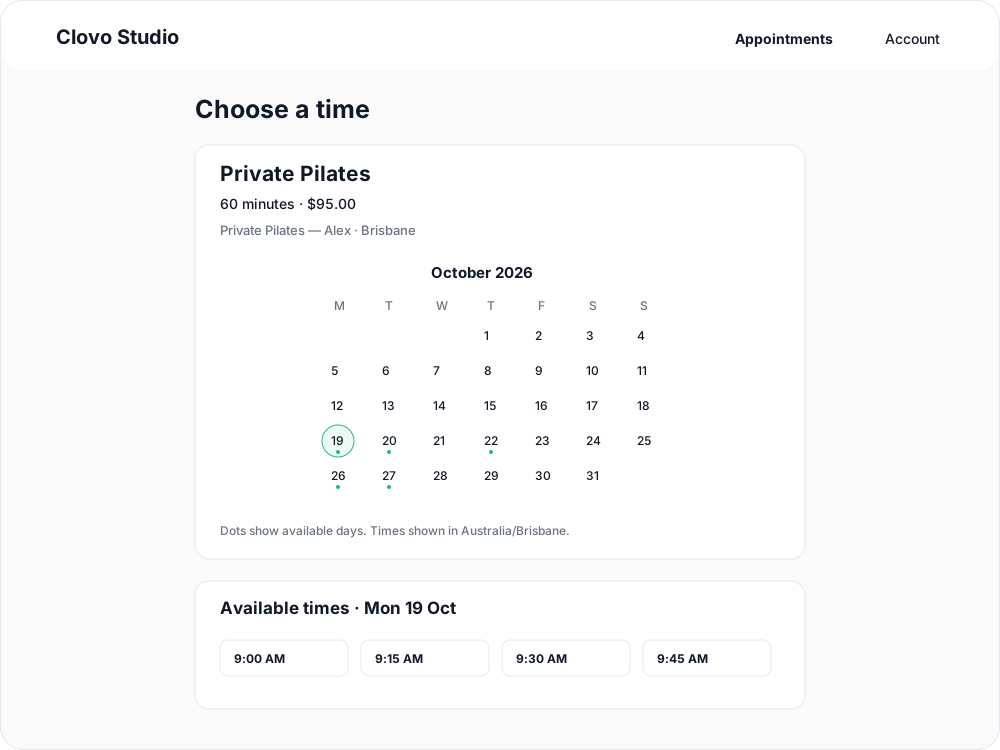
Fixed example: choose a published session
Suppose you publish 30-minute sauna appointments at 9:00, 9:45 and 10:30. Clients choose among those exact starts for that length. They cannot move a slot's start or make it longer.
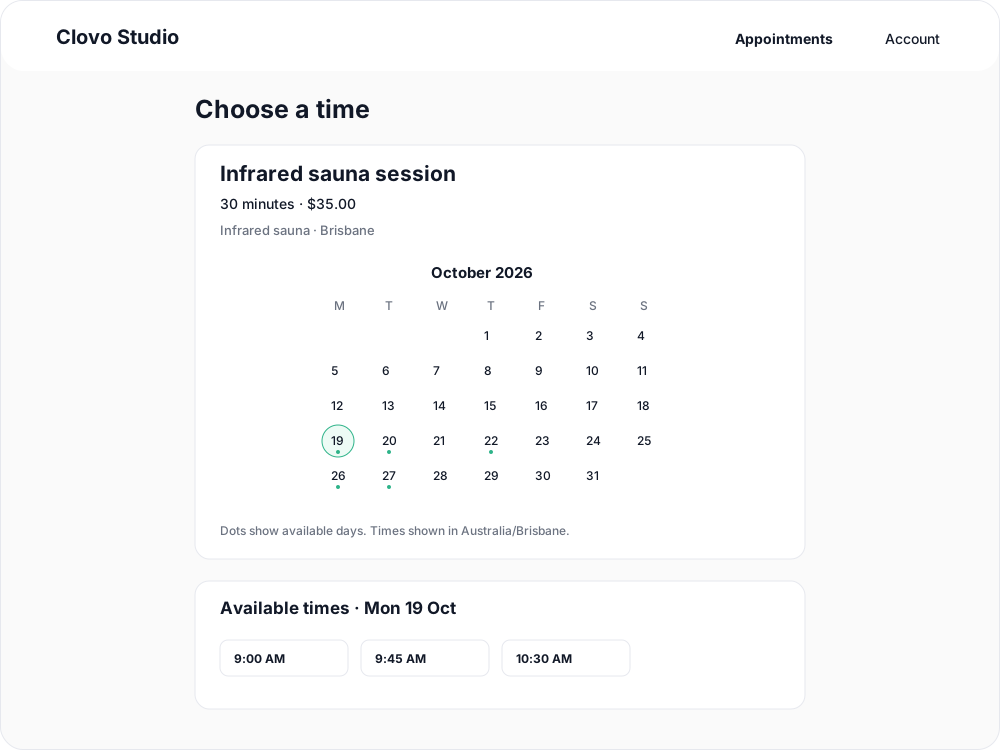
On the website, dots mark dates with availability. If no times are offered, clients can try another date. Staff may need to publish future availability if later weeks have not been set up.
Review payment and submit
The review shows the appointment, date, time, location, payment choices and cancellation policy. Clients choose an eligible pack or plan, or card. If a card needs to be saved, they complete that step and return to finish the booking.
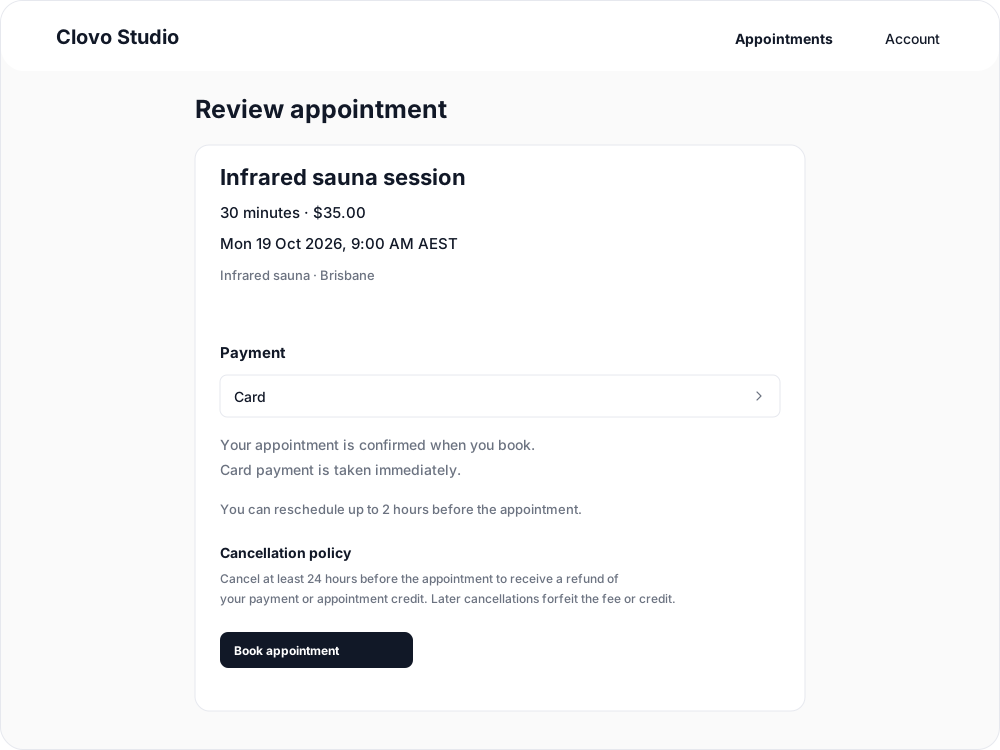
- Immediate confirmation: the client selects Book appointment. Card payment is taken immediately, and confirmation follows a successful payment.
- Staff approval: the client selects Request appointment. The time is reserved and the saved card is charged when staff approve. A pack or plan reserves the applicable allowance while the request waits.
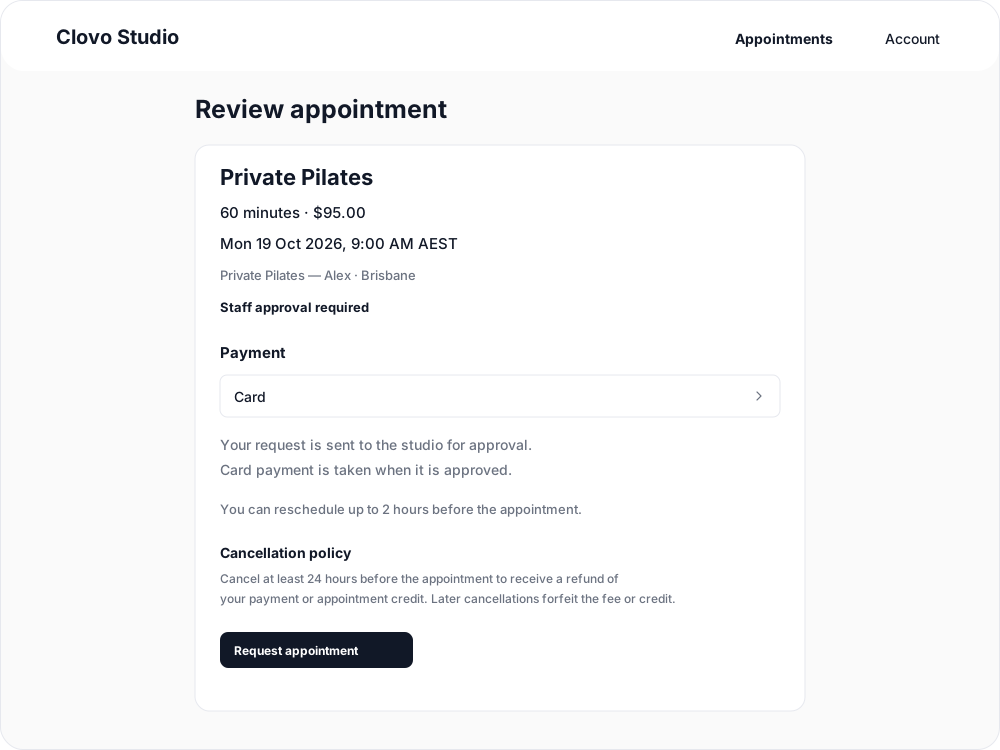
On iPhone, the review also explains the payment timing before the client continues to choose their card.
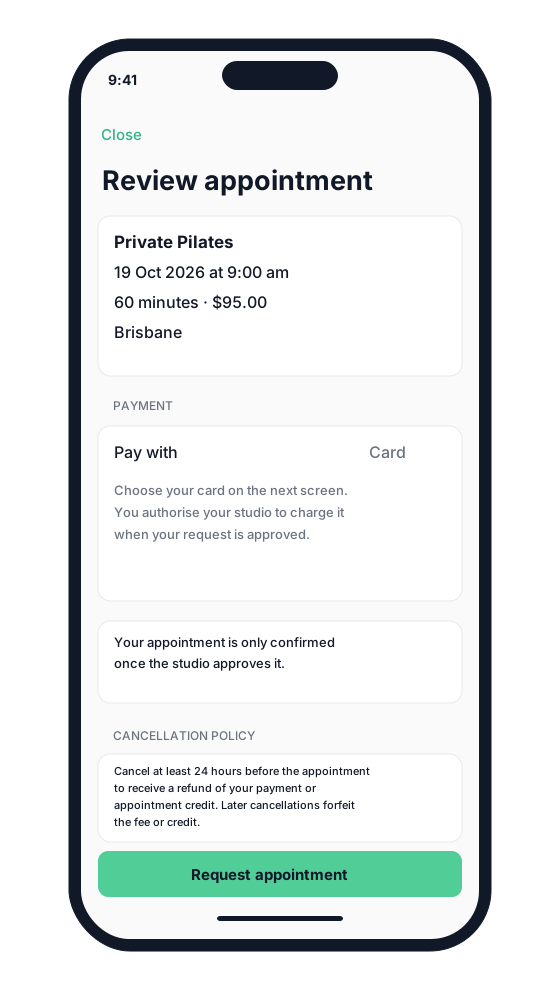
Either payment timing can be used with either booking style. A fixed slot can need approval; a flexible booking can confirm immediately.
Clients awaiting approval are told their booking is not yet confirmed. They receive an update when staff approve or decline. They should wait for confirmation before treating the appointment as booked.
Return to a booking
Signed-in website clients can view upcoming and past appointments. In the iPhone app, appointments also appear on the account screen. Open a booking to see its status and available cancellation or rescheduling actions. The applicable cancellation outcome is shown before cancellation is confirmed.
Related articles
Appointments in Clovo
Bring private sessions, room bookings and wellness appointments into Clovo, with flexible availability, staff approval and payments.
Book an appointment on behalf of a client
Choose a client, select an available appointment and take payment or submit it for staff approval.
Create an appointment calendar for a facility
Make an infrared sauna, massage chair or similar facility bookable through a room/location calendar.
Create an appointment calendar for a room or location
Let clients reserve a room or an entire location, and assign staff to manage its appointments.