
Answer questions about your clients with Client Insights

Tobias Gundry
Updated
When another screen or report doesn't answer your question about your clients, use Client Insights to explore their attendance, memberships and spending together. Choose the details you need, narrow the list with filters, and save the search for next time.
Open Clients → Client Insights in Clovo Dashboard. Owners and staff with the Finance role have access.
Start with a question
For example: which clients attended at least eight classes and spent at least $200 in the past 30 days?
- Choose Last 30 days under Period and Current under Accounts.
- Open Filters and select Add filter.
- Choose Checked-in bookings, At least / on or after, and enter
8. - Add a Spend in period (AUD) filter with At least / on or after and enter
200. - Select Search to see the matching clients. Select View beside a client if you need their profile.
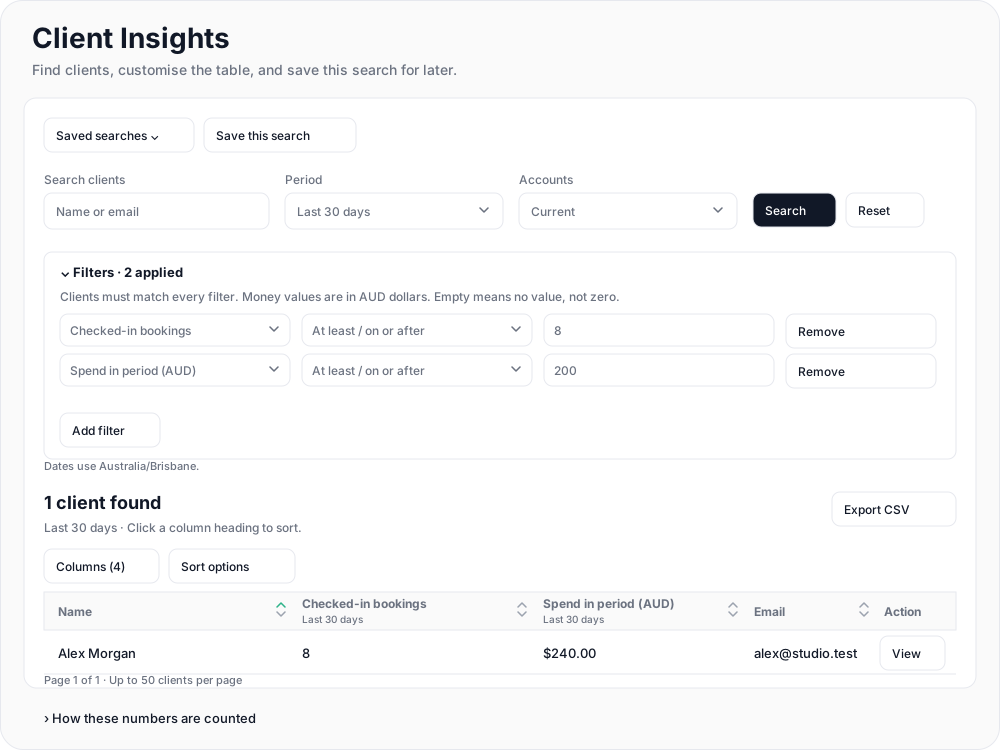
Clients must match every filter. Change the columns, conditions and values to answer your own question.

Choose the details you need
Open Columns, search for a detail, and turn it on. Use Move up or Move down to arrange the list, then Update table. Name stays first.
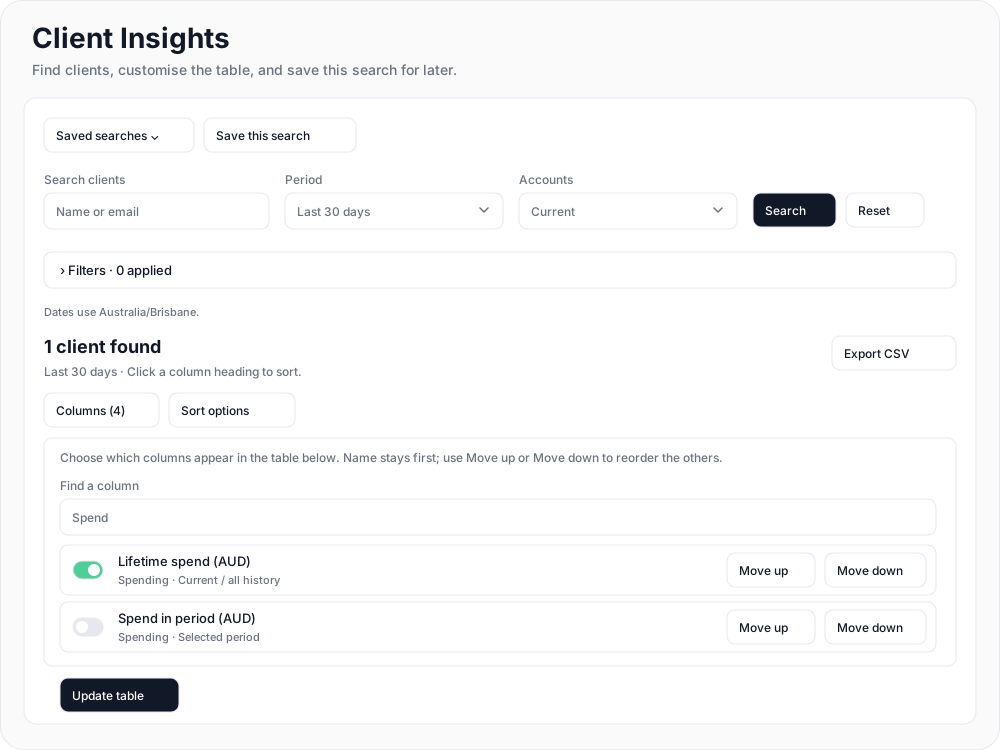
For spending over a particular time, choose a Period and turn on Spend in period (AUD). Lifetime spend (AUD) always covers the client's full history. Spend is shown after refunds.

Select a column heading to sort the results. Use Sort options when you want to sort by a detail you are not displaying.
Attendance is based on checked-in bookings. If a number needs explanation, open How these numbers are counted below the results.
Reuse your search
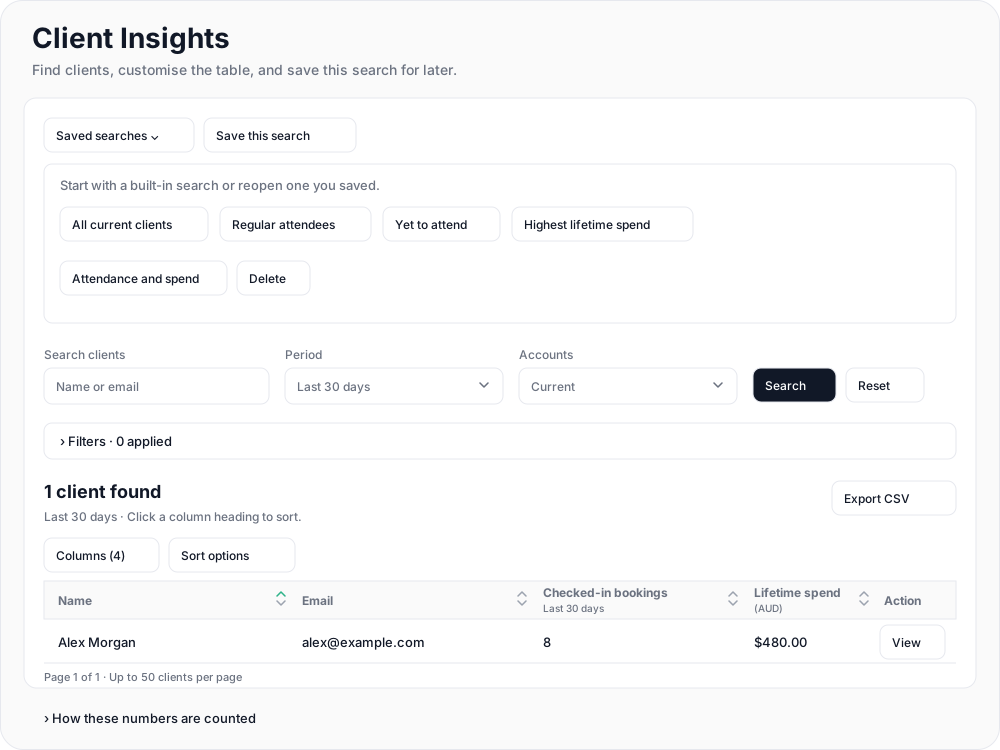
Select Save this search, enter a name, then Save search. Your saved searches are private to you and reopen with the latest matching clients.

Open Saved searches to return to yours or start with Regular attendees, Yet to attend or Highest lifetime spend.
Download the matching list
Apply your changes with Search or Update table, then select Export CSV. The download includes all matching clients, with your applied columns and sorting—not only the page you can see.
For contact details and marketing preferences, see Export your client data.
Related articles
Export your client data
Download your client list from Clovo Dashboard as a CSV, choosing which client groups to include and knowing which columns the file carries before you take it anywhere else.
Work out what a client is worth over their whole time with you
The Customer Lifetime Value report shows the average amount a paying customer has spent across their whole relationship with your studio.
Add a client to your studio manually
Create a client profile from the dashboard, record the required consent dates, confirm the email address, and understand which emails the client receives straight away.
Give your clients branded support
Every Clovo studio has a member-facing help centre, live right now, with no setup required. It sits on your landing page, it’s written in your studio’s voice, and it wears your branding.