
Find where booked places are being lost with the Cancellations & No-Shows report

Tobias Gundry
Updated
The Cancellations & No-Shows report shows where booked places were lost before classes ran. It gives you an attrition rate for the past 30 days, splits the losses into late cancels, early cancels and no-shows, and names the classes losing the highest share of their spots.
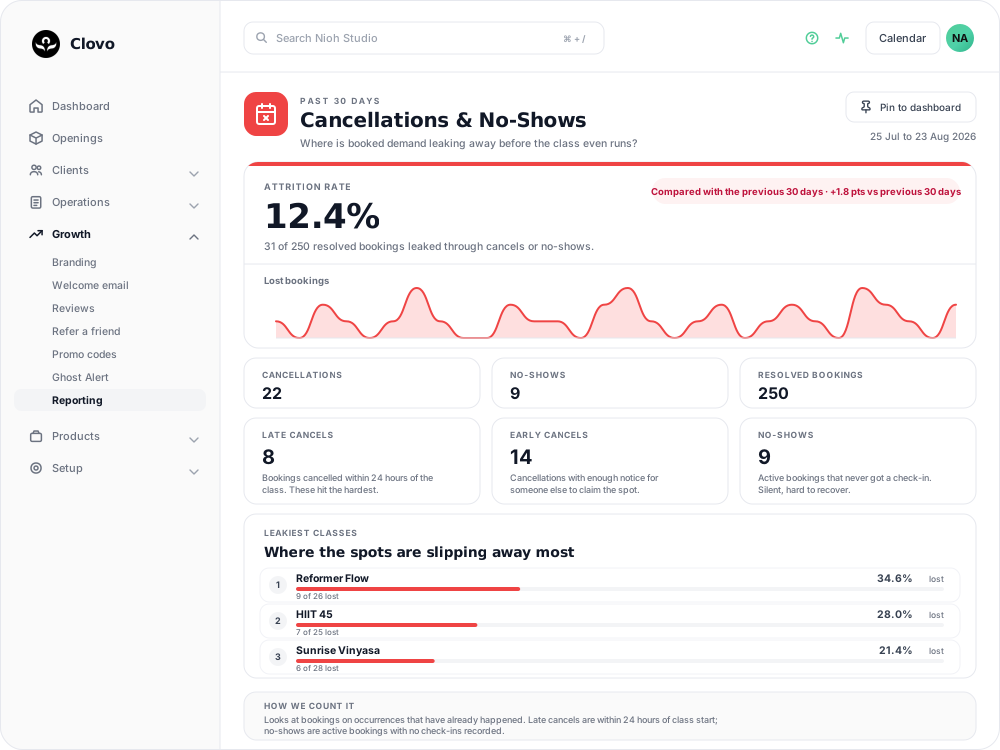
Pin to dashboard, at the top right, keeps this report on your dashboard home so the rate is in front of you without opening Reporting.
The window is 30 days of classes, not 30 days of cancelling
Every booking here is filed by the date its class ran, not the date somebody cancelled it. "Past 30 days" means the past 30 days of your timetable.
Two things follow from that:
- A cancellation made today for a class next month appears nowhere yet. It joins the report when that class falls inside the window.
- A cancellation made two months ago for a class last week is counted in this window, because it is the class date that sits in the range.
So this is not a measure of how much cancelling happened last month. It measures how well last month's classes held onto their bookings.
A booking is counted once it is resolved — either cancelled, or attached to a class that has already started. Classes still to come today are left out until they begin. A class currently running is already counted, so anyone not yet checked in is showing as a no-show until your team checks them in. It is worth reading the numbers at the end of the day rather than mid-session.
What each figure counts
- Attrition rate — the share of resolved bookings that were cancelled or ended as no-shows. The chip beside it compares that rate with the previous 30 days, in percentage points.
- Cancellations — resolved bookings that were cancelled.
- No-shows — bookings that were never cancelled, on classes that have passed, with no check-in recorded.
- Resolved bookings — the denominator: everything cancelled, plus everything whose class has run.
- Lost bookings — the chart, plotting cancellations and no-shows per day against the class date.
The 24-hour late-cancel line is fixed
Late cancels are cancellations made less than 24 hours before the class started, and early cancels are the rest. That 24-hour line is built into the report. It is not your cancellation policy.
Your policy lives on each rule in Setup → Penalties, as Hours before class start. If yours is set to 4, this report will report late cancels for cancellations where no penalty was applied. If it is set to 48, cancellations that received a penalty will be filed here as early. When you need to know what was actually forfeited or charged, use See Applied on the Penalties screen rather than this split. See Set up late cancellation and no-show penalties.
Leakiest classes shows five, and skips quiet ones
Leakiest classes ranks classes by the share of their resolved bookings that were lost, and lists the top five.
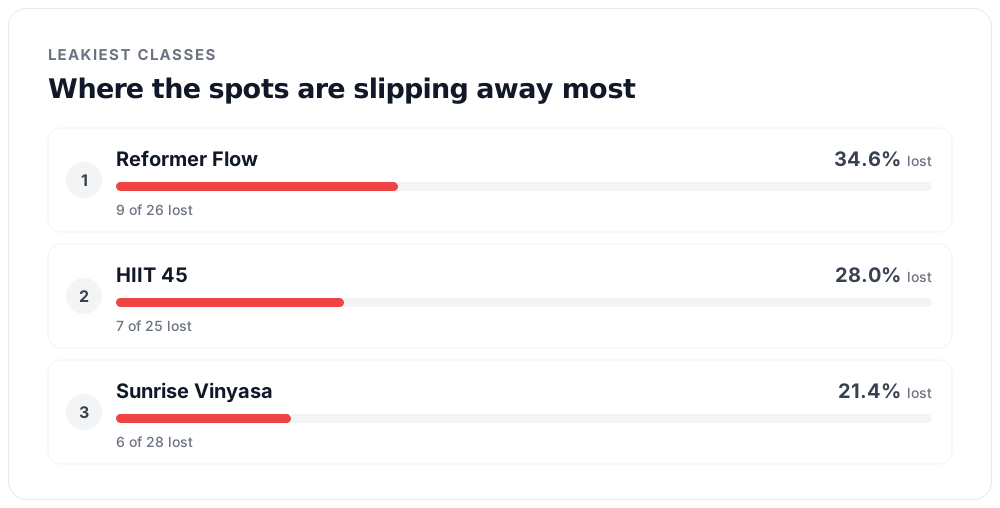
Two limits decide whether a class can appear at all:
- A class needs at least three resolved bookings in the window. Classes below that threshold are left out, regardless of their cancellation or no-show rate.
- Only the five worst are listed.
A class missing from the list may have ranked below the top five or had fewer than three resolved bookings.
Rows are grouped by class name, so every occurrence of the same class in the window is combined into one row whatever time it ran. The list tells you which class is leaking, not which time slot.
What the report does not count
- Classes you cancelled. If the class occurrence itself was cancelled, its bookings are excluded. Calling off a session does not push your attrition rate up.
- Archived and deleted clients. Their bookings drop out of the whole report, including windows that have already passed. Archiving a client who missed several classes will lower the rate you saw for last month, so a figure you noted earlier may not match the one shown now. See Archive a client without deleting their history.
- Staff accounts.
Everything else is counted, including bookings your penalty rules would never act on — direct purchase bookings, complimentary bookings, and classes marked Exempt From Penalties. A booking with no check-in is a no-show here whether or not a penalty followed, so these counts will usually run ahead of the penalties you actually applied.
Acting on a rising rate
Late cancels and no-shows are the hardest losses to recover, because there is little or no time to offer the place to somebody else.
- Turn a waitlist on for the classes at the top of the list, so a place given up close to the start can be offered to the next person in the queue. See Use a waitlist to fill a cancelled place.
- Compare your late-cancel count with your cancellation window. If most of your losses land inside 24 hours and your penalty rule uses a shorter window, members are cancelling in a gap your policy does not cover.
- Check that reminders are reaching people, since a reminder is often what turns a silent no-show into an early cancel that the waitlist can fill. See How booking reminders reach your clients.
Related articles
Spot members leaving before it shows in your revenue with the Churn Rate report
The Churn Rate report measures the recurring memberships cancelled in the past 30 days against the member base you started that window with, counted from the day each member asked to leave.
Answer questions about your clients with Client Insights
Explore attendance, memberships and spending to answer questions about your clients, then save or export the results.
Work out what a client is worth over their whole time with you
The Customer Lifetime Value report shows the average amount a paying customer has spent across their whole relationship with your studio.
See what each client spends with you every month with the Spend per Customer report
The Avg Spend per Customer report shows how much each paying customer has spent on average during the past 30 days.