
Let clients book for children, family members, and friends

Tobias Gundry
Updated
Linked profiles let one client book classes for themselves and for a child, family member, friend, or someone in their care from the same account.
Allow clients to add profiles
Additional profiles are available by default. To check or change the setting:
- Go to Setup → Bookings.
- Under Additional profiles, turn on Allow additional profiles.
- Select Save changes.
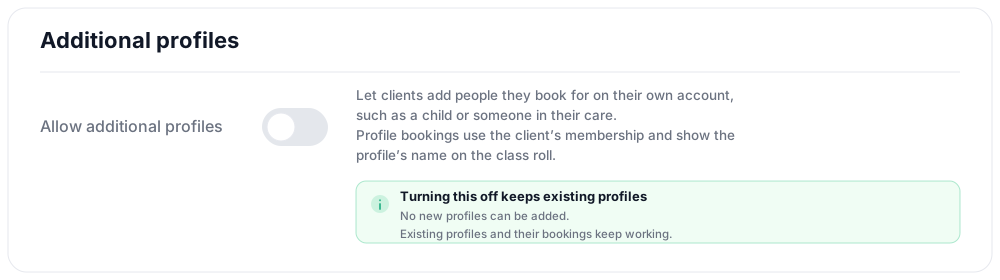
Turning the setting off prevents clients and staff from adding new profiles. Existing profiles remain available and their bookings are not affected. Turn the setting back on when you want clients and staff to be able to add profiles again.
What your clients can do
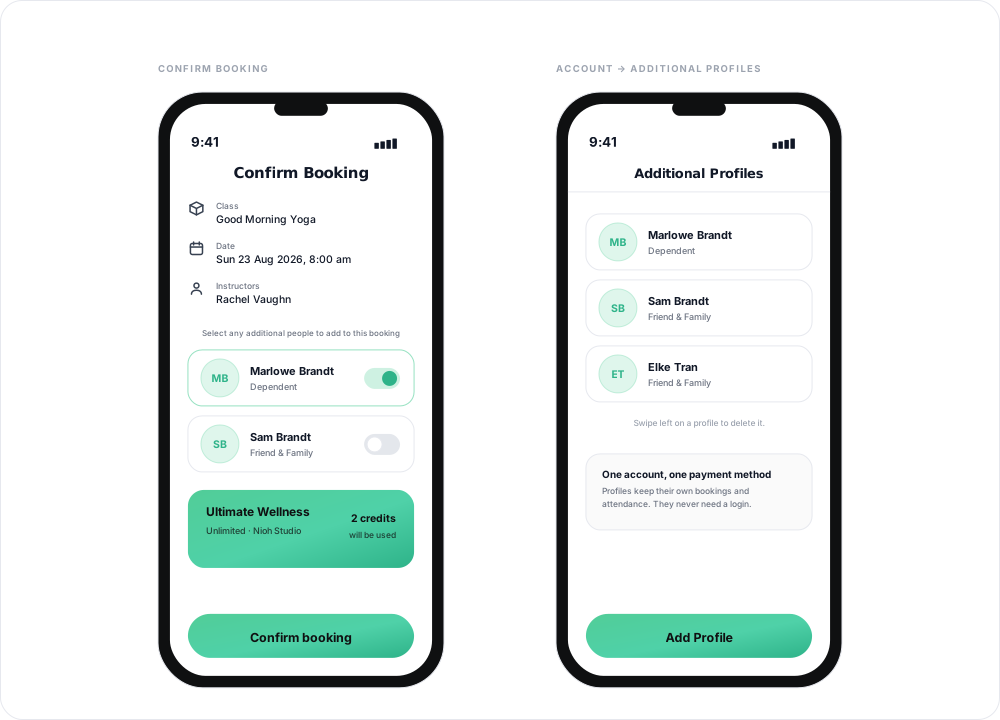
- Create linked profiles — under Account → Additional Profiles, a client adds a profile with a first name, a last name, and a relationship of either Dependent or Friend & Family
- Bring them along on a booking — on the booking sheet, Select any additional people to add to this booking lists every linked profile with a switch beside it. Switching one on books that person into the same class alongside the account holder
- Pay for all of it from one account — the credits come off the account holder’s membership or credit pack, so a parent booking themselves and two children spends three credits from the one plan
- Manage bookings in one place — upcoming bookings for every linked profile sit under the same account

How linked profiles work
Each linked profile has its own booking history and attendance record. The primary account holder manages all profiles and handles purchases and payments. Linked profiles do not need their own email address or separate Clovo login — they are people on someone else’s account, not accounts of their own.
Because the account holder owns the plan, the usual booking rules are checked against their product: their class allowance, their remaining credits, their pack expiry. If a booking for a profile is refused, the reason will point at the account holder’s plan rather than the profile.
Each person needs an available place and an eligible credit. If only some bookings succeed, the confirmation shows which profiles could not be added so the account holder can confirm how many places were booked.
Booking a profile in from the dashboard
You can do the same thing from Clovo Studio. On the opening, click Add Booking and the client picker lists each account owner followed by their profiles, labelled Dependent or Friend & Family and tagged with the account they belong to. Select the profile that will attend so the attendance is recorded against the correct person.
See Book a client into a class from the studio dashboard.
What this means for your studio
Linked profiles appear separately on class bookings and rolls. You can see which account they belong to, and each profile’s attendance is tracked independently, so a family of four is recorded as four separate attendances.
The account holder can remove a linked profile from Additional Profiles. Existing bookings remain on the studio record.
This works well for family-oriented studios, children’s programs, and any studio where one person often books for a group.
Related articles
Add a client to your studio manually
Create a client profile from the dashboard, record the required consent dates, confirm the email address, and understand which emails the client receives straight away.
Book a client into a class from the studio dashboard
Book a client into a class from Clovo Dashboard when they call, walk in, or ask your team to make the booking for them.
Set up late cancellation and no-show penalties
Set late cancellation and no-show rules, choose credit forfeiture or membership-only fees, and check the penalties applied to bookings.
Use a waitlist to fill a cancelled place
Turn a waitlist on for a class, choose how it processes, give members priority, and read the queue when a place comes free.